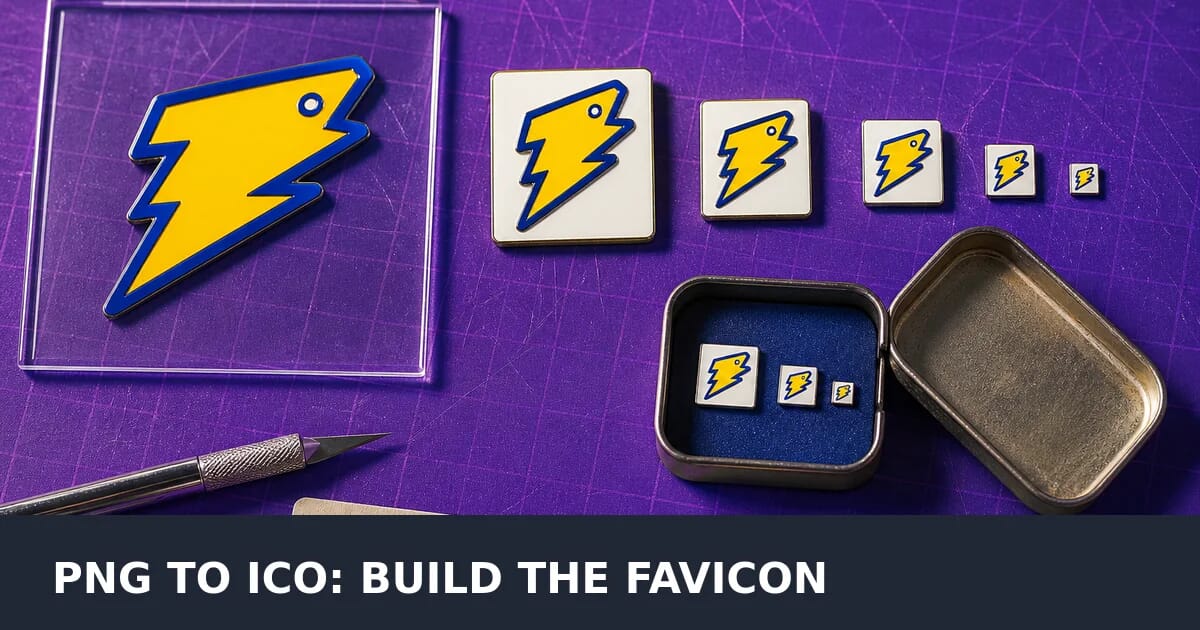
PNG to ICO: 9 Steps to a Favicon That Works Everywhere
Convert PNG to a multi-size ICO and ship the four favicon files that matter, plus the SVG dark-mode trick and the caching problem.
A favicon looks like a five-minute job until you discover that ICO is a container format, that browsers cache it harder than anything else on your site, and that half the online generators still hand you twenty files and a wall of markup you do not need.
The modern answer is four files and four lines of HTML. This guide covers the conversion itself, then the nine steps that make it work across browsers, phones, dark mode and search engine crawlers.
What You Actually Need in 2026
| File | Size | Purpose |
|---|---|---|
favicon.ico | 16, 32, 48 | Crawlers, feed readers, older browsers, the bare /favicon.ico request |
favicon.svg | Any | Every current browser, scales perfectly, supports dark mode |
apple-touch-icon.png | 180×180 | iOS home screen |
icon-192.png, icon-512.png | 192, 512 | Android home screen and PWA install |
That is it. The 20-file bundles that generators produce date from an era of Windows tiles, old Android versions and Safari pinned tabs, and almost none of it is used now.
<link rel="icon" href="/favicon.ico" sizes="32x32">
<link rel="icon" href="/favicon.svg" type="image/svg+xml">
<link rel="apple-touch-icon" href="/apple-touch-icon.png">
<link rel="manifest" href="/manifest.webmanifest">
Browsers pick the best option they support. Modern ones take the SVG; everything else falls back to the ICO.
1. Understand What ICO Is
ICO is not an image format in the way PNG is. It is a container that holds several images at different sizes, and the browser picks the one closest to what it needs.
That is why “convert PNG to ICO” is not quite a format conversion. You are packaging one image at several resolutions into a single file. A single-size ICO works, but it will be scaled by the browser at every other size, and downscaling a 256×256 logo to 16×16 in real time looks noticeably worse than an icon drawn for 16×16.
An ICO can store its images as either BMP or PNG data internally. PNG inside ICO has been supported since Windows Vista and Internet Explorer 11, so there is no compatibility reason to avoid it now. It makes larger sizes much smaller.
2. Design for 16 Pixels First
The step everyone skips, and the reason most favicons are an unreadable smudge in a tab.
At 16×16 you have 256 pixels total. Your full logo, with its wordmark and its gradient and its thin outline, becomes noise. Look at any favicon you recognise: they are all a single letter, a simple glyph, or one bold shape.
Practical rules:
- Drop the wordmark. Keep the symbol, or a single letter.
- Remove thin strokes. Anything under about 2 pixels at final size disappears or aliases into grey mush.
- Increase the contrast. Tab bars are grey; mid-tone icons vanish into them.
- Simplify to two or three colours.
- Fill the canvas. Padding that looks balanced at 512 pixels wastes half your 16-pixel icon. Aim for the artwork to occupy roughly 90% of the square.
Draw or adapt the mark at 16×16 and 32×32 deliberately, then scale up for the larger sizes. It is far easier than scaling a complex logo down.
3. Start From a Square, Lossless Master
Export a 512×512 PNG with transparency from your design tool. Square, centred, no padding beyond what you want to keep.
If your logo only exists as a raster at low resolution, redraw or trace it first — our image to vector guide covers the options. Everything below assumes a clean master, and no conversion recovers detail that was never there.
4. Convert to a Multi-Size ICO
ImageMagick, the One-Liner
# 16, 32 and 48 pixel entries in one .ico
magick icon-512.png -define icon:auto-resize=16,32,48 favicon.ico

# Add 64 and 256 if you also want a Windows desktop icon
magick icon-512.png -define icon:auto-resize=16,32,48,64,256 favicon.ico

# Check what ended up inside
magick identify favicon.ico
# favicon.ico[0] ICO 48x48 ...
# favicon.ico[1] ICO 32x32 ...
# favicon.ico[2] ICO 16x16 ...
icon:auto-resize is the whole trick. Without it you get a single-size file.
Sharpen the small entries if they come out soft:
magick icon-512.png -filter Lanczos -define icon:auto-resize=16,32,48 -unsharp 0x0.75+0.75+0.008 favicon.icoGIMP
Open the 512×512 PNG, then Image → Scale Image to 48×48. Duplicate the layer, scale each copy to 32 and 16, then File → Export As → favicon.ico. The export dialog lists every layer as an ICO entry, with a bit-depth choice per entry.
png2ico
A single-purpose tool if you do not want ImageMagick:
sudo apt install png2ico
png2ico favicon.ico icon-16.png icon-32.png icon-48.png
It takes pre-made PNGs at each size, which suits the workflow in step 2 where you drew them separately.
A Browser Converter
For a one-off on a machine without tooling, any converter that writes multi-size ICO will do. Prefer one that runs locally — our free image tools guide lists the options that do not upload your artwork.
Avoid the online generators that produce a zip of twenty files. You will spend longer deleting what you do not need than making the four files yourself.
5. Make the SVG Version
This is the file modern browsers will actually use, and it is where you get dark mode for free.
Export your mark as an SVG, then run it through SVGO to strip the editor’s metadata:
npx svgo favicon.svg --multipassThen add a media query inside the SVG so the icon adapts to the browser’s theme:
<svg xmlns="http://www.w3.org/2000/svg" viewBox="0 0 100 100">
  <style>
    .mark { fill: #0F172A; }
    @media (prefers-color-scheme: dark) {
      .mark { fill: #F8FAFC; }
    }
  </style>
  <path class="mark" d="M20 20 H80 V80 H20 Z"/>
</svg>
A dark logo disappears against a dark tab bar, and this is the only way to fix it — ICO and PNG have no conditional colour. Keep the SVG simple: a favicon SVG with filters, gradients or embedded fonts can render inconsistently, and it should be under about 2 KB. Our SVG best practices guide covers what to avoid.
6. Add the Mobile Icons
magick icon-512.png -resize 180x180 -background white -alpha remove -alpha off apple-touch-icon.png
magick icon-512.png -resize 192x192 icon-192.png
magick icon-512.png -resize 512x512 icon-512.png
iOS ignores transparency on home screen icons and composites them onto black, so flatten apple-touch-icon.png onto your brand colour or white. This is the most common home-screen bug: a logo that looks fine everywhere turns into a black square on an iPhone.
iOS also applies its own rounded corners, so do not add your own — you will get a rounded square inside a rounded square.
The manifest handles Android:
{
  "name": "Your Site",
  "short_name": "Site",
  "icons": [
    { "src": "/icon-192.png", "sizes": "192x192", "type": "image/png" },
    { "src": "/icon-512.png", "sizes": "512x512", "type": "image/png" },
    { "src": "/icon-512.png", "sizes": "512x512", "type": "image/png", "purpose": "maskable" }
  ],
  "theme_color": "#0F172A",
  "background_color": "#ffffff",
  "display": "standalone"
}
The maskable entry matters on Android, which crops icons to a device-specific shape. A maskable icon needs its important content inside the middle 80% — the “safe zone” — or the corners get cut off.
7. Keep favicon.ico at the Root
Put the file at /favicon.ico, not in an assets folder, even though you have a <link> tag pointing at it.
Plenty of clients request that exact path without ever parsing your HTML: search engine crawlers, RSS readers, chat applications generating link previews, bookmark managers, and monitoring tools. If it is not there, they get a 404, your logs fill with noise, and some of them show a blank icon.
Keeping it at the root costs nothing and removes a whole class of small problems.
8. Beat the Cache
Browsers cache favicons more aggressively than any other asset, sometimes ignoring normal cache headers entirely. Updating your logo and seeing the old icon for weeks is normal behaviour, not a bug in your deployment.
Two ways around it:
<!-- Version query string -->
<link rel="icon" href="/favicon.svg?v=2" type="image/svg+xml">

<!-- Or change the filename, which is more reliable -->
<link rel="icon" href="/favicon-2026.svg" type="image/svg+xml">
Changing the filename works everywhere. The query string works in most browsers but not all.
To see the current state while testing, open the favicon URL directly in a tab and hard-refresh it, rather than trusting what the tab bar shows.
9. Handle Your Framework’s Conventions
Several frameworks generate the markup for you if you put files in the right place.
Next.js App Router — drop these into app/ and the tags are generated automatically:
app/favicon.ico
app/icon.svg
app/apple-icon.png
Next.js also supports icon.tsx and apple-icon.tsx, which generate the images at build time from JSX using the ImageResponse API. Useful when the icon should include dynamic content.
Astro, Vite, SvelteKit and most static site generators — put the files in public/ and add the <link> tags to your base layout yourself. Files in public/ are copied to the site root untouched, which is exactly what /favicon.ico needs.
WordPress — Appearance → Customize → Site Identity → Site Icon. WordPress generates the sizes from one 512×512 upload. It does not produce an SVG favicon, so add that with a wp_head action if you want one.
Testing It
- Open your site in a new tab and look at the tab bar at 100% zoom
- Switch your operating system to dark mode and check the SVG swaps colour
- Add the site to an iPhone home screen and confirm the icon is not a black square
- Do the same on Android and check the maskable crop
- Request
/favicon.icodirectly and confirm a 200, not a 404 - Run
magick identify favicon.icoand confirm it contains three entries
Common Mistakes
A single-size ICO. The browser scales it at every other size, and small renders look soft. Use icon:auto-resize.
A transparent apple-touch-icon. iOS composites onto black. Flatten it.
Only an SVG. Crawlers and feed readers still request /favicon.ico.
A detailed logo at 16 pixels. Unreadable. Simplify the mark.
Adding rounded corners yourself. Every platform applies its own.
A giant PNG in the ICO. This one is worth measuring, because the cost is much larger than people expect:
ICO File Size by Included Entries
Built from one 512×512 source with ImageMagick's icon:auto-resize.
Adding a single 256×256 entry took the file from 15 KB to 279 KB — nineteen times larger — for a size no browser tab will ever display. That file is requested on every page load. Keep the ICO to 16, 32 and 48, and let the SVG handle larger renders.
Summary
The Nine Steps
| # | Step | Why |
|---|---|---|
| 1 | Understand ICO as a container | It holds several sizes, not one |
| 2 | Design for 16 pixels | The most common render size by far |
| 3 | Start from a 512×512 lossless master | Everything else derives from it |
| 4 | Build a multi-size ICO | -define icon:auto-resize=16,32,48 |
| 5 | Make the SVG, with a dark-mode query | The file modern browsers use |
| 6 | Add the mobile icons, flattened | iOS turns transparency black |
| 7 | Keep favicon.ico at the root | Crawlers request it directly |
| 8 | Version the filename | Favicon caching is unusually aggressive |
| 9 | Use your framework’s convention | Less markup to maintain |
Checklist
- ✅
magick identify favicon.icoshows 16, 32 and 48 entries - ✅
favicon.svgis under 2 KB and swaps colour in dark mode - ✅
apple-touch-icon.pngis 180×180 with no transparency - ✅ The manifest has 192, 512 and a maskable icon
- ✅
/favicon.icoreturns 200 at the site root - ✅ The mark is legible at 16 pixels on a grey background
- ✅ Only four files shipped, not twenty
magick icon-512.png -define icon:auto-resize=16,32,48 favicon.ico produces the file most people are looking for. The other eight steps are what make it look right everywhere it appears.
Sources
Related Resources
Related Guides
SVG Best Practices for Web Performance
12 Image File Types Explained: When to Use Each
PNG Optimization: Transparency Done Right
8 Ways to Convert an Image to Vector (JPG and PNG to SVG)
Image Resizing for the Web: The Complete Guide
Screenshots and Documentation Images: Optimization Guide