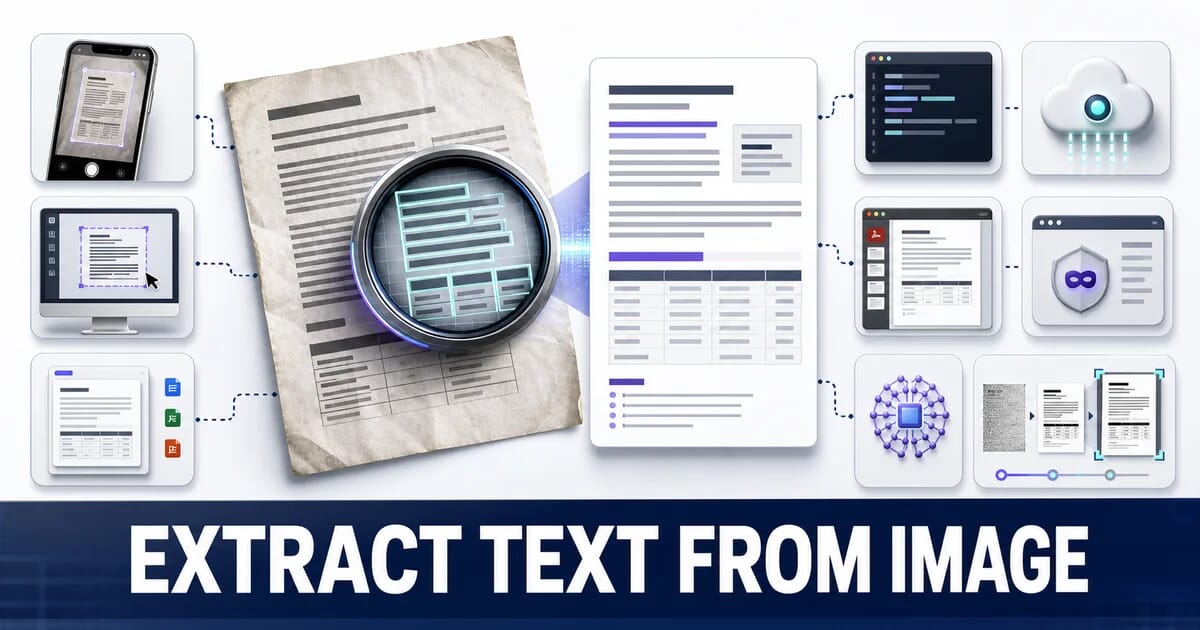
9 Ways to Extract Text From an Image (OCR Methods Compared)
Get text out of a photo with your phone, Google Drive, Windows, macOS, Tesseract or a cloud OCR API - plus how to raise accuracy on bad scans.
Optical character recognition turns pixels back into text. The technology is mature enough that the interesting question is no longer “can it work” but “which of the nine ways fits what I am actually doing”.
A one-off photo of a receipt, a folder of 4,000 scanned invoices, and a screenshot you want to quote in a document are three different problems with three different right answers. This guide covers all nine, ranked by how quickly they get you to text.
Pick Your Method First
| # | Method | Cost | Best for | Batch? |
|---|---|---|---|---|
| 1 | Phone camera | Free | One photo, right now | No |
| 2 | Google Drive + Docs | Free | A few files, editable output | Limited |
| 3 | Windows / macOS built-ins | Free | Screenshots on your desktop | No |
| 4 | Microsoft Office | Included | Documents you are already editing | No |
| 5 | Tesseract CLI | Free | Scripted local batches | Yes |
| 6 | Cloud OCR APIs | Per page | Large volumes, structured data | Yes |
| 7 | Adobe Acrobat | Subscription | Scanned PDFs, searchable output | Yes |
| 8 | Online converters | Free | Nothing sensitive | Limited |
| 9 | Vision language models | Per call | Messy layouts, handwriting, context | Yes |
1. Your Phone Camera
The fastest path, and most people do not know it is built in.
iPhone (iOS 15+): Open the Camera or a photo, press and hold on the text. Yellow brackets appear around the recognised block. Drag to select, then Copy. It also works on text in the live camera view before you take a picture.
Android: Open Google Lens, either from the Assistant, the Camera app, or Google Photos. Point at the text, tap Text, then Copy text. “Copy to computer” pushes it straight to a signed-in Chrome desktop.
When This Is the Right Answer
- A business card, receipt, serial number, or WiFi password
- A page of a book you want to quote
- Anything where opening a laptop is more effort than the task deserves
Accuracy on clean printed text is excellent. It struggles with handwriting, dense multi-column layouts, and anything photographed at a steep angle.
2. Google Drive and Google Docs
The best free option for turning an image into an editable document rather than a clipboard string.
- Upload the image or PDF to Google Drive
- Right-click it → Open with → Google Docs
- Drive runs OCR and produces a Doc with the original image at the top and the extracted text below it
What Makes It Good
- Handles multi-page PDFs
- Preserves basic structure: paragraphs, and often headings
- Free with any Google account
- Output is immediately editable and exportable to
.docx
Limits
- Files up to 2 MB give the best results; large scans get downsampled
- Complex tables come out as loose text, not table structure
- Formatting fidelity is approximate, not exact
This is the method behind most “jpg to word” searches, and it is free.
3. Windows and macOS Built-Ins
Windows PowerToys → Text Extractor: Install Microsoft PowerToys, then press Win + Shift + T, drag a rectangle over any text on screen, and it lands on your clipboard. It works on text inside videos, error dialogs, and applications that block selection.
Windows Snipping Tool: Recent versions include Text actions after a capture, which extracts text and can redact email addresses and phone numbers.
macOS Live Text: Open any image in Preview, Quick Look, or Photos, and select text directly with the cursor. Works in Safari on images in web pages too.
When This Is the Right Answer
Anything already on your screen. There is no upload, no file to save, and no round trip.
4. Microsoft Office
OneNote: Paste an image into a page, right-click it, choose Copy Text from Picture. OneNote also indexes text inside images, so it becomes searchable in your notes.
Word: Insert a scanned PDF and Word offers to convert it to an editable document, running OCR as part of the conversion.
Excel: The Data → From Picture feature reads a photograph of a table and produces actual cells. It is the only method on this list that genuinely targets tabular data, and it asks you to confirm low-confidence cells before inserting.
If you are already inside Office, this is less friction than any external tool.
5. Tesseract
The open-source OCR engine, and the right answer when you have a folder rather than a file.
# Install
sudo apt install tesseract-ocr          # Debian/Ubuntu
brew install tesseract                  # macOS

# Single file
tesseract receipt.png output            # writes output.txt

# Straight to stdout
tesseract receipt.png -

# A whole folder
for f in scans/*.png; do
  tesseract "$f" "text/$(basename "${f%.*}")" 2>/dev/null
done

# Searchable PDF: the original image with an invisible text layer over it
tesseract scan.png output pdf

# Other languages (install the data pack first)
tesseract facture.png output -l fra
tesseract mixed.png output -l eng+deu
Page Segmentation Is the Setting That Matters
Tesseract’s accuracy depends heavily on telling it what shape the page is.
--psm | Meaning | Use for |
|---|---|---|
| 3 | Fully automatic (default) | Ordinary documents |
| 4 | Single column of variable sizes | Receipts, invoices |
| 6 | A single uniform block of text | Screenshots, cropped regions |
| 7 | A single line | Labels, serial numbers |
| 8 | A single word | Captchas, plate numbers |
| 11 | Sparse text, any order | Diagrams, signage |
tesseract receipt.png output --psm 4
tesseract label.png - --psm 7
If accuracy is poor, change --psm before you change anything else. It is the single highest-impact setting.
Get Structured Output
# Tab-separated with per-word confidence and bounding boxes
tesseract scan.png output tsv

# hOCR: HTML with position data, useful for building overlays
tesseract scan.png output hocr
6. Cloud OCR APIs
When you have thousands of pages, or you need more than a flat string of text.
| Service | Strength |
|---|---|
| Google Cloud Vision | Best general accuracy, strong on dense text and many languages |
| AWS Textract | Understands forms and tables as structures, not just text |
| Azure AI Vision | Good handwriting recognition, solid multi-language |
# Google Cloud Vision
from google.cloud import vision

client = vision.ImageAnnotatorClient()
with open("invoice.png", "rb") as f:
    image = vision.Image(content=f.read())

response = client.document_text_detection(image=image)
print(response.full_text_annotation.text)

for page in response.full_text_annotation.pages:
    for block in page.blocks:
        print(f"block confidence: {block.confidence:.2f}")
Note document_text_detection rather than text_detection. The first is tuned for dense documents, the second for sparse text in photographs such as street signs. Choosing the wrong one costs real accuracy.
The Reason to Pay
Textract returns a form as key-value pairs and a table as rows and columns. Tesseract returns the same page as a stream of words you then have to reassemble yourself. If your output feeds a database rather than a human, that structure is the entire value.
7. Adobe Acrobat
The standard answer for scanned PDFs in an organisation that already has Acrobat.
Tools → Scan & OCR → Recognise Text. Acrobat keeps the original scan as the visible page and adds an invisible text layer behind it, so the document looks unchanged but becomes searchable, selectable, and accessible.
That output format matters. A searchable PDF is the correct archival form for a scanned document: you keep the visual record and gain the text, rather than choosing between them.
The free alternative produces the same structure:
# OCRmyPDF: adds a text layer to an existing PDF, keeps the original image
ocrmypdf --deskew --clean input.pdf output.pdf

# Force re-OCR on a file that already has a bad text layer
ocrmypdf --redo-ocr input.pdf output.pdf
8. Online Converters
Dozens of sites offer free image-to-text. They are convenient, and they carry a specific cost worth understanding.
The Privacy Question
Most of them upload your file to a server. For a photo of a poster, that is fine. For an invoice, a contract, a payslip, a passport, or a medical letter, you have just handed a document to a third party whose retention policy you have not read.
How to Choose One
| Check | Why |
|---|---|
| Does processing happen in the browser? | If yes, nothing is uploaded |
| Is there a stated retention period? | “Deleted after 1 hour” is a real commitment |
| Is it HTTPS throughout? | Table stakes |
| Does it require an account for basic use? | Usually a data-collection signal |
Our own browser tools run entirely on your device using WebAssembly, so files never reach a server. If the document is sensitive, prefer any local method: your phone, your operating system, Tesseract, or Acrobat.
9. Vision Language Models
The newest option, and the one that behaves differently from everything above.
Traditional OCR reads shapes and returns characters. A vision language model reads the image and understands it, so you can ask for the output you actually want:
"Extract every line item from this receipt as JSON with fields:
description, quantity, unit_price, total. Return only valid JSON."
Where It Beats Classic OCR
| Situation | Classic OCR | Vision model |
|---|---|---|
| Clean printed page | Excellent, cheaper, faster | Overkill |
| Handwriting | Poor to fair | Much better |
| Messy multi-column layout | Confused reading order | Handles it |
| Table into structured data | Needs post-processing | Direct |
| “Which of these is the invoice total?” | Cannot answer | Can answer |
| 50,000 pages | Cheap at scale | Expensive at scale |
The Caveat That Matters
A vision model can hallucinate. Classic OCR fails visibly, producing garbage characters you can spot. A language model fails invisibly, producing a plausible number that was never on the page. For anything financial, legal, or medical, verify against the source or use classic OCR, where an error looks like an error.
Raising Accuracy on a Bad Source
Most OCR complaints are input problems, not engine problems. Five fixes, in order of impact.
1. Resolution
This is the one place in all of web imaging where DPI genuinely matters. OCR engines want roughly 300 DPI relative to the physical page, which for an A4 document means about 2,480×3,508 pixels. Below about 150 DPI, accuracy falls off a cliff.
If your scan is too low, upscaling before OCR sometimes helps:
magick scan.png -resize 200% -filter Lanczos upscaled.pngEverywhere else on the web, DPI is meaningless metadata. See the myths listicle for why.
2. Straighten It
Skew destroys line detection. A page rotated by three degrees can drop accuracy dramatically.
magick scan.png -deskew 40% deskewed.png
ocrmypdf --deskew input.pdf output.pdf
3. Increase Contrast, Then Binarize
OCR wants black text on white. Grey text on cream is much harder.
# Normalise, then threshold to pure black and white
magick scan.png -colorspace Gray -normalize -threshold 60% clean.png

# Gentler: adaptive threshold handles uneven lighting from phone photos
magick photo.jpg -colorspace Gray -lat 25x25-12% clean.png
The adaptive version (-lat) is the right tool for a photograph of a page, where one side is brighter than the other.
4. Remove Noise and Background
magick scan.png -despeckle -morphology Open Diamond clean.png
ocrmypdf --clean input.pdf output.pdf
5. Crop to the Text
Cropping away margins, staples, and the edge of the desk removes things the engine can mistake for characters.
magick photo.jpg -crop 1600x2200+120+180 +repage cropped.pngA Complete Preprocessing Pipeline
#!/usr/bin/env bash
# preprocess-for-ocr.sh — run before Tesseract on phone photos of documents
for f in "$@"; do
  out="prepped/$(basename "${f%.*}").png"
  magick "$f" \
    -colorspace Gray \
    -deskew 40% \
    -normalize \
    -lat 25x25-12% \
    -despeckle \
    +repage "$out"
  tesseract "$out" "text/$(basename "${f%.*}")" --psm 4
done
What Still Does Not Work Well
Be realistic about the limits so you do not waste an afternoon.
| Input | Outlook |
|---|---|
| Cursive handwriting | Poor with classic OCR, fair with vision models |
| Heavily stylised display fonts | Poor |
| Text over a busy photograph | Poor |
| Very low resolution (under 100 DPI) | Poor, and upscaling rarely rescues it |
| Faded thermal receipts | Poor |
| Complex nested tables | Structure is lost without a form-aware service |
| Text at a steep perspective angle | Correct the perspective first |
Perspective correction is worth doing before you give up:
magick photo.jpg -distort Perspective \
  '120,180 0,0  1480,140 1600,0  1520,2100 1600,2200  100,2140 0,2200' \
  flattened.png
OCR Is Not an Accessibility Fix
One important caveat. Running OCR over an image of text does not make that image accessible.
A screen reader does not run OCR. It reads the alt attribute. If your page contains a promotional banner with the offer baked into the pixels, the fix is to rebuild it with real HTML text, not to OCR it into an alt string.
<!-- Still inaccessible: zooming blurs it, translation cannot touch it -->
<img src="offer-banner.png" alt="25% off all lighting until 31 August">

<!-- Correct: real text over a decorative background -->
<div class="promo">
  <img src="promo-background.jpg" alt="" width="1200" height="400">
  <div class="promo__content">
    <h2>Summer sale</h2>
    <p>25% off all lighting until 31 August</p>
  </div>
</div>
The accessibility mistakes listicle covers this as mistake number one, and the screen reader guide covers the wider picture.
Summary
Choosing in One Line
| You have | Use |
|---|---|
| One photo, on your phone | Live Text or Google Lens |
| Something on your screen | PowerToys Text Extractor or macOS Live Text |
| A few images, want an editable doc | Google Drive → Google Docs |
| A table in a photograph | Excel → Data → From Picture |
| A folder of scans, scriptable | Tesseract with the right --psm |
| Thousands of pages with forms | AWS Textract or Google Cloud Vision |
| A scanned PDF to archive | Acrobat or OCRmyPDF, keeping the image layer |
| Handwriting or messy layout | A vision language model, then verify |
| Anything confidential | A local method, never an upload site |
Checklist
- ✅ The source is 300 DPI relative to the page, or as close as you can get
- ✅ The image is deskewed before OCR runs
- ✅ Contrast is normalised, and phone photos use adaptive thresholding
- ✅
--psmmatches the page shape, if you are using Tesseract - ✅ Sensitive documents never go to an online converter
- ✅ Scanned PDFs keep the image layer and gain a text layer, not one or the other
- ✅ Vision model output is verified when the numbers matter
- ✅ Nobody is using OCR as a substitute for accessible HTML text
Try the free method that matches your situation before reaching for anything paid. For most one-off jobs, the tool is already on the device in your hand.
Related Resources
Related Guides
Screenshots and Documentation Images: Optimization Guide
Image Metadata: EXIF, IPTC, and Privacy
Batch Image Processing Workflows: Scale Your Optimization
Accessible Images for Screen Readers: A Developer's Guide
12 Free Image Tools Every Web Developer Should Bookmark
12 Image File Types Explained: When to Use Each