PDF to Vector: How to Get a Real Vector File Out of a PDF
Convert a PDF to vector: check whether it already holds vector paths, extract them with pdf2svg, Inkscape or mutool, and trace only if scanned.
ImageGuide is published by Sirv. See our editorial method and Markdown reading copy.
A PDF may already contain vector paths, raster scans, or both. Open it in a compatible vector editor and inspect its contents before exporting SVG or another vector format. A scanned page requires tracing; exporting its pixels inside an SVG does not create true vector artwork.
Rasterize PDF pages first if you plan to trace them into vectors.
Same, in JPG — useful for previewing pages before tracing.
The full walkthrough for this conversion is below — the methods work with any image editor or command line, no upload required.
Before you convert
Check whether text and shapes remain editable and whether raster images are embedded. Zoom alone is a useful clue, not proof of the entire page’s structure.
Keep the PDF source and compare fonts, clipping, gradients, and page dimensions after export.
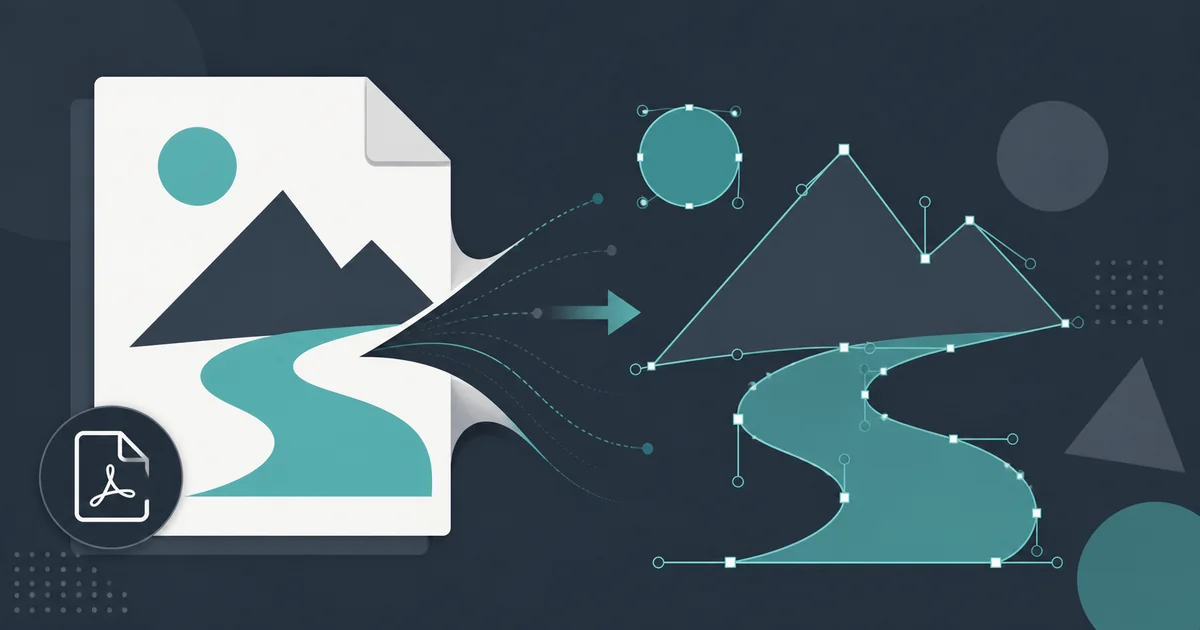
“Convert this PDF to a vector file” sounds like a simple request. It hides a surprise. A PDF is not an image format. A PDF is a container. Some PDFs already contain perfect vector paths. Some contain nothing but a scanned picture. Most contain a mix of both.
This changes everything about the job. If the vector content is already inside the file, you do not convert anything. You extract it, and the result is pixel-perfect. If the PDF holds a scan, there is no vector content at all, and you must trace the picture like any other raster image. If you skip this check, you can waste an hour tracing artwork that sat inside the file as clean curves the whole time.
This guide shows you how to tell the cases apart in under a minute, and gives you the right tool and command for each one.
What a PDF Actually Contains
A PDF page holds a list of drawing instructions. The renderer reads the list and paints the page. The list can contain three kinds of content:
- Vector paths - lines, curves and filled shapes described by coordinates.
- Raster images - embedded JPG, PNG or raw pixel data placed on the page.
- Text - glyphs drawn either from embedded fonts or as vector outlines.
A logo designed in Illustrator and saved as a PDF keeps its vector paths. A contract scanned on an office printer is one big raster image per page. A brochure is often both: vector text and logos, plus raster photos.
The extension .pdf tells you nothing about the content. Two files that look identical in a file manager can need opposite treatments.
Step One: Find Out Which Case You Have
Do this check before you touch any converter. It takes less than a minute.
The zoom test
Open the PDF in any viewer and zoom to 400% or more.
| What you see | What it means |
|---|---|
| Edges stay razor sharp at any zoom | Vector content is present |
| Edges turn soft, blocky or fuzzy | Raster content only |
| Text stays sharp but a photo turns blocky | Mixed content |
The zoom test works because the viewer renders vector paths at screen resolution every time. A raster image has a fixed pixel count. Zoom past it and the pixels show.
The pdfimages check
The zoom test tells you what you see. pdfimages -list tells you what the file stores. It ships with poppler-utils, which most Linux distributions install by default. On macOS, get it with brew install poppler.
pdfimages -list document.pdfThe output lists every embedded raster image:
page num type width height color comp bpc enc
---- --- ---- ------ ----- ---- --- --- ---
1 0 image 2480 3508 rgb 3 8 jpeg
2 0 image 1200 900 rgb 3 8 jpx
Read it like this:
- A long list with large images on every page - the PDF is a scan. You need tracing.
- An empty list, or a few small images - the page content is mostly vector. You can extract it.
- A few large photos but sharp text - mixed. Extract the vectors, keep or re-export the photos as raster.
You can also check the PDF version and producer with pdfinfo document.pdf. Files produced by scanners usually say so. Files produced by Illustrator or Inkscape usually hold vectors.
Case 1: The Vector Is Already in the PDF
If the zoom test stays sharp, the vector paths exist inside the file. Your job is extraction, not conversion. These are the tools, from quick to thorough.
pdf2svg - the one-command answer
pdf2svg does exactly one thing. It turns each PDF page into an SVG file. Install it with your package manager (apt install pdf2svg, brew install pdf2svg) and run:
pdf2svg input.pdf output.svg
pdf2svg input.pdf output-page-%d.svg all
The first command converts page one. The second converts every page to a numbered file. The SVG output keeps the original curves, so it scales without limit.
pdf2svg has limits. It does not support every PDF feature. Some gradients, blend modes and shadings come out wrong or missing. For logos and line art it is usually perfect. For complex print files, use Inkscape or Illustrator.
Inkscape - free and visual
Inkscape opens PDF files directly and imports the vector content as editable paths.
- Open Inkscape and choose File - Open. Pick your PDF.
- In the import dialog, use Internal import for full editing. Poppler/Cairo import is a fallback for tricky files.
- Pick the page you want, or leave the setting to import all pages.
- Delete the parts you do not need and save as Plain SVG.
This route gives you something no command-line tool gives you: the chance to look at the result and clean it up. You can ungroup the paths, recolour them, and delete the raster photos you do not want. For “I need the logo out of this PDF”, this is the fastest reliable path.
Inkscape can also export back out. File - Save As gives you SVG, PDF, EPS, PS and EMF. If the target system wants an EPS for a print shop, Inkscape writes it.
mutool - precise and scriptable
MuPDF’s mutool converts PDF pages to SVG with good fidelity:
mutool convert -o page.svg input.pdf 1The final 1 is the page number. MuPDF handles shadings and transparency better than pdf2svg. It is also fast enough for batch jobs with hundreds of pages.
pdftocairo -svg - already on your machine
If you installed poppler for the pdfimages check, you already have this one:
pdftocairo -svg input.pdf output.svg
pdftocairo -svg -f 2 -l 4 input.pdf output.svg
-f and -l set the first and last page. Output quality is close to what you see in a poppler-based viewer like Evince, which makes it a good sanity check: if pdftocairo renders the page right, its SVG is probably right.
Adobe Illustrator - the professional route
If the PDF came out of Illustrator, open it in Illustrator and the paths arrive fully editable. Then use File - Export or Save As to write SVG, EPS or AI.
Two warnings:
- If the file was saved with PDF editing disabled, Illustrator still opens it, but some live effects arrive pre-flattened.
- Opening a PDF in Illustrator can reflow text if fonts are missing. Check the text before you export.
Illustrator is also the only tool here that understands its own extended PDF features, such as layers saved from AI files. If fidelity matters more than price, this is the safe choice.
qpdf - pull out a single page first
Often you do not want the whole PDF. You want page 3, the one with the logo. qpdf splits the file without touching the content:
qpdf input.pdf --pages input.pdf 3 -- logo-page.pdf
pdf2svg logo-page.pdf logo.svg
This keeps the vector data byte-identical and gives the converter one clean page to work on. It also shrinks the SVG output, because the SVG only contains what the page draws.
Case 2: The PDF Is a Scan - Trace It Instead
If pdfimages -list shows a full-page image on every page, there is nothing to extract. The PDF holds a photograph of a page. You need the raster-to-vector route from our image to vector guide. The workflow has three steps.
Step 1: Pull the images out of the PDF
Do not screenshot the PDF. Extract the embedded images at full resolution:
pdfimages -png input.pdf pageThis writes page-000.png, page-001.png and so on at the native scan resolution. PNG output avoids a second lossy step, which matters because tracing amplifies compression artefacts into wobbly curves.
Step 2: Clean the image up
Tracers follow every dark pixel. Scans carry noise, skew and grey backgrounds. Two minutes of cleanup saves an hour of node editing:
- Increase contrast so the background goes pure white.
- Despeckle to remove dust dots.
- Straighten the scan if it is tilted.
Inkscape, GIMP and ImageMagick all do this. A threshold filter is often enough for black-and-white line art:
convert page-000.png -threshold 70% clean.pngStep 3: Trace with potrace
potrace is the reference open-source tracer for black-and-white artwork:
potrace clean.png -s -o traced.svgThe -s flag outputs SVG. For colour images, use autotrace or VTracer instead, or posterize the image to a few flat colours first. The full image-to-vector guide covers colour tracing, the settings that matter, and the cases where tracing is the wrong answer entirely.
Set expectations honestly. A traced scan of text will not become editable, searchable text. It becomes shapes that look like text. If you need the words back, run OCR on the scan - our extract text from images guide covers that job.
Case 3: Mixed PDFs
Most real files are mixed. A typical company brochure holds vector logos and text, plus raster photos. The right strategy is to split the content, not to force one format over the whole page.
- Open the PDF in Inkscape and import with full editing.
- The vector paths arrive as paths. The photos arrive as linked or embedded rasters.
- Export the vector parts to SVG.
- Export the photos separately as JPG or WebP at the size you need.
This mirrors how the file was built. Designers never vectorize photographs, because a vector photo is a huge pile of meaningless shapes. Keep photos raster, keep logos and line art vector, and reassemble where you need them.
Text: Fonts, Outlines and Extraction
Text deserves its own decision. A PDF can store text in three states:
| State | What the SVG gets | Text selectable? |
|---|---|---|
| Embedded font | A font reference or converted paths | Depends on tool |
| Outlined text | Pure vector paths | No |
| Rasterized text | Part of the image | No |
When a designer “outlines” text before sending a PDF, the letters become pure curves. Extraction gives you perfect-looking letters that no longer carry a character code. You cannot select, search or edit them.
If you need selectable text in the output, check whether your tool preserves text. pdftocairo -svg and Inkscape’s poppler import usually convert text to paths by default. Illustrator keeps live text when fonts are available. If the words matter more than the shapes, extract them separately with pdftotext and keep them as real text in your final document or webpage - never as paths.
Tool Comparison
| Tool | Price | Direction | Fidelity | Best for |
|---|---|---|---|---|
pdf2svg | Free | PDF to SVG | Good for simple art | One-command logo extraction |
| Inkscape | Free | Both ways | Good, editable | Visual cleanup and EPS output |
mutool | Free | PDF to SVG | Very good | Scripted batches, tricky shadings |
pdftocairo -svg | Free | PDF to SVG | Good | Already installed with poppler |
| Adobe Illustrator | Paid | Both ways | Best | Source-faithful professional work |
qpdf | Free | PDF to PDF | Lossless | Splitting pages before conversion |
potrace | Free | Raster to SVG | Depends on source | Scanned black-and-white art |
| VTracer / autotrace | Free | Raster to SVG | Depends on source | Scanned colour art |
A quick way to choose: command-line tools for automation and one-off extractions, Inkscape when you want to see and fix the result, Illustrator when the file came from Illustrator or the print shop demands it.
Batch Conversion on the Command Line
For a folder of PDFs, a short shell loop does the job. Convert the first page of every PDF to SVG:
for f in *.pdf; do
  pdf2svg "$f" "${f%.pdf}.svg"
done
For every page of every PDF, with numbered outputs:
for f in *.pdf; do
  pdf2svg "$f" "${f%.pdf}-%d.svg" all
done
With mutool, convert a whole page range in one call per file:
for f in *.pdf; do
  mutool convert -o "out/${f%.pdf}-%d.svg" "$f" 1-99
done
Add a check before the loop when the input mix is unknown. Skip files that are pure scans, because converting them to SVG produces giant files full of traced noise:
for f in *.pdf; do
  if [ -z "$(pdfimages -list "$f" 2>/dev/null | tail -n +3)" ]; then
    pdf2svg "$f" "${f%.pdf}.svg"
  fi
done
This only converts PDFs with no embedded raster images. Route the rest through the tracing workflow by hand.
Pitfalls That Ruin Results
These are the four failures we see most often, with the fix for each.
Clipped content
PDF pages use clip paths to hide content outside the page box. Some converters honour the clip; some export everything, including the hidden overflow. Others do the opposite and drop content that sits in a group with a complex clip. After conversion, compare the SVG and the PDF side by side at the same zoom. If edges are missing, try a second tool - Inkscape’s poppler import and pdftocairo disagree on clips often enough that one of them will have it right.
Transparency flattening
PDF blend modes and soft masks do not map cleanly to SVG. A converter that cannot represent a blend mode will flatten it: it bakes the blended result into raster patches inside the SVG. The file still scales, but those patches turn blurry at high zoom, which defeats the point. Check the SVG for embedded <image> elements:
grep -c "<image" output.svgA count above zero means part of the page is raster. If the artwork must stay pure vector, open the source in Illustrator or Inkscape and simplify the effects before export.
Huge path counts
A traced scan or an over-eager converter can output an SVG with tens of thousands of paths. Browsers slow down, editors freeze, and the file can exceed the size of the original PDF. Fixes:
- Simplify paths in Inkscape (Path - Simplify, Ctrl+L) - each press removes nodes.
- Reduce trace detail at the source: lower the potrace turdsize threshold or posterize to fewer colours.
- For logos, redraw is sometimes cheaper than cleanup. A two-colour logo traces in minutes by hand.
Assuming every PDF wants this
Sometimes the honest answer is that the PDF should stay a PDF. If the goal is display rather than editing, embedding the PDF or converting pages to high-resolution images is simpler and safer. Our PDF to image guide covers that direction, including when 300 DPI raster output beats a messy SVG.
After the Conversion: Put the Vector to Work
An extracted SVG is an asset, not an endpoint. Typical next steps:
- Clean it. Remove empty groups, unused definitions and editor metadata. Our SVG best practices guide walks through optimization, viewBox hygiene and accessibility.
- Serve it crisply. Vector logos shine in product galleries and zoom viewers, where customers inspect fine detail. Sirv Media Viewer handles zoom, spin and galleries for exactly this use - see the Sirv Media Viewer article for how the pieces fit together.
- Strip the background. If the extracted logo sits on a scanned background, remove it before publishing. Sirv Studio does AI background removal and cleanup without a desktop editor.
If you regularly pull logos and diagrams out of client PDFs, it pays to host the cleaned SVGs on a CDN with on-the-fly formatting, so every channel gets a correctly sized, sharp version. You can create a Sirv account and serve the whole set from one folder.
Quick Reference
| Situation | Check | Action |
|---|---|---|
Sharp at 400% zoom, no images in pdfimages -list | Pure vector | pdf2svg or Inkscape |
| Blocky at 400% zoom, full-page images | Scan | pdfimages then potrace |
| Sharp text, blocky photos | Mixed | Split in Inkscape, export both |
| Need editable text | - | pdftotext, keep text as text |
| Need one page only | - | qpdf split, then convert |
SVG contains <image> tags | grep -c "<image" | Effects got flattened; simplify source |
The whole skill reduces to one habit: run the zoom test and pdfimages -list first. Thirty seconds of checking tells you whether the job is a one-command extraction or a tracing project, and saves you from converting a file that already contained exactly what you needed.