Convert HEIC to PNG
Convert HEIC to PNG: upload a .heic file and download it as .png. No signup, no watermarks. The quality, transparency and file size effects are explained below.
Upload a .heic file and download it as .png. HEIC is apple's default iphone photo format with excellent compression, while PNG is lossless format with transparency support — below you can see exactly what changes in the conversion.
Drop one .heic file here
or click to choose · up to 50 MB
Files are uploaded to Sirv for processing. Do not upload confidential or sensitive images.
Should You Convert HEIC to PNG?
Conversion changes how your image is stored, not what it shows. Switching from HEIC to PNG trades one set of strengths for another, so it helps to know which side of that trade you are on.
Good reasons to switch
- ✓ Lossless quality
- ✓ Transparency support
- ✓ Universal support
- ✓ You need the file in a program or platform that only accepts .png
Better off staying with HEIC
- ✗ 50% smaller than JPEG — conversion does not remove this trade-off
- ✗ 10-bit color depth — conversion does not remove this trade-off
- ✗ HDR support — conversion does not remove this trade-off
- ✗ Nothing about your current workflow requires .png
What Changes When You Convert
Quality
HEIC uses lossy compression, so some detail was already discarded when the file was created. Converting to PNG preserves exactly what remains — no further loss — but it cannot restore what was thrown away.
Transparency
Transparency is preserved when converting between these two formats.
Animation
If your HEIC file is animated, only the first frame carries over — PNG stores a single still image.
File size
File size depends on content: PNG files are compact for flat graphics and screenshots, large for photographs, while HEIC files are typically around half the size of JPEG at similar quality.
HEIC vs PNG: Format Comparison
| Feature | HEIC | PNG |
|---|---|---|
| Compression | Lossy and lossless | Lossless only |
| Transparency | Yes | Yes |
| Animation | Yes | No |
| Typical size | typically around half the size of JPEG at similar quality | compact for flat graphics and screenshots, large for photographs |
| Best for | iPhone photography, Apple ecosystem, Storage-efficient archival | Logos, Icons, Screenshots, Graphics with text |
| Browser support | Safari only | 100% |
| Extension / MIME | .heic · image/heic | .png · image/png |
How the Converter Works
- Upload — drop your .heic file into the tool above. It is uploaded to Sirv for processing; do not use confidential images.
- Convert — the file is re-encoded as .png with sensible default quality settings.
- Download — the response is checked for a successful status, the expected MIME type, and a valid image signature before download.
Frequently Asked Questions
Does converting HEIC to PNG lose quality?
Will the PNG file be smaller than my HEIC file?
Is this HEIC to PNG converter free?
Can I convert back later without losing more quality?
Go Deeper
Compression settings, tools, and pitfalls for .heic files.
Get the most out of .png: optimization, quality, and delivery.
Convert any supported format to HEIC, or HEIC to anything else.
Convert any supported format to PNG, or PNG to anything else.
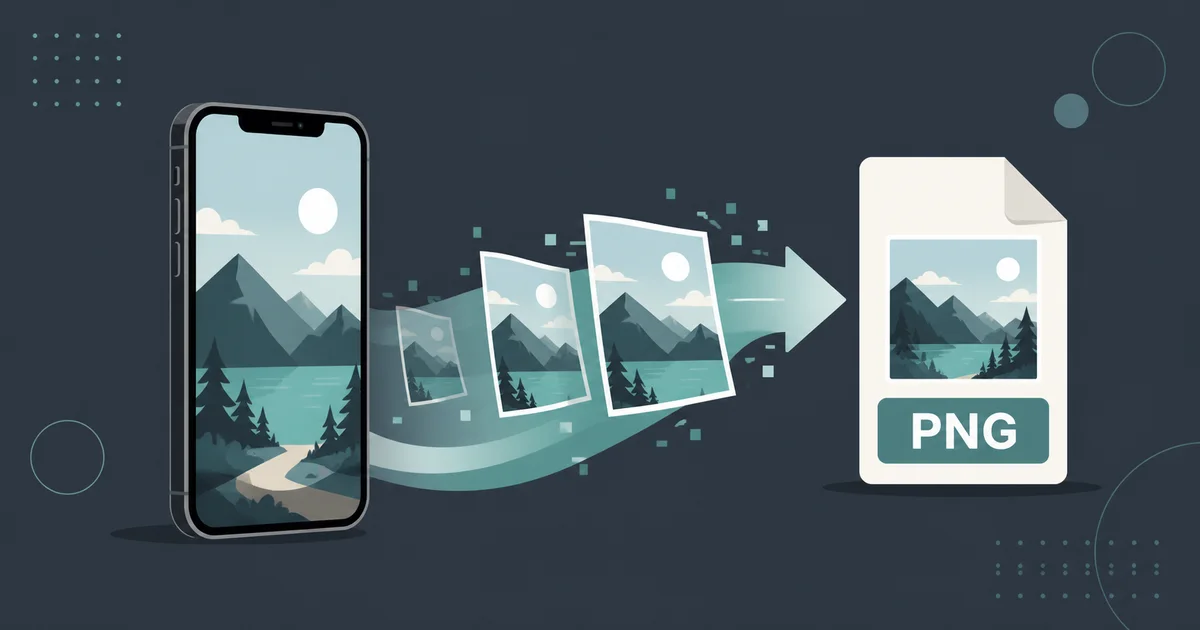
HEIC to PNG: When to Convert, and How on iPhone, Mac, Windows and the Command Line
Convert HEIC to PNG on iPhone, macOS, Windows or in bulk with ImageMagick, libheif, sharp or pillow-heif - and when JPEG serves you better.
You have a .heic file and something on the other end needs a .png. Maybe an upload form only accepts PNG, maybe a design tool wants a lossless intermediate, or maybe you are handing an image to someone whose software has never heard of HEIC. Converting HEIC to PNG takes seconds on every platform — the real question is whether PNG is the right target at all.
This guide covers both halves of that problem. First, when PNG makes sense coming out of a HEIC file and when JPEG will serve you better. Then every practical conversion method: iPhone and iPad, macOS Preview and Quick Actions, Windows with the HEIF extensions, command-line batch conversion with ImageMagick and libheif, and programmatic conversion with sharp and pillow-heif. We finish with the pitfalls that catch people after the conversion works — file sizes that balloon five to ten times, color profiles that shift, Live Photos that lose their motion, and location data that travels with the file unless you strip it.
PNG or JPEG From HEIC? Decide First
HEIC is a container holding a HEVC-compressed image. Both PNG and JPEG are valid decode targets, but they answer different questions:
| Convert to PNG | Convert to JPEG | |
|---|---|---|
| Compression | Lossless | Lossy |
| Typical result for a phone photo | 5–10x larger than the HEIC | About 2x larger |
| Transparency support | Yes | No |
| Best for | Screenshots, graphics, text, editing intermediates | Camera photos, sharing, web uploads |
| Universal browser support | Yes | Yes |
| Editing headroom | No further generational loss | Degrades slightly on each re-save |
The rule of thumb is simple. PNG is the right target when the image is not a photograph — screenshots, UI captures, diagrams, logos, anything with flat color areas, sharp edges, or text. PNG’s lossless compression stores those pixel-perfectly, and its filter-based compression actually handles flat regions efficiently, so a screenshot often converts to a PNG that is barely larger than the original HEIC.
JPEG is usually the better target for camera photos. A 12-megapixel iPhone photo might be a 1.5 MB HEIC. Converted to PNG it becomes roughly 8–15 MB of pixels that look identical to the eye. Converted to JPEG at high quality it becomes around 3 MB. Unless you specifically need losslessness or transparency, PNG just makes photos heavy for no visible benefit.
There are two honest exceptions. If you plan to edit the photo across multiple tools and re-save it several times, a PNG intermediate avoids stacking JPEG artifacts on top of each other — do your edits on the PNG, then export one final JPEG. And if the HEIC came from a screenshot or contains transparency information, PNG preserves exactly what was there.
If your end goal is a smaller web-ready file rather than a specific format, converting straight to WebP or AVIF from HEIC will beat either option. We cover that trade-off in our HEIC and HEIF web guide, and there is also a thin converter shortcut at /convert/heic-to-png if you just need one file done now.
Convert HEIC to PNG on iPhone and iPad
Files App: Convert Image Quick Action
This is the cleanest method and needs no third-party app:
- Open the Files app and find your HEIC file. If the photo lives in Photos, share it to Files first (Share sheet → Save to Files).
- Long-press the file.
- Tap Quick Actions → Convert Image.
- Pick PNG as the format and choose an image size (Original, Large, Medium, Small).
- Tap Convert. The PNG appears next to the original.
One caveat: the size picker resamples the image. Choose Original if you want every pixel preserved — picking Medium silently gives you a smaller PNG, which is fine for sharing but wrong if the PNG is an editing intermediate.
Share Sheet Copy-and-Paste Trick
For a single photo without leaving the Photos app: open the photo, tap the share icon, choose Copy Photo, then paste into any app that accepts images — Mail, Messages, Notes. iOS pastes a compatibility format rather than raw HEIC, and depending on the destination you get a PNG or JPEG. It is quick but not deterministic about the output format, so verify what arrived before relying on it.
Stop Creating HEICs Going Forward
If most of your conversions exist because a recipient could not open HEIC, fix it at the source: Settings → Camera → Formats → Most Compatible. New photos save as JPEG instead of HEIC. You give up roughly half the storage efficiency, so this is a trade, not a free win — many people leave HEIC on and convert on demand instead.
Convert HEIC to PNG on macOS
Preview
Preview opens HEIC natively and exports to PNG:
- Double-click the HEIC (it opens in Preview by default).
- File → Export.
- Set Format to PNG. Optionally set a resolution preset under the format dropdown.
- Save.
Preview also handles multi-image HEIC files — the kind that hold a burst or a Live Photo pair — by showing a sidebar of contained frames, each individually exportable.
Finder Quick Actions
Select one or more HEIC files in Finder, right-click, Quick Actions → Convert Image, choose PNG. This is Preview’s exporter wired directly into Finder and it handles batches of any size. On older macOS versions the same action appears as a right-click service.
sips, the Built-In CLI
Every Mac ships with sips (scriptable image processing system). One file:
sips -s format png input.heic --out output.pngA whole folder:
for f in *.heic; do sips -s format png "$f" --out "${f%.heic}.png"; donesips respects the embedded color profile, which matters more than most people expect — we come back to that in the pitfalls section.
Convert HEIC to PNG on Windows
Windows does not decode HEIC out of the box, which is why Explorer shows grey or blank thumbnails. Two store extensions fix that:
- Install HEIF Image Extensions from the Microsoft Store (free).
- Install HEVC Video Extensions (historically $0.99, though many devices with hardware HEVC decoding get the device-manufacturer version free). The image extension needs the HEVC codec underneath because HEIC is HEVC.
After that:
- Photos app: open the HEIC, click the edit/share menu, Save as, choose PNG.
- Paint: open the HEIC directly (works once extensions are installed), then File → Save As → PNG picture. Paint is crude but perfectly adequate for a format conversion — it does not recompress anything on the way to PNG because PNG is lossless.
- Copy-paste: open the HEIC in Photos, copy, paste into Paint or any editor, save as PNG.
Bulk conversion on Windows without the command line is awkward natively; PowerToys’ Image Resizer converts formats in bulk and is worth installing if you do this weekly. Otherwise the ImageMagick section below covers proper batch work.
Batch Conversion on the Command Line
libheif: the Reference Decoder
heif-convert comes from the libheif project — the library nearly everything else uses under the hood:
# install (Debian/Ubuntu)
sudo apt install libheif-examples

# single file — extension picks the output format
heif-convert input.heic output.png

# every HEIC in the folder
for f in *.heic; do heif-convert "$f" "${f%.heic}.png"; done
libheif decodes exactly what is in the container, including 10-bit sources. Note that a 10-bit HDR HEIC becomes a standard 8-bit PNG — the extra depth does not survive unless your tooling explicitly handles 16-bit PNG output.
ImageMagick
ImageMagick wraps libheif (or its own decoder, depending on build) behind its universal syntax:
# single file
magick input.heic output.png

# folder batch
magick mogrify -format png *.heic

# with an explicit sRGB profile assignment
magick input.heic -profile sRGB.icc output.png
mogrify overwrites nothing — it writes PNGs alongside the originals. Verify one output before trusting a thousand-file run, especially for color behavior (again, see pitfalls).
Which to pick?
Use heif-convert when you want the least interpretation between file and output. Use ImageMagick when the conversion is one step in a longer pipeline — resize, strip metadata, and convert in a single command. On a Mac, plain sips already covers simple batches without installing anything.
Programmatic Conversion
Node with sharp
sharp uses libvips and is the default choice in Node build pipelines and image services:
const sharp = require("sharp");

await sharp("input.heic")
  .png({ compressionLevel: 9 })
  .toFile("output.png");
sharp requires libheif support compiled in — the prebuilt binaries from npm include it. For a server-side endpoint converting uploads, add .rotate() with no arguments first; sharp then honors the EXIF orientation tag automatically, which prevents sideways outputs from portrait photos.
Python with pillow-heif
Pillow cannot read HEIC natively; pillow-heif registers the support:
from pillow_heif import register_heif_opener
from PIL import Image

register_heif_opener()

img = Image.open("input.heic")
img.save("output.png", "PNG")
Install with pip install pillow-heif. Because it plugs into Pillow, everything Pillow knows — resizing, cropping, thumbnail generation — works on HEIC inputs immediately after registration.
Both libraries decode the primary image in the container. For Live Photos, that primary image is the still frame — which is usually exactly what you want, and is the next pitfall’s subject.
Pitfalls After the Conversion Works
Your File Just Got Five to Ten Times Bigger
Worth repeating with numbers. A typical 12 MP iPhone photo sits near these sizes (approximate, varies with scene complexity):
| Format | Typical size |
|---|---|
| HEIC (original) | ~1.5 MB |
| JPEG, quality 85 | ~3 MB |
| PNG | ~8–15 MB |
PNG on a photograph is not a bug — photographic noise defeats PNG’s filters, so it falls back to storing nearly every pixel at full precision. If the converted PNG is destined for a website, convert again to WebP or AVIF afterward, or reconsider the JPEG path from the start. Our PNG optimization and transparency guide covers squeezing PNGs down when PNG is non-negotiable.
Color Profiles Shift
iPhones tag photos with the Display P3 color profile — a wider gamut than sRGB. When you convert to PNG, well-behaved tools carry the P3 profile along. Then the PNG reaches a browser or app that assumes sRGB and ignores profiles, and colors render slightly oversaturated or shifted.
Your options, in order of effort:
- Do nothing, if the image stays inside the Apple ecosystem — P3 renders correctly there.
- Convert the profile to sRGB during conversion (
magick input.heic -profile sRGB.icc output.png, or Preview’s Export with “Match to Profile” set to sRGB). This is the safe default for anything leaving your machine. - Keep P3 deliberately for wide-gamut web delivery, paired with
<meta name="color-scheme">awareness and modern browsers.
We go deep on this in the color spaces and profiles guide.
Live Photos Become Still Frames
A Live Photo is a HEIC still plus a short video, bundled together. Every method in this guide extracts the still frame; none of them carries the motion. That is normally fine — but know it before you convert a Live Photo you cared about, and export the paired .mov separately from Photos if you want to keep it. Burst-mode HEIC containers with multiple frames behave similarly: Preview shows each frame, command-line tools take the primary one unless told otherwise.
Location Data Rides Along
Here is the one that surprises people. HEIC files embed GPS coordinates by default, and a straight conversion typically copies that metadata into the PNG. Post the PNG of your houseplant and you may also post your home address.
Before sharing converted images publicly, strip the metadata:
# ImageMagick: strip everything in the same pass
magick input.heic -strip output.png
On iPhone, toggling the green location switch off in the share sheet removes location from shared copies. For the full picture — what else hides in EXIF, what survives which platform, and how to audit files before publishing — read our image metadata privacy guide.
Method Comparison
| Method | Platform | Batch | Install needed | Keeps quality | Best for |
|---|---|---|---|---|---|
| Files Quick Action | iPhone, iPad | No | None | Lossless | One-off conversions on the phone |
| Preview Export | macOS | No | None | Lossless | Single files, profile control |
| Finder Quick Action | macOS | Yes | None | Lossless | Ad-hoc desktop batches |
| sips | macOS | Yes | None | Lossless | Scripted Mac workflows |
| Photos / Paint | Windows | No | HEIF + HEVC extensions | Lossless | Occasional conversions |
| heif-convert | Any | Yes | libheif | Lossless | Clean reference decoding |
| ImageMagick | Any | Yes | ImageMagick | Lossless | Pipelines: strip + resize + convert |
| sharp | Node | Yes | npm package | Lossless | Servers, build steps |
| pillow-heif | Python | Yes | pip package | Lossless | Python scripts, notebooks |
All of these produce identical pixels for a given decoder — differences are workflow, not fidelity. The one place outputs diverge visibly is color-profile handling, so test with a colorful image once per tool.
Choosing the Whole Pipeline, Not Just the Format
Stepping back: HEIC-to-PNG is usually one hop in a journey that ends somewhere specific. If the destination is the web, the winning pipeline is usually HEIC → resize → WebP/AVIF for browsers, with PNG reserved for screenshots and graphics. If the destination is print or further editing, PNG or TIFF intermediates protect quality until final export. If the destination is another person’s inbox, JPEG remains the lingua franca — our HEIC to JPG guide covers that path in depth, and the general converter comparison maps the whole landscape.
And if you manage images at any scale, the conversion question eventually becomes an infrastructure question: serving the right format per browser, compressing on the fly, and keeping galleries fast. That is the problem space Sirv Media Viewer addresses for product galleries with zoom and 360 spins, and Sirv Studio extends with AI background removal and editing — useful when the HEIC on your desk is one of ten thousand product shots. Their signup includes a free tier if you want to see the pipeline approach against your own images.
Quick Answers
Does converting HEIC to PNG lose quality? No. Both HEVC decoding and PNG encoding are lossless at the pixel level for 8-bit sources. The cost is size, not fidelity.
Why is my PNG so much bigger than the HEIC? HEIC compresses photographs roughly twice as well as JPEG and far better than PNG. Photographic detail defeats PNG’s lossless filters. This is expected; use JPEG or WebP for photos.
Can iPhone convert HEIC to PNG without an app? Yes — Files app, long-press, Quick Actions, Convert Image, choose PNG.
Do I need the paid HEVC extension on Windows? Often not. Devices with hardware HEVC support get the free device-manufacturer extension; check the Microsoft Store listing before paying.
Does the PNG keep the GPS data? Usually yes, unless you strip it. Run -strip through ImageMagick or remove location in the iOS share sheet before sharing publicly.