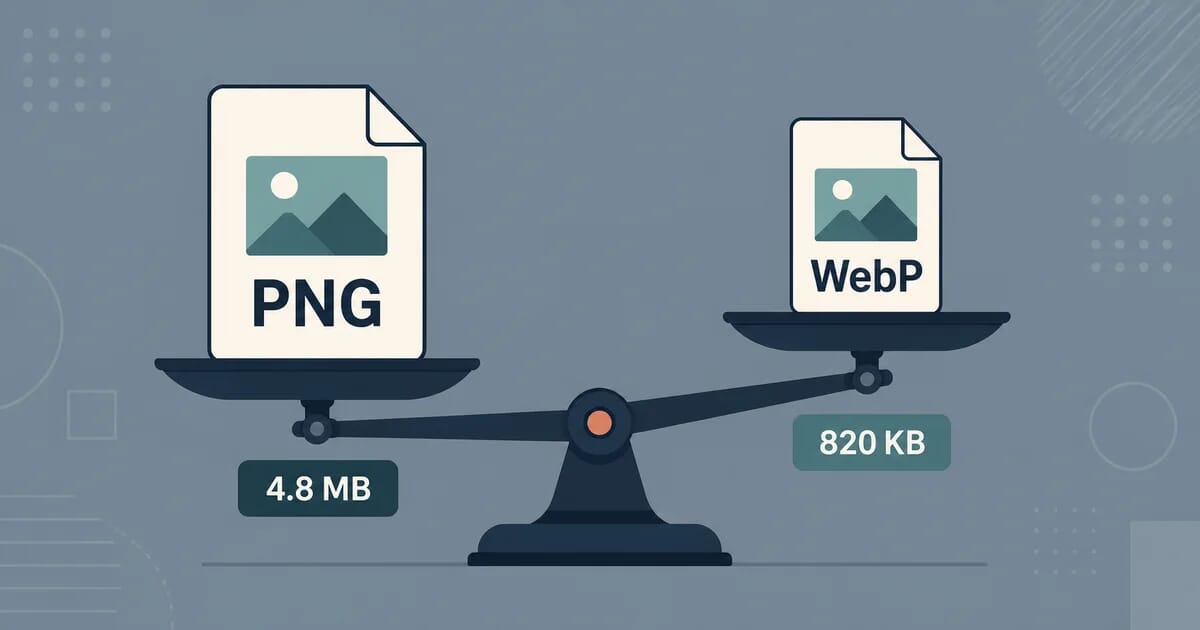
PNG vs WebP: Which Format Should You Use in 2026?
PNG against WebP: lossless to lossless, lossy WebP to lossless PNG, transparency, animation, support and tooling - and when PNG still wins.
Disclosure: ImageGuide is published by Sirv, an image CDN company. This guide mentions Sirv products. Read how we write these guides.
Quick answer
PNG is a dependable choice for exact raster graphics and broad editing compatibility. WebP offers lossless and lossy modes plus transparency, making it worth comparing for web delivery. Test the actual files: content and settings determine savings, and lossy WebP should not be described as pixel-identical PNG replacement.
Reference for this answer: MDN image format reference.
Compare PNG with lossless WebP when exact pixels matter, and consider lossy WebP when visible loss is acceptable. Google’s WebP lossless study reports results for a specific image set, not a guaranteed reduction for every screenshot or graphic. Check the clients and editing tools in your workflow.
So why does this comparison still matter? Because “smaller” is not the whole story. PNG has near-universal support outside the browser too: old design tools, email clients, operating system pipelines, and archival workflows. And WebP plays both sides of the lossy-lossless split, which makes the comparison two different fights in one article.
This guide runs both fights. We compare lossless WebP against lossless PNG head to head, then lossy WebP against lossless PNG. We cover transparency, animation, browser support, tooling gaps, and the exact cases where PNG still deserves the job. If you want the broader picture first, start with our complete WebP guide or the PNG optimization and transparency guide.
The Short Answer
| Your situation | Use | Why |
|---|---|---|
| Screenshot or UI graphic on a website | WebP lossless | About 26% smaller at identical pixels |
| Logo or icon with transparency | WebP lossless | Same alpha channel, smaller file |
| Photograph on a website | WebP lossy | Often 3–5x smaller than PNG |
| Animated graphic | WebP animated | PNG cannot animate at all |
| Asset for an email template | PNG | Many email clients still reject WebP |
| Master copy in a design archive | PNG | Maximum compatibility across tools |
| Exact-pixel workflow (pixel art, medical, forensic) | PNG | No encoder surprises, decades of tooling |
That table covers most decisions. The rest of this article explains where those numbers come from and what breaks when you pick wrong.
Two Formats, Two Compression Philosophies
PNG and WebP both compress images without visible damage when you ask them to. But they reach that goal differently, and the difference explains every number later in this guide.
PNG uses DEFLATE compression on filtered scanlines. It scans the image row by row, predicts each pixel from its neighbors, and compresses the prediction errors with a general-purpose algorithm from the 1990s. It is completely lossless: decode a PNG and you get back exactly the pixels that went in. There is no lossy mode. PNG supports 8-bit and 16-bit per channel color, full alpha, gamma chunks, and color profiles.
WebP comes in two modes:
- Lossy WebP is a derivative of the VP8 video codec. It works like JPEG’s approach but with better prediction, so it reaches similar quality at roughly 25–35% fewer bytes.
- Lossless WebP uses its own transform pipeline: spatial prediction, a color-space transform, and palette caching, followed by entropy coding tuned for image data. It is fully lossless like PNG, but the transforms fit photographic and graphic content better than DEFLATE does.
This dual nature is why “WebP vs PNG” is really two comparisons. A lossless WebP competes with PNG on equal terms: same pixels in, same pixels out, different file size. A lossy WebP competes by changing the rules: slightly different pixels out, dramatically fewer bytes.
Round One: Lossless WebP vs Lossless PNG
When both formats must reproduce pixels exactly, lossless WebP typically lands about 26% smaller than optimized PNG on screenshots, flat graphics, and UI elements. The exact gap depends on content:
| Content type | Typical lossless WebP saving vs optimized PNG |
|---|---|
| App screenshots, UI mockups | ~25–30% smaller |
| Logos and flat illustrations | ~20–35% smaller |
| Charts and diagrams | ~15–25% smaller |
| Pixel art with few colors | Similar sizes; PNG sometimes ties |
| Photos saved losslessly | ~25–35% smaller |
Two details worth knowing:
- Compare against optimized PNG, not default PNG. An unoptimized PNG export wastes space on missing filters and stale palettes. Run your baseline through
pngcrush,oxipng, orzopflipngfirst. Even then, lossless WebP usually keeps its lead, because its advantage comes from better image modeling, not just a stronger entropy coder. - The gap narrows on synthetic content. Simple pixel art with a tiny palette compresses so well under either codec that the difference can drop to a few percent. For that content, format choice matters less than palette discipline.
If your pipeline already produces PNGs and you want the savings without changing anything else, convert a sample with the PNG to WebP converter and spot-check that decoded pixels match. For a local batch, use Press or cwebp -lossless, which gives the reference results:
# Lossless WebP from a PNG, exact pixels preserved
cwebp -lossless input.png -o output.webp

# Near-lossless mode: tiny pixel deviations, noticeably smaller files
cwebp -lossless -near_lossless 60 input.png -o output.webp
Near-lossless mode blurs the line between the two rounds: it stays close to lossless visually but allows small pixel deviations in exchange for extra savings. Use it only when exact pixels do not matter.
Round Two: Lossy WebP vs Lossless PNG
This round is not fair, and that is the point. Most people who ship PNGs of photographs never needed losslessness in the first place. They exported a photo as PNG because the design tool defaulted to it.
Typical outcomes for the same photograph:
| Comparison | Typical result |
|---|---|
| Lossless PNG vs lossy WebP (quality ~75) | WebP is often 3–5x smaller |
| Lossless PNG vs lossy WebP (quality ~90) | WebP is often 2–3x smaller |
| Optimized PNG vs lossy WebP, photos with text overlays | WebP usually smaller, check text sharpness |
A 1920-pixel-wide photograph might weigh around 2–4 MB as PNG and land near 150–400 KB as quality-75 WebP. Those are typical ranges, not measurements of any specific file, but the order of magnitude holds across real-world photo sets.
Why such a large gap? PNG spends its bytes describing noise exactly. Camera sensors produce noise in every photo, and lossless codecs must encode every noisy pixel faithfully. Lossy codecs treat sensor noise as detail the eye barely registers, discard most of it, and spend bytes on structure instead. That is also why converting a photo PNG to JPEG-style compression recovers so much space — the same logic behind our JPEG vs JPG explainer applies here.
The rule of thumb:
- Photographs on the web should almost never be PNG. Use lossy WebP (or AVIF). If someone hands you a photo as PNG, convert it — the WebP to PNG converter handles the reverse trip when you need it.
- Graphics, text, and hard edges should stay lossless. Lossy compression smears text edges and creates ringing artifacts around sharp lines. This is where lossless WebP, not lossy WebP, replaces PNG.
Transparency: Both Formats Do It, Differently
Transparency is a common tiebreaker because many teams assume only PNG supports alpha channels. Both formats support full 8-bit alpha. The differences live in the details.
PNG alpha
- Full 8-bit alpha channel (256 transparency levels) in RGBA mode.
- Palette mode (PNG-8) supports binary transparency only: each palette entry is either opaque or fully transparent, unless you use the tRNS chunk for limited partial transparency.
- Alpha is compressed together with color data through the same DEFLATE pipeline. Large soft shadows and gradients in alpha cost real bytes.
- Every tool that opens PNGs handles alpha correctly. This predictability is part of PNG’s compatibility story.
WebP alpha
- Full 8-bit alpha channel in both lossy and lossless modes.
- In lossy WebP, the alpha plane is compressed separately (with a lossless method by default), so transparency edges stay crisp while the color planes compress lossily. This avoids the halo problem you get when flattening semi-transparent images onto a background.
- Lossless WebP compresses alpha alongside color, similar to PNG.
- One historical gotcha: some very old decoders ignored the alpha-compression flag and rendered lossy WebP transparency incorrectly. Browsers fixed this years ago, but ancient image libraries may still stumble.
Practical guidance:
| Need | Best choice |
|---|---|
| Logo with soft shadow edges on unknown backgrounds | WebP lossless or lossy with alpha |
| Icon set with hard-edged transparency | Either; WebP saves space |
| Sprite requiring binary transparency only | PNG-8 remains fine and tiny |
| Image destined for a tool that predates WebP | PNG |
For deep control over how transparency survives conversion — palette tricks, edge cleanup, matte colors — see the PNG optimization and transparency guide.
Animation: WebP Plays, PNG Sits Out
Animated PNG exists (APNG), but plain PNG cannot animate, and APNG support outside browsers remains patchy. Animated WebP is a first-class citizen: it packs multiple frames with per-frame compression, alpha support, and playback metadata into a container that browsers treat like any other WebP.
Typical results when replacing an animated GIF:
| Format | Typical relative size for the same animation |
|---|---|
| Animated GIF | Baseline (largest) |
| APNG | Usually larger than GIF |
| Animated WebP | Roughly 25–50% smaller than GIF |
If you serve animations today, moving them from GIF to animated WebP is one of the cheapest performance wins available. Our GIF to modern formats guide walks through the conversion. Note that the interactive tools on this site focus on static conversions; for video-derived animations, see the video to GIF guide for the capture step before encoding.
Browser Support: Effectively Settled
Both formats decode everywhere that matters:
| Environment | PNG | WebP |
|---|---|---|
| Chrome / Edge | Yes | Yes (since 2016 era) |
| Firefox | Yes | Yes (since 65, 2019) |
| Safari | Yes | Yes (since Safari 14, 2020) |
| Mobile browsers (iOS 14+, Android 5+) | Yes | Yes |
| Legacy IE11 | Yes | No |
Since Safari added WebP in 2020, browser support for both formats is effectively universal. If your audience is web-only, browser support no longer decides the PNG vs WebP question. Compatibility concerns now come from non-browser software, which is the next section.
You can still ship a fallback chain for defense in depth. We show the markup in the migration section below, and the responsive images complete guide covers the full picture element pattern including srcset and sizing.
Tooling Gaps: Where WebP Still Stumbles
Browsers settled years ago; desktop software did not. These are the gaps you will actually hit:
Email clients. Outlook desktop renders emails with Microsoft Word’s engine, which does not decode WebP. Gmail strips or fails to display WebP inline in some contexts. Email templates should embed PNG or JPEG. This alone keeps PNG alive in marketing pipelines — see email image optimization for the full client matrix.
Older design and office tools. Some legacy versions of popular editors, older Office builds, and niche print tools open PNG happily and choke on WebP or render it through slow fallback paths. Version churn means the safe assumption for files you send to unknown software is PNG.
Operating system integrations. Right-click preview in some file managers, certain screenshot annotation tools, and assorted enterprise software predate WebP support. Windows gained native WebP decoding through store-delivered extensions that not every machine has.
Image libraries on old stacks. A PHP 5-era deployment or an ancient ImageMagick build may lack WebP delegates. Modern equivalents all support it, but long-lived enterprise systems accumulate old dependencies.
Print workflows. Print pipelines overwhelmingly expect PDF, TIFF, or high-resolution PNG/JPEG. WebP rarely appears in professional print chains.
None of these gaps argue against serving WebP from your website. They argue against making WebP your only format for assets that leave the website.
When PNG Still Wins
Give PNG the job in these cases:
- Maximum-compatibility archives. Masters, source assets, and anything that must open correctly in ten years on unknown software. PNG is a stable, patent-free specification with decades of tooling. Lossless WebP is also lossless, but its ecosystem is younger.
- Exact-pixel workflows. Pixel art, sprite sheets consumed by game engines with strict expectations, scientific imaging, and forensic screenshots. Not because WebP lossless changes pixels — it does not — but because every downstream tool in these niches speaks PNG fluently and some do not speak WebP at all.
- Assets embedded in documents. Word processors, slide decks, and PDF generators vary widely in WebP support. Export PNG for anything that travels inside another document format.
- Email, as covered above.
- Third-party ingestion points. Any API, CMS field, or marketplace upload form that validates formats against a fixed allowlist. Many still list PNG and JPEG only.
- Some design tool handoffs. When a colleague’s toolchain is unknown, PNG removes a failure mode for zero cost to you.
Notice what is not on this list: anything served directly to a web browser. For pure web delivery, PNG’s remaining advantages are essentially zero.
Migration Advice: Serve WebP, Keep a PNG Escape Hatch
You do not have to choose once and forever. Two patterns let WebP carry the traffic while PNG covers the exceptions.
Pattern 1: The picture element
<picture>
  <source type="image/webp" srcset="hero.webp" />
  <img src="hero.png" alt="Product dashboard overview" width="1200" height="675" />
</picture>
Every modern browser picks the WebP source. A browser without WebP support ignores the source and loads the PNG. The cost is maintaining two files per image, which build tools automate.
Pattern 2: CDN content negotiation
An image CDN inspects the Accept header and serves WebP to capable clients from a single canonical asset, usually cached per variant. You upload or point at the original once; negotiation happens at the edge. This pattern also layers on resizing, format upgrades to AVIF, and delivery optimizations without touching application code.
For galleries, zoomable product views, and 360 spins built on top of negotiated delivery, Sirv’s media viewer handles the format selection automatically — you store masters and the CDN serves WebP, AVIF, or JPEG per client. If your workflow includes cleaning up product shots before publishing, Sirv Studio covers background removal and AI editing in the same pipeline. You can create an account and test negotiation against your own images in minutes.
Converting existing libraries
Bulk migration is straightforward:
# Convert a directory of PNGs to lossless WebP
for f in assets/*.png; do
  cwebp -lossless "$f" -o "${f%.png}.webp"
done

# Or lossy for photographic content
for f in photos/*.png; do
  cwebp -q 80 "$f" -o "${f%.png}.webp"
done
Prefer not to script it? Press converts a local folder, while the hosted PNG to WebP converter and WebP to PNG converter handle one non-sensitive file at a time. Keep the PNG originals until every consumer of the asset is confirmed WebP-capable; storage is cheap and re-converting from a lossy intermediate degrades quality.
Decision Framework
Ask three questions in order:
- Is the content photographic? Yes → lossy WebP (consider AVIF next). No → continue.
- Does it contain text, hard edges, or transparency that must survive compression? Yes → lossless WebP for web delivery. No → either lossless mode works; WebP is smaller.
- Does the asset leave the browser context? Yes → keep a PNG master and generate WebP for delivery. No → WebP only.
One exception overrides everything: if a hard requirement (email client, legacy tool, upload validator) rejects WebP, that requirement wins regardless of file size. Format decisions fail in production more often from integration mismatches than from compression math.
Where to Go Next
- Complete WebP guide — encoder flags, quality settings, and delivery setup in depth.
- PNG optimization and transparency — squeeze PNGs properly before comparing them.
- WebP vs AVIF vs JPEG XL — where the next generation fits.
- Responsive images complete guide —
picture,srcset, and sizing beyond format choice. - Convert PNG to WebP and convert WebP to PNG — free hosted converters for one non-sensitive file at a time.
For most websites the migration is one-directional: PNG masters in version control, WebP bytes on the wire. Get that split right and the PNG vs WebP debate stops being a debate — each format simply does the one job it still does best.