PSD to JPG: How to Flatten and Convert Photoshop Files (Every Method)
Convert PSD to JPG with Photoshop, GIMP, Photopea, ImageMagick or Python: what flattening does, which export settings, and the transparency trap.
ImageGuide is published by Sirv. See our editorial method and Markdown reading copy.
To convert PSD to JPG, export a flattened copy from a compatible image editor. JPEG cannot preserve editable layers or transparency, so choose the visible layers and background first. Keep the PSD master and inspect the output for missing fonts, unsupported effects, and color changes.
Fine-tune the flattened JPG before publishing.
Check dimensions, format, and weight of your export.
The full walkthrough for this conversion is below — the methods work with any image editor or command line, no upload required.
Before you convert
Preserve the layered PSD before flattening. Check that the application supports the document’s effects, color mode, and fonts.
JPEG is a delivery copy. It cannot replace a layered source for later editing or transparent exports.
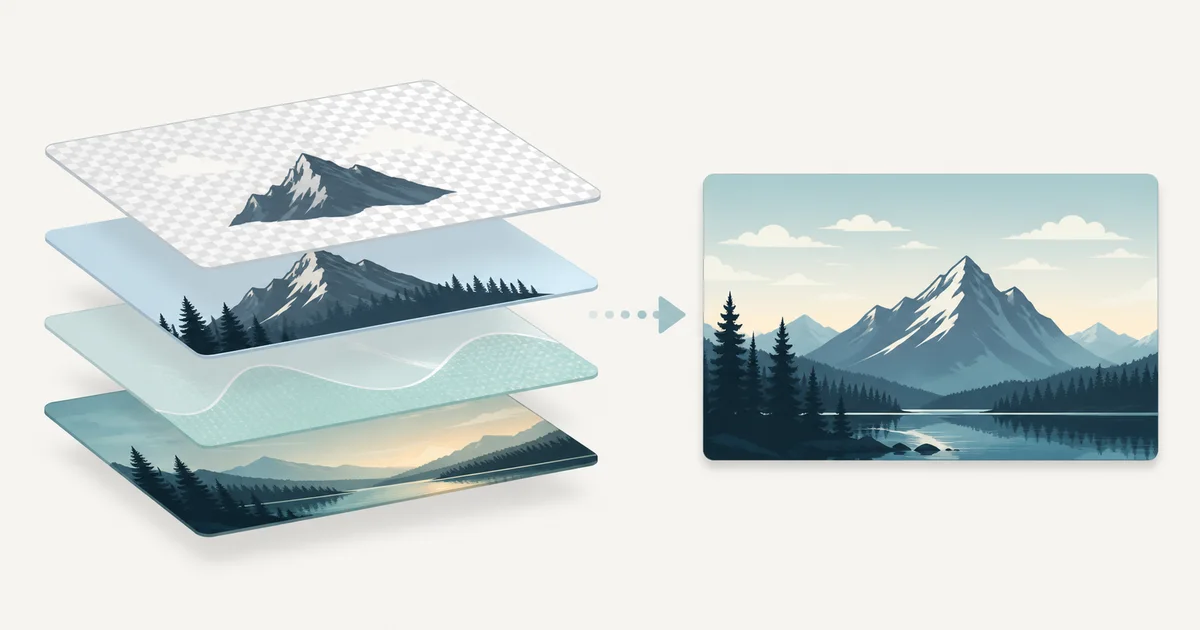
A PSD file is not one image. It is a stack of layers — photos, text, adjustment layers, smart objects, masks — plus instructions for how they combine. A JPG is a single flattened raster. Converting PSD to JPG therefore means two things at once: rendering the composite correctly, and accepting that every layer boundary disappears forever.
That second part trips people up. They convert, open the JPG, discover the text moved or the shadows vanished, and no longer have an easy way back. This guide covers what flattening actually destroys, how to export from Photoshop properly, the free tools that do the same job, command-line and scripted conversion for batches, and the five pitfalls that ruin most first attempts.
What Flattening Actually Means
When a PSD becomes a JPG, the compositor walks the layer stack from bottom to top and computes one final pixel grid. Everything that existed as separate data gets merged:
| Layer type | What happens on flatten |
|---|---|
| Normal pixel layers | Composited onto the canvas in stacking order |
| Adjustment layers (curves, levels, hue/sat) | Baked into the pixels below them |
| Smart objects | Rendered at their current scale and filters |
| Blend modes (multiply, screen, overlay) | Evaluated per pixel against what is beneath |
| Layer masks | Applied — hidden areas are gone, not just covered |
| Text layers | Rasterized using the fonts available to the converter |
| Vector shapes | Rasterized at the document’s resolution |
| Layer comps | Only the currently visible state survives |
Two consequences matter most:
- The flatten is irreversible in the JPG. If you need the layers again, you go back to the PSD. There is no tool that un-flattens a JPEG.
- The result depends on the renderer. Two converters can produce slightly different composites from the same PSD, especially with unusual blend modes, missing fonts, or smart filters. Photoshop’s own renderer is the reference; everything else approximates it.
This is why “just open it and save as JPG” works well for simple documents and poorly for complex ones. The more exotic your layer stack, the more you want Photoshop itself — or at least a converter you have verified against a known-good export.
Method 1: Photoshop (Save As / Export As)
If you have Photoshop, use it. It renders your exact layer stack with your installed fonts and gives you control over color space and compression.
Save As vs Export As
Photoshop offers several paths, and they behave differently:
- File → Save As → JPEG flattens the document automatically and writes a JPG. This is the straightforward route for a single image.
- File → Export → Export As → JPG gives you a live preview, resize controls, and metadata options. Better when you also want to scale the output.
- File → Export → Save for Web (Legacy) still exists. It strips most metadata and shows a before/after at your chosen quality. Fine, but Export As has effectively replaced it.
- Quick Export As PNG on the right-click menu does not help here — it targets PNG only.
Before exporting, do two things:
- Convert to sRGB. Go to Edit → Convert to Profile and choose sRGB IEC61966-2.1, or tick Convert to sRGB in the Export As dialog. Your PSD may live in Adobe RGB or ProPhoto RGB; browsers and most apps assume sRGB, and skipping this step produces washed-out or oversaturated JPGs everywhere else. Our color space and profiles guide covers why this matters.
- Check your canvas edges. Layers hanging off the canvas get cropped at the document bounds. If a drop shadow extends past the edge, widen the canvas first or it will be cut mid-gradient.
Choosing a Quality Setting
Photoshop’s JPEG quality slider runs 0–12 (or 0–100 in Export As). Here is what typical output looks like for a 3000×2000 px photographic document:
| Quality (Save As) | Quality (Export As) | Typical size | Use it for |
|---|---|---|---|
| 12 | 100 | ~4–6 MB | Archival copies, print handoffs |
| 10–11 | 80–90 | ~1.5–3 MB | Client proofs, portfolio masters |
| 8–9 | 60–75 | ~600 KB–1.5 MB | Web pages, email attachments |
| 5–7 | 40–60 | ~250–600 KB | Thumbnails, previews |
| Below 5 | Below 40 | tiny | Almost never — visible blocking |
Numbers vary with image content; flat graphics compress far smaller than detailed photographs. For web delivery, quality 8–10 (60–80) is the usual sweet spot. Also tick Optimized and consider converting to progressive scan for large images — progressive JPGs render a blurry-to-sharp preview while loading.
If the exported JPGs end up on a website, pair them with proper delivery settings. A service like Sirv can serve the JPGs from a CDN and generate responsive variants on demand, so one export covers every screen size.
Free Tools That Convert PSD to JPG
No Photoshop? You still have good options, plus some bad ones worth knowing about.
GIMP
GIMP opens PSD files natively — including layer groups, adjustment layers (it approximates some), and most blend modes. The workflow:
- File → Open your
.psd. GIMP shows a warning if it had to approximate anything. - Check the composite against expectations. Missing fonts are the usual discrepancy.
- Image → Flatten Image — this bakes everything into one layer and fills transparency with the background color.
- File → Export As, set the filename to end in
.jpg, and adjust the quality slider (85–90 is a good default).
One quirk: GIMP’s default background fill during flatten is white. If your design assumed transparency, see the pitfalls section below.
Photopea
Photopea is a free browser-based Photoshop clone with surprisingly complete PSD support — smart objects, layer styles, blend modes, even artboards. Open the file, then File → Export As → JPG. Nothing installs, nothing uploads to a server you control less than your own machine (files process locally in the browser).
For a one-off conversion this is often the fastest path. For client work under NDA, check your comfort level with any browser tool first, though Photopea’s local processing means the file never leaves your machine.
macOS Preview and Windows built-ins
Here is the honest answer: these usually fail on real PSD files.
- macOS Preview opens many PSDs, but flattens them through Apple’s renderer, which mishandles adjustment layers, some blend modes, and any layer built with newer Photoshop features. It also cannot handle 32-bit documents. Quick Look thumbnails are even less reliable — a thumbnail rendering correctly proves very little about a full export.
- Windows has no native PSD support at all. Photos and Paint will not open the file. The thumbnail in Explorer comes from a shell extension that reads the embedded composite preview, not the actual layers.
If the PSD contains a full-size composite preview (most saved from Photoshop do), tools like sips on macOS can sometimes extract it directly — but you get whatever state the file was last saved in, including hidden layers’ absence and any unsaved changes being missing. Treat OS built-ins as a last resort and verify the output carefully.
Command-Line Conversion with ImageMagick
ImageMagick reads PSD files and rasterizes the composite — the merged preview Photoshop embeds — rather than re-compositing each layer itself. For most documents this is exactly right, and it makes ImageMagick one of the fastest ways to batch-convert PSD to JPG.
# Basic conversion
magick input.psd output.jpg

# Flatten explicitly, set a white matte behind transparency,
# strip to sRGB, and set quality
magick input.psd \
  -flatten \
  -background white \
  -alpha remove \
  -colorspace sRGB \
  -profile sRGB.icc \
  -quality 88 \
  output.jpg
What each flag does:
-flattenmerges all layers into one image. Without it, ImageMagick may output the first layer only — a classic source of “my conversion is missing half the design.”-background whitesets the matte color used where the PSD is transparent.-alpha removecomposites transparency away against that background instead of leaving an alpha channel that JPEG will discard unpredictably.-colorspace sRGBconverts CMYK or wide-gamut documents toward web-standard color.-quality 88sets JPEG compression (0–100 scale, unlike Photoshop’s 12-point scale).
Two caveats. First, because ImageMagick uses the embedded composite, changes made in Photoshop after the last save without compatibility preview may not appear — maximize compatibility when saving PSDs (it is on by default). Second, very old or heavily layered files occasionally confuse the parser; spot-check outputs.
For a whole folder:
# Linux / macOS
magick mogrify -format jpg -flatten -background white -quality 88 *.psd
On Windows, wrap it in PowerShell:
Get-ChildItem *.psd | ForEach-Object {
  magick $_.FullName -flatten -background white -quality 88 ($_.BaseName + ".jpg")
}
Programmatic Conversion
Python: psd-tools + Pillow
The psd-tools library parses PSD structure and composites layers in Python. Combined with Pillow for the JPEG encoding, it handles most documents:
from psd_tools import PSDImage
from PIL import Image

psd = PSDImage.open("design.psd")

# Composite the full layer stack
composite = psd.composite()          # PIL Image, RGBA

# JPEG has no alpha channel — flatten onto white
background = Image.new("RGB", composite.size, (255, 255, 255))
if composite.mode == "RGBA":
    background.paste(composite, mask=composite.split()[3])
else:
    background = composite.convert("RGB")

background.save("output.jpg", quality=88, optimize=True, progressive=True)
Batch version:
from pathlib import Path
from psd_tools import PSDImage
from PIL import Image

for psd_path in Path("mockups").glob("*.psd"):
    try:
        psd = PSDImage.open(psd_path)
        img = psd.composite()
        if img.mode == "RGBA":
            bg = Image.new("RGB", img.size, (255, 255, 255))
            bg.paste(img, mask=img.split()[3])
        else:
            bg = img.convert("RGB")
        bg.save(psd_path.with_suffix(".jpg"), quality=88, optimize=True)
        print(f"OK   {psd_path.name}")
    except Exception as e:
        print(f"FAIL {psd_path.name}: {e}")
The try/except is not decoration — psd-tools raises on some features it cannot render (certain smart filters, adjustment types), and you want the rest of the batch to continue.
Node.js: know the caveat
Node has no mature, maintained library that fully composites PSD files. Packages like psd / ag-psd parse layer data well, but rendering the visual composite — evaluating blend modes, adjustment layers, and smart effects — is incomplete. Practical Node approaches:
- Shell out to ImageMagick (
magick input.psd output.jpg) from your Node script — the most reliable option. - Use
ag-psdwhen you need to read layer metadata rather than produce a faithful image.
If your pipeline is JavaScript-first, wrapping the ImageMagick call is boring and correct. Resist the urge to reimplement a PSD compositor.
Which Method Should You Use?
| Method | Fidelity | Batch? | Cost | Best for |
|---|---|---|---|---|
| Photoshop Save As / Export As | Reference | Actions only | Paid | Final client deliverables, complex stacks |
| GIMP | Good | Script-Fu possible | Free | One-off conversions, Linux users |
| Photopea | Good | No | Free | Fast browser-based one-offs |
| macOS Preview | Poor–fair | No | Free | Simple, flat PSDs only |
| ImageMagick | Good (uses composite) | Excellent | Free | Bulk conversion, pipelines |
| Python psd-tools | Fair–good | Excellent | Free | Automated workflows needing layer access |
Rule of thumb: one important file → Photoshop, GIMP or Photopea. Hundreds of files → ImageMagick or Python. And whichever you pick, compare its output against a Photoshop export once, so you know how much its rendering drifts before it matters.
Pitfalls That Ruin PSD to JPG Conversions
1. Transparency turns black
JPEG has no alpha channel. When a converter discards transparency without being told what to put there, the result is frequently a black background instead of the white or brand color you expected. This is the single most common complaint about PSD to JPG conversions.
Fixes, per tool:
- ImageMagick:
-background white -alpha remove(as above). - Python: paste onto an explicit RGB background with the alpha channel as mask (as above).
- GIMP: flatten with the background color set first, or add a white layer at the bottom of the stack before exporting.
- Photoshop: delete or hide transparent areas deliberately, or add a solid fill layer beneath everything.
If you actually need to keep transparency, export PNG instead — see our PNG to JPG guide for when flattening to JPG is the right trade-off anyway.
2. CMYK documents look wrong
Print-oriented PSDs are often in CMYK. Every browser and most apps expect sRGB, so a straight conversion produces dull, desaturated colors. Convert explicitly:
magick cmyk-design.psd -profile USWebCoatedSwop.icc -profile sRGB.icc output.jpgIn Photoshop, Edit → Convert to Profile → sRGB before exporting. Never just change the mode via Image → Mode — profile-aware conversion preserves appearance far better. Our color profiles deep-dive explains the mechanics.
3. 16-bit and 32-bit documents
JPEG supports 8 bits per channel. A 16-bit PSD converts fine in Photoshop (it down-converts on save), but some tools refuse or band badly. 32-bit (HDR) documents are worse: many converters reject them outright or clip highlights. In Photoshop, convert to 8-bit first via Image → Mode → 8 Bits/Channel, choosing your tone-mapping carefully — that decision is baked in permanently.
4. Text layers and missing fonts
Any converter that rasterizes text needs the font files. On a machine without them, text falls back to a default face and your layout silently reflows. Photoshop with your installed fonts is immune; GIMP and Photopea substitute; ImageMagick sidesteps it by using the pre-rendered composite. If typography precision matters, either convert on the machine that authored the file, or check the PSD was saved with maximum compatibility so the composite preview is current.
5. Layer comps pick one state
Layer comps let a designer store multiple layout states in one PSD — different copy, colors, or visibility. A conversion captures only whichever state was visible at save time. If a client expects three variants, you need three exports: toggle each comp in Photoshop (Window → Layer Comp) and export each, or script the toggling. No batch tool extracts multiple comps automatically.
Keep the PSD as Your Master
Whatever you produce, the JPG is a derivative. Store the original PSD somewhere durable, because:
- Re-exporting from the PSD takes seconds; recreating lost layers takes hours.
- Future format changes (AVIF, better encoders) mean you will want to re-export at higher quality later.
- Client revision requests arrive against the layered file, not the flat one.
A sensible delivery pattern: keep the PSD in cold storage, export a high-quality JPG master, and derive web-sized versions from that. If those derivatives ship to a website, hosting them on an image CDN like Sirv keeps the originals out of your web server entirely — Sirv’s media viewer adds zoom and gallery behavior on top of the same files, which is useful when a PSD export is a product shot. And if the design calls for the subject isolated on clean white, Sirv Studio can handle background removal on the exported JPGs so you do not have to rebuild the PSD.
Quick Answers
Does converting PSD to JPG reduce quality? Yes, twice over: flattening loses layer information permanently, and JPEG is lossy. At quality 80+ the visible loss is small for photographic content.
Why is my converted JPG black where it should be transparent? JPEG cannot store transparency. Set an explicit background color before conversion — see pitfall #1.
Can I convert PSD to JPG without Photoshop? Yes. GIMP and Photopea are free and handle most files; ImageMagick converts in bulk from the command line.
Why does my converted file look different from Photoshop? Third-party converters approximate Photoshop’s renderer. Blend modes, adjustment layers, and missing fonts are the usual culprits. Verify against a Photoshop export once, then trust the tool within that envelope.
Is TIFF better than JPG for PSD exports? For archival, yes — TIFF keeps 16-bit depth and is lossless. See our TIFF to PDF guide if your destination is a document rather than the web. For sharing and websites, JPG remains the practical choice.