JPG to BMP and BMP to JPG: When This Conversion Makes Sense (and When It Really Does Not)
Convert JPG to BMP and back with Paint, Preview, ImageMagick, Pillow or sharp - why BMP is usually the wrong target, and which systems need it.
ImageGuide is published by Sirv. See our editorial method and Markdown reading copy.
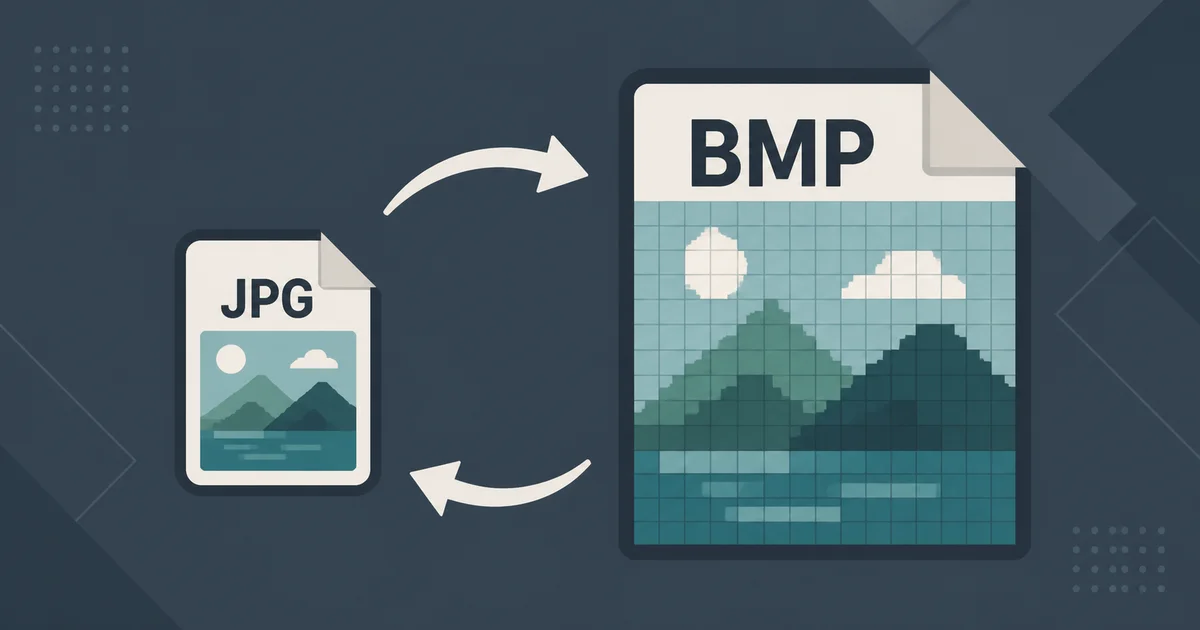
Convert JPG to BMP only when the destination requires a bitmap file. Export through a compatible image editor or converter; changing the extension is not enough. BMP does not recover detail already lost to JPEG compression and can create a much larger file.
The full walkthrough for this conversion is below — the methods work with any image editor or command line, no upload required.
Before you convert
Confirm the required BMP bit depth and compression with the receiving application. Legacy software may accept only a subset of BMP files.
Keep the JPEG original and check its dimensions and byte size with the image analyzer. Verify the encoded format with a signature-aware tool such as file or magick identify; the browser-reported MIME type is not proof.
People search for JPG and BMP conversions in roughly equal numbers, and the two searches mean opposite things. Some users hold a JPG and need a BMP file for a legacy system. Others hold a BMP and want a JPG that does not weigh fifty times more. This guide covers both directions, because the answer to “which one should I keep” is almost always the same: JPG, or better yet WebP — unless a specific old system demands BMP.
What BMP Actually Is
BMP (bitmap) is the native image format of Microsoft Windows. It dates back to Windows 1.0 in the mid-1980s, and its design goal was simplicity, not efficiency. A BMP file stores pixel data in a mostly raw form, usually preceded by a small header that describes width, height, colour depth, and palette.
That design has one consequence that dominates everything else: size. A typical 24-bit BMP stores three bytes per pixel with no compression at all. The maths is predictable:
| Dimensions | Colour depth | Typical BMP size | Same image as JPG |
|---|---|---|---|
| 800 × 600 | 24-bit | ~1.4 MB | ~80–150 KB |
| 1920 × 1080 | 24-bit | ~6 MB | ~300–600 KB |
| 4000 × 3000 | 24-bit | ~36 MB | ~2–5 MB |
These are typical figures for photographic content; your results vary with detail and quality settings. But the ratio rarely changes much: an uncompressed BMP of a photo commonly lands between ten and fifty times the size of a well-compressed JPG.
BMP does support simple run-length encoding (RLE) compression for palettised images, but it barely shrinks photographs and almost nobody uses it. Treat BMP as uncompressed in practice.
What BMP offers in return:
- Zero decode complexity. Every language, library, and operating system from the last forty years can read it.
- No generation loss on re-saves. Because there is no lossy step, editing and re-saving a BMP never degrades it.
- Predictable memory layout. Embedded and industrial software often reads BMP rows directly into a framebuffer.
Those properties explain why BMP survives at all. They do not make it a good choice for anything modern.
Which Direction Do You Need?
| Your situation | Correct move | Why |
|---|---|---|
| Legacy Windows app demands .bmp | Convert JPG → BMP | You have no choice; pick the smallest variant that works |
| Industrial, medical, or embedded device expects BMP | Convert JPG → BMP | Many such devices hard-code BMP parsing |
| Old game engine or modding tool reads BMP textures | Convert JPG → BMP | Common in retro game communities |
| Certain printers and scanners accept only BMP | Convert JPG → BMP | Check the manual first; most accept JPG too |
| BMP file destined for a website | Convert BMP → JPG or WebP | Uncompressed images waste bandwidth and hurt load time |
| BMP file you want to email or share | Convert BMP → JPG | A 20 MB attachment becomes a 1 MB one |
| BMP file you want to edit further | Either works | BMP re-saves without loss; JPG does not |
| “I just want a smaller version of my photo” | BMP → JPG, then read our size guides | BMP was never the right container |
The pattern is clear. BMP is a target only when something downstream requires the literal .bmp extension and its raw layout. In every other case, converting to BMP makes files worse.
Converting JPG to BMP
Paint (Windows)
Paint ships with every Windows install and handles this without any download:
- Open the JPG in Paint.
- Choose File → Save As, then pick Bitmap picture.
- Paint writes a 24-bit BMP by default. Older versions offered 16-colour and 256-colour options in a dropdown; modern builds hide them.
One caution: saving through Paint flattens any transparency onto white, though a JPG has no transparency to begin with, so nothing is lost here.
Preview (macOS)
Preview has no explicit “BMP” entry in its export menu, but it still works:
- Open the JPG in Preview.
- Choose File → Export.
- Open the Format dropdown and select Microsoft Bitmap.
- Click Save.
macOS writes a 32-bit BMP (with an alpha channel) in some cases. If your target device rejects it, use ImageMagick below and force 24-bit explicitly.
ImageMagick
ImageMagick gives exact control over bit depth, which matters because many BMP consumers are picky. Install it via your package manager (apt install imagemagick, brew install imagemagick, or the Windows installer), then:
# Basic conversion, defaults to 24-bit RGB
magick input.jpg output.bmp

# Force 24-bit truecolour (the safest default for legacy apps)
magick input.jpg -depth 8 -define bmp:format=bmp3 output.bmp

# 8-bit palettised BMP, max 256 colours
magick input.jpg -colors 256 PNG8:- | magick - output.bmp

# Monochrome 1-bit BMP (old industrial displays, fax-like devices)
magick input.jpg -colorspace Gray -threshold 50% -depth 1 output.bmp
A few notes on those flags:
-depth 8means eight bits per channel, which combined with three channels produces the classic 24-bit BMP.-depth 1after thresholding produces monochrome.-define bmp:format=bmp3writes the older BITMAPINFOHEADER layout. Some very old parsers reject the newer V4/V5 headers ImageMagick emits by default, so this flag fixes more “device won’t open the file” problems than any other single setting.-colors 256quantises to a palette. Pair it with-dither FloydSteinbergif banding bothers you.
For a whole folder of JPGs:
# Linux/macOS: convert every JPG in the current directory
magick mogrify -format bmp *.jpg

# Or with explicit quality control per file
for f in *.jpg; do magick "$f" -define bmp:format=bmp3 "${f%.jpg}.bmp"; done
On Windows PowerShell:
Get-ChildItem *.jpg | ForEach-Object { magick $_.FullName ("$($_.BaseName).bmp") }Pillow (Python)
from PIL import Image

img = Image.open("input.jpg")

# 24-bit RGB BMP
img.convert("RGB").save("output.bmp")

# 8-bit palettised BMP
img.convert("RGB").quantize(colors=256).save("output-8bit.bmp")

# 1-bit monochrome BMP
img.convert("L").point(lambda p: 255 if p > 127 else 0, mode="1").save("output-1bit.bmp")
Pillow writes BITMAPINFOHEADER (bmp3-style) headers, so its output tends to be compatible with the fussiest legacy readers. Batch processing is a list comprehension away:
from pathlib import Path
from PIL import Image

for jpg in Path("photos").glob("*.jpg"):
    Image.open(jpg).convert("RGB").save(jpg.with_suffix(".bmp"))
sharp (Node.js)
const sharp = require("sharp");

// sharp supports BMP output since v0.33
await sharp("input.jpg")
  .toColourspace("srgb")
  .toFile("output.bmp");
sharp’s BMP support is newer than its JPEG/PNG/WebP support and offers fewer variant controls than ImageMagick. For production pipelines that must emit specific BMP subformats, ImageMagick remains the safer engine; sharp fits when BMP is one stop among many in a Node service.
Picking a BMP Variant
Not all BMPs are interchangeable. If a device or application rejects your file, the variant is usually why.
| Variant | Colour depth | Palette | Typical use | File size (1920×1080) |
|---|---|---|---|---|
| 24-bit truecolour | 8 bits × 3 channels | None | Default choice; widest compatibility | ~6 MB |
| 32-bit truecolour + alpha | 8 bits × 4 channels | None | Modern Windows tooling; some parsers reject it | ~8 MB |
| 8-bit palettised | 8-bit index | 256 entries | Retro games, old UI assets | ~2 MB |
| 4-bit palettised | 4-bit index | 16 entries | Very old Windows icons and cursors | ~1 MB |
| 1-bit monochrome | 1 bit | 2 entries | Industrial displays, labels, fax-style output | ~260 KB |
Decision rules that hold up in practice:
- Default to 24-bit with a bmp3 header. It opens everywhere BMP opens at all.
- Drop to 8-bit palette only if the target documents that requirement — old game engines frequently do.
- Use 1-bit only for content that is genuinely black-and-white, like scanned line art or text. Thresholding a photograph to 1 bit destroys it.
- Avoid 32-bit unless you know the reader handles alpha. It is the most common cause of “the file exists but the app shows nothing.”
Converting BMP to JPG
This direction is easier to justify. You are trading a lossless-but-huge container for a lossy-but-reasonable one, and for photographic content the quality cost at sensible settings is invisible.
Built-in tools
- Windows: Right-click the BMP → Open with Paint → File → Save As → JPEG picture. Set the quality slider if your Windows version exposes one.
- macOS: Open in Preview → File → Export → Format: JPEG → drag the quality slider. Quality around 80% is a good default for photos.
ImageMagick
# Straight conversion with good quality
magick input.bmp -quality 85 output.jpg

# Strip metadata for a smaller file
magick input.bmp -strip -quality 82 output.jpg

# Resize down at the same time (common when BMPs come from scanners)
magick input.bmp -resize 1920x1920\> -quality 85 output.jpg
-quality 85 is a sweet spot for photos: higher values inflate size steeply while buying little visible quality. For batch work, mogrify again:
magick mogrify -format jpg -quality 85 *.bmpPillow
from PIL import Image

Image.open("input.bmp").convert("RGB").save("output.jpg", quality=85, optimize=True)
The convert("RGB") call matters: some BMPs carry an alpha channel, and JPEG cannot store alpha. Without the conversion Pillow raises an error rather than silently flattening, which is honest but annoying.
sharp
await sharp("input.bmp")
  .flatten({ background: "#ffffff" }) // flatten any alpha onto white
  .jpeg({ quality: 85, mozjpeg: true })
  .toFile("output.jpg");
mozjpeg: true uses the mozjpeg encoder, which typically produces JPGs several percent smaller at equal visual quality.
Going Further: BMP to WebP
If the destination is a website, do not stop at JPG. WebP typically cuts photographic file sizes by another 25–35% compared with a same-quality JPG, and every current browser renders it.
magick input.bmp -quality 80 output.webpTypical sizes for the same 1920×1080 photo:
| Format | Settings | Typical size |
|---|---|---|
| BMP | 24-bit, uncompressed | ~6.0 MB |
| JPG | quality 85 | ~400 KB |
| WebP | quality 80 | ~250 KB |
| AVIF | quality 60 | ~150 KB |
The lesson generalises: BMP sits at one extreme of a spectrum that ends with AVIF. Every step away from raw pixels buys enormous savings at modest, controllable quality cost. Our complete WebP guide covers the modern end of that spectrum in depth.
Quality: What Each Direction Costs
Conversions between JPG and BMP are asymmetric in an important way.
JPG → BMP loses nothing new. The JPG is already compressed; decoding it to pixels and storing those pixels as BMP preserves exactly what the JPG contained. The file gets bigger, not worse.
BMP → JPG loses a little, once. At quality 85+ the difference is imperceptible for photos. But each subsequent save as JPG compresses again and accumulates artifacts. Convert once, then keep the JPG as your working master.
Neither direction recovers anything. A common misconception runs the other way: converting JPG to BMP does not improve the image. The compression artifacts baked into the JPG remain, now stored losslessly. If someone told you “convert to BMP for full quality,” they had it backwards — BMP preserves whatever you give it, including damage.
This is the same trap we describe in our PNG to JPG guide: changing the container never restores information that earlier compression discarded.
When BMP Is Genuinely the Right Answer
Strip away the habit conversions and a short, honest list remains:
- Legacy Windows applications whose file dialogs filter on
.bmp. Internal enterprise tools written in the 1990s often fall here. - Industrial and medical equipment with hard-coded BMP parsers. Imaging modules in lab devices, machine-vision cameras, and kiosk hardware frequently emit or expect raw bitmaps because the code is trivial to write in C.
- Embedded systems and microcontrollers that blit BMP rows straight to a display. When flash storage is ample and RAM is scarce, skipping decompression logic is a rational trade.
- Retro game engines and modding. Tools for games from the late 1990s and early 2000s commonly ingest BMP textures, and community wikis document required variants precisely.
- Certain printers, scanners, and ID-badge systems whose firmware accepts only bitmap uploads. Always check whether the device also takes JPG before converting — most modern ones do.
- Screenshots for pixel-exact comparison in test harnesses, where any lossy step would introduce false diffs.
If your case is not on this list, you almost certainly want JPG, PNG, or WebP instead. Our guide to image file types maps every common format to its proper job.
Quick Reference
# JPG → BMP, 24-bit, maximum compatibility
magick input.jpg -depth 8 -define bmp:format=bmp3 output.bmp

# JPG → 8-bit palettised BMP
magick input.jpg -colors 256 output.bmp

# JPG → 1-bit monochrome BMP
magick input.jpg -colorspace Gray -threshold 50% -depth 1 output.bmp

# BMP → JPG
magick input.bmp -quality 85 output.jpg

# BMP → WebP (best for web)
magick input.bmp -quality 80 output.webp

# Batch either direction
magick mogrify -format bmp *.jpg
magick mogrify -format jpg -quality 85 *.bmp
Final Word
Searches for JPG and BMP files usually hide a simpler question: “how do I get my image into the shape this other system wants?” Answer it in that order. Identify what actually consumes the file, choose the smallest variant it accepts, convert once, and keep a high-quality original. And if no legacy system is involved at all, skip BMP entirely — the web moved on decades ago, and your page weight will thank you. When you are ready to serve images efficiently at scale, a platform like Sirv handles delivery, resizing, and optimisation automatically, so formats like BMP stay where they belong: in the archive, not on the wire.
Troubleshooting Common Failures
Most JPG and BMP problems trace back to three causes: the wrong variant, the wrong header, or an alpha channel nobody expected.
“The device shows nothing / says invalid file.” Almost always a header mismatch. Newer encoders write BMP V4 or V5 headers by default; old parsers only understand the original BITMAPINFOHEADER. Re-encode with -define bmp:format=bmp3 in ImageMagick, or run the file through Pillow, which writes the old header natively.
“The image looks upside down.” The BMP format stores rows bottom-up by default, and a handful of sloppy readers ignore the height-positive convention. Re-saving with any mainstream tool normalises the orientation; there is nothing to fix in your source image.
“Pillow refuses to save my BMP as JPG.” Your BMP has an alpha channel (it is 32-bit). JPEG cannot store transparency. Flatten first: img.convert("RGB").save("out.jpg", quality=85). Decide whether the transparent areas should become white, black, or a brand colour before you flatten — the choice is permanent.
“The converted file is bigger than the original.” Expected when going JPG to BMP. You traded compression for raw pixels. If size matters more than compatibility, the target system is the thing to question, not the converter.
“Colours look slightly off after conversion.” Colour profiles are the usual suspect. BMP has poor support for embedded ICC profiles, so a wide-gamut source can shift when viewers assume sRGB. Convert to sRGB during the conversion: magick input.jpg -profile sRGB.icc output.bmp. For web delivery our colour spaces guide covers this properly.