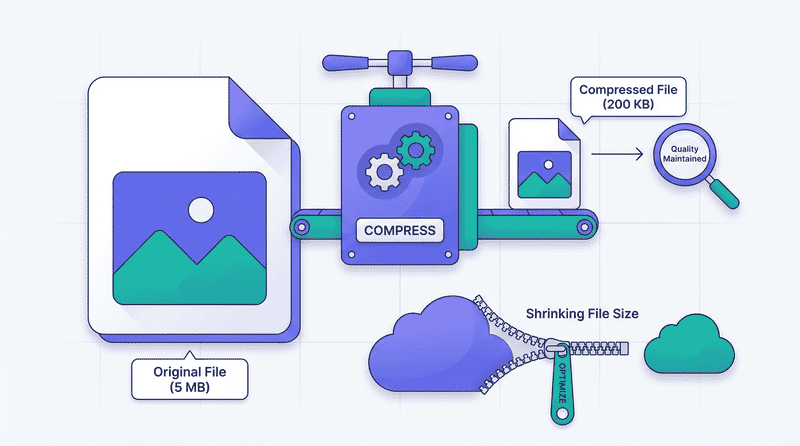
Understanding Image Compression: Lossy vs Lossless Deep Dive
Master image compression fundamentals. Learn how lossy and lossless compression work, quality metrics, format comparisons, and optimization strategies for the web.
Understanding how image compression works helps you make better optimization decisions. This guide explains the fundamentals of lossy and lossless compression, quality measurement, and practical optimization strategies.
Compression Fundamentals
Digital images are large. An uncompressed 1920×1080 photo with 24-bit color is 6.2 MB. Compression makes images practical for web delivery.
Why Images Compress Well
Images contain redundancy:
- Spatial redundancy: Neighboring pixels are often similar
- Spectral redundancy: Color channels are correlated
- Psychovisual redundancy: Humans don’t perceive all detail equally
Compression exploits these redundancies to reduce file size.
The Two Categories
| Type | Data Loss | Reversible | Best For |
|---|---|---|---|
| Lossless | None | Yes | Graphics, text, editing |
| Lossy | Some | No | Photos, web delivery |
Lossless Compression
Lossless compression reduces file size without losing any data. The original image can be perfectly reconstructed.
How It Works
Prediction: Predict each pixel based on neighbors, store only the difference (which is smaller).
Dictionary coding: Find repeated patterns, store references instead of data.
Entropy coding: Use fewer bits for common values, more for rare ones.
PNG Compression Pipeline
PNG uses a two-stage approach:
1. Filtering (per row):
Original:    50  52  53  54  55  56
Sub filter:  50   2   1   1   1   1  (difference from left)
2. DEFLATE compression:
- LZ77 finds repeated sequences
- Huffman coding compresses the result
Lossless Formats
| Format | Algorithm | Typical Savings |
|---|---|---|
| PNG | DEFLATE | 50-70% vs raw |
| WebP (lossless) | Prediction + entropy | 26% smaller than PNG |
| AVIF (lossless) | AV1 intra-frame | ~30% smaller than PNG |
| GIF | LZW | Limited (256 colors) |
When to Use Lossless
- Screenshots with text
- Graphics with sharp edges
- Source files for editing
- Legal/medical images requiring exact reproduction
- Images that will be further processed
Lossy Compression
Lossy compression achieves higher compression by discarding information humans are less likely to notice.
Human Vision Exploits
Our visual system has specific characteristics:
- Spatial sensitivity: More sensitive to low frequencies than high frequencies
- Luminance sensitivity: More sensitive to brightness than color
- Edge detection: Focused on edges and boundaries
- Motion blindness: Less attentive to static areas during scrolling
Lossy compression exploits all of these.
JPEG Compression Pipeline
JPEG is the most common lossy format. Understanding its pipeline explains many optimization choices.
1. Color space conversion:
RGB → YCbCr (luminance + chrominance)Separating brightness from color enables different treatment for each.
2. Chroma subsampling:
4:4:4 - Full color resolution
4:2:2 - Half horizontal color resolution
4:2:0 - Quarter color resolution (most common)
Since we’re less sensitive to color detail, reducing color resolution saves significant space.
3. Block splitting: Image divided into 8×8 pixel blocks.
4. Discrete Cosine Transform (DCT):
Spatial domain → Frequency domain

Pixel values → Frequency coefficients
DCT converts blocks into frequency components. Low frequencies (smooth areas) vs high frequencies (edges, detail).
5. Quantization (where loss occurs):
Coefficient value / Quantization step = Quantized value (rounded)Higher quality = smaller quantization steps = more detail preserved.
6. Entropy coding: Quantized coefficients compressed with Huffman coding.
The Quality Parameter
Quality settings (0-100) primarily control the quantization step:
| Quality | Quantization | File Size | Visual Quality |
|---|---|---|---|
| 100 | Minimal | Large | Near-perfect |
| 80-90 | Low | Medium | Excellent |
| 60-80 | Moderate | Small | Very good |
| 40-60 | High | Very small | Good |
| < 40 | Aggressive | Tiny | Visible artifacts |
Common Lossy Artifacts
Block artifacts: Visible 8×8 grid at high compression.
Ringing/mosquito noise: Halo around sharp edges.
Banding: Smooth gradients become stepped.
Color bleeding: Color smears into adjacent areas.
Loss of detail: Fine textures disappear.
Modern Compression: WebP and AVIF
Newer formats use more sophisticated algorithms.
WebP Lossy
Based on VP8 video codec:
- Prediction: Each block predicted from neighbors
- Larger blocks: 4×4 to 16×16 (vs JPEG’s 8×8)
- Adaptive quantization: Quality varies across image
- Loop filtering: Reduces blocking artifacts
Typical improvement: 25-34% smaller than JPEG.
AVIF Lossy
Based on AV1 video codec:
- Advanced prediction: Multiple reference frames
- Variable block sizes: 4×4 to 128×128
- Film grain synthesis: Realistic grain at low sizes
- Better entropy coding: More efficient compression
Typical improvement: 50% smaller than JPEG, 20% smaller than WebP.
Format Comparison
For equivalent visual quality:
| Target Quality | JPEG | WebP | AVIF |
|---|---|---|---|
| High (excellent) | 90 | 85 | 75 |
| Standard (very good) | 80 | 75 | 65 |
| Compressed (good) | 70 | 65 | 50 |
Quality Measurement
Subjective vs Objective
Subjective: Human evaluation of visual quality. Objective: Mathematical comparison metrics.
Objective metrics correlate with but don’t perfectly predict subjective quality.
Common Metrics
PSNR (Peak Signal-to-Noise Ratio):
- Measures pixel-level difference
- Higher = better (40+ dB is excellent)
- Poor correlation with perceived quality
SSIM (Structural Similarity Index):
- Considers structure, luminance, contrast
- Range: 0-1 (1 = identical)
- Better perceptual correlation than PSNR
- SSIM > 0.95 typically imperceptible difference
DSSIM (Structural Dissimilarity):
- Inverse of SSIM
- Range: 0-1 (0 = identical)
- DSSIM < 0.015 typically acceptable
Butteraugli:
- Google’s perceptual difference metric
- Lower = better
- < 1.0 typically imperceptible
VMAF (Video Multimethod Assessment Fusion):
- Netflix’s machine learning-based metric
- Range: 0-100
- Designed for video, usable for images
- VMAF > 90 excellent
Using Metrics
# SSIM with ImageMagick
compare -metric SSIM original.jpg compressed.jpg null:

# DSSIM
dssim original.png compressed.png

# Butteraugli
butteraugli original.png compressed.png
Practical Quality Testing
- Compress at multiple quality levels
- Compare file sizes
- Calculate objective metrics
- Visual inspection at 100%
- Check problem areas (gradients, text, edges)
- Test on target devices
Chroma Subsampling Deep Dive
Chroma subsampling is one of the most impactful compression techniques.
How It Works
4:4:4 - Full color resolution (no subsampling)
Y: ████████    Cb: ████████    Cr: ████████

4:2:2 - Half horizontal color resolution
Y: ████████    Cb: ████        Cr: ████

4:2:0 - Quarter color resolution (half horizontal and vertical)
Y: ████████    Cb: ██          Cr: ██
   ████████       ██              ██
Impact on Different Content
| Content Type | Recommended | Why |
|---|---|---|
| Photos | 4:2:0 | Imperceptible difference |
| Text on photos | 4:2:2 or 4:4:4 | Color fringing around text |
| Solid color graphics | 4:4:4 | Prevents color shift |
| Red text | 4:4:4 | Red channel especially affected |
Enabling 4:4:4
# ImageMagick
convert input.jpg -sampling-factor 1x1 -quality 90 output.jpg

# cjpeg
cjpeg -quality 90 -sample 1x1 input.ppm > output.jpg

# FFmpeg
ffmpeg -i input.png -pix_fmt yuvj444p output.jpg
Progressive vs Baseline
Baseline JPEG
Loads top-to-bottom, line by line.
████████████████
████████████████
████████████████
░░░░░░░░░░░░░░░░  ← Loading...
Progressive JPEG
Loads in multiple passes, each improving quality.
Pass 1: ▓▓▓▓▓▓▓▓▓▓▓▓▓▓▓▓  (blurry)
Pass 2: ████████████████  (better)
Pass 3: ████████████████  (final)
Comparison
| Aspect | Baseline | Progressive |
|---|---|---|
| Perceived speed | Slower | Faster |
| File size | Slightly smaller | Slightly larger |
| CPU decode | Lower | Higher |
| Memory decode | Lower | Higher |
| User experience | Poor | Better |
Recommendation: Use progressive for images > 10KB.
# Create progressive JPEG
jpegtran -progressive input.jpg > output.jpg

# With ImageMagick
convert input.jpg -interlace JPEG output.jpg
Optimization Strategies
Finding the Quality Sweet Spot
The relationship between quality and file size is non-linear:
Quality: 100  90  80  70  60  50
Size:    100% 40% 25% 18% 14% 11%
Most of the savings come from the first quality reduction. Going from 80 to 60 saves less than going from 100 to 80.
Practical approach:
- Start at quality 80
- Compare to quality 75 and 85
- Check if artifacts are acceptable
- Adjust based on content type
Content-Aware Quality
Different images compress differently:
| Content | Compression Quality | Reasoning |
|---|---|---|
| Simple graphics | Lower (60-70) | Little detail to lose |
| Detailed photos | Higher (80-85) | More artifacts visible |
| Portraits | Higher (80-90) | Skin artifacts noticeable |
| Textures | Moderate (75-80) | Some loss acceptable |
Two-Pass Encoding
For best results:
- First pass: Analyze image content
- Second pass: Optimize encoding based on analysis
# avifenc two-pass example
avifenc --min 20 --max 30 --speed 4 input.png output.avif
Preserve Quality Through Pipeline
Don’t recompress lossy images:
JPEG → edit → JPEG  (quality degrades)
JPEG → edit → PNG → JPEG  (still degrades)
Better workflow:
RAW → edit → PNG (master) → JPEG/WebP (distribution)Format Selection Guide
Decision Matrix
Is it a photo?
├── Yes: Is transparency needed?
│   ├── Yes → WebP or PNG
│   └── No → AVIF → WebP → JPEG (fallback chain)
└── No: Is it simple graphics?
    ├── Yes: Is it vector-suitable?
    │   ├── Yes → SVG
    │   └── No → PNG-8 or WebP
    └── No (complex illustration) → PNG or WebP lossless
Size Expectations
For a typical 1920×1080 photo:
| Format | Quality | Expected Size |
|---|---|---|
| Uncompressed | Perfect | 6.2 MB |
| PNG | Perfect | 3-5 MB |
| JPEG q=80 | Excellent | 200-400 KB |
| WebP q=80 | Excellent | 150-300 KB |
| AVIF q=65 | Excellent | 100-200 KB |
Testing and Validation
Visual Comparison
<!-- Before/After slider -->
<div class="comparison">
  <img src="original.jpg" alt="Original">
  <img src="compressed.jpg" alt="Compressed">
</div>
Automated Testing
const sharp = require('sharp');

async function findOptimalQuality(inputPath, targetSSIM = 0.95) {
  const qualities = [90, 85, 80, 75, 70, 65, 60];

  for (const quality of qualities) {
    const compressed = await sharp(inputPath)
      .jpeg({ quality })
      .toBuffer();

    const ssim = await calculateSSIM(inputPath, compressed);

    if (ssim >= targetSSIM) {
      return { quality, size: compressed.length, ssim };
    }
  }
}
A/B Testing
For critical images, test with real users:
- Serve different quality levels to user segments
- Measure engagement metrics
- Find the lowest quality that maintains performance
Summary
Key Takeaways
-
Lossy vs Lossless: Use lossy for photos (smaller), lossless for graphics (exact)
-
Quality isn’t linear: 80 is usually the sweet spot; going lower saves less proportionally
-
Chroma subsampling: 4:2:0 for photos, 4:4:4 for graphics with text
-
Modern formats: AVIF > WebP > JPEG for photos
-
Test visually: Metrics guide, but eyes decide
Quality Recommendations
| Use Case | Format | Quality | Chroma |
|---|---|---|---|
| Hero photos | AVIF/WebP | 70-80 | 4:2:0 |
| Product images | WebP/JPEG | 80-85 | 4:2:0 |
| Thumbnails | JPEG | 60-75 | 4:2:0 |
| Screenshots | PNG or WebP lossless | N/A | N/A |
| Text overlays | PNG or WebP | High | 4:4:4 |
Optimization Checklist
- ✅ Choose appropriate format for content type
- ✅ Start at quality 80, adjust based on content
- ✅ Use 4:2:0 for photos, 4:4:4 for graphics with text
- ✅ Enable progressive JPEG for large images
- ✅ Measure with SSIM or visual inspection
- ✅ Never recompress already-compressed images
- ✅ Test on various devices and screens
- ✅ Use modern formats with fallbacks
Understanding compression empowers better optimization decisions. The goal isn’t maximum compression—it’s finding the balance between quality and file size for your specific use case.