EXIF Orientation: Why Your Photos Open Sideways and How to Fix It
EXIF orientation explained: all 8 values, why one app rotates a photo correctly and another does not, and how to fix it with exiftool or sharp.
Disclosure: ImageGuide is published by Sirv, an image CDN company. This guide mentions Sirv products. Read how we write these guides.
Quick answer
EXIF orientation tells software how to rotate or mirror a photo for display without changing its stored pixel order. Normalize the orientation during processing, then remove or reset the orientation tag. Otherwise one viewer may rotate the same image again while another displays it sideways.
Reference for this answer: Sharp output documentation.
A photo that looks perfect on your phone arrives sideways on your website. You open it in one app and it stands upright. You open it in another and it lies on its side. Nothing changed in the file, so what happened?
The answer is almost always EXIF orientation. This guide explains what the flag does, lists all 8 EXIF orientation values, shows you how to check them, and walks through permanent fixes for pipelines that keep producing rotated images.
What Is EXIF Orientation?
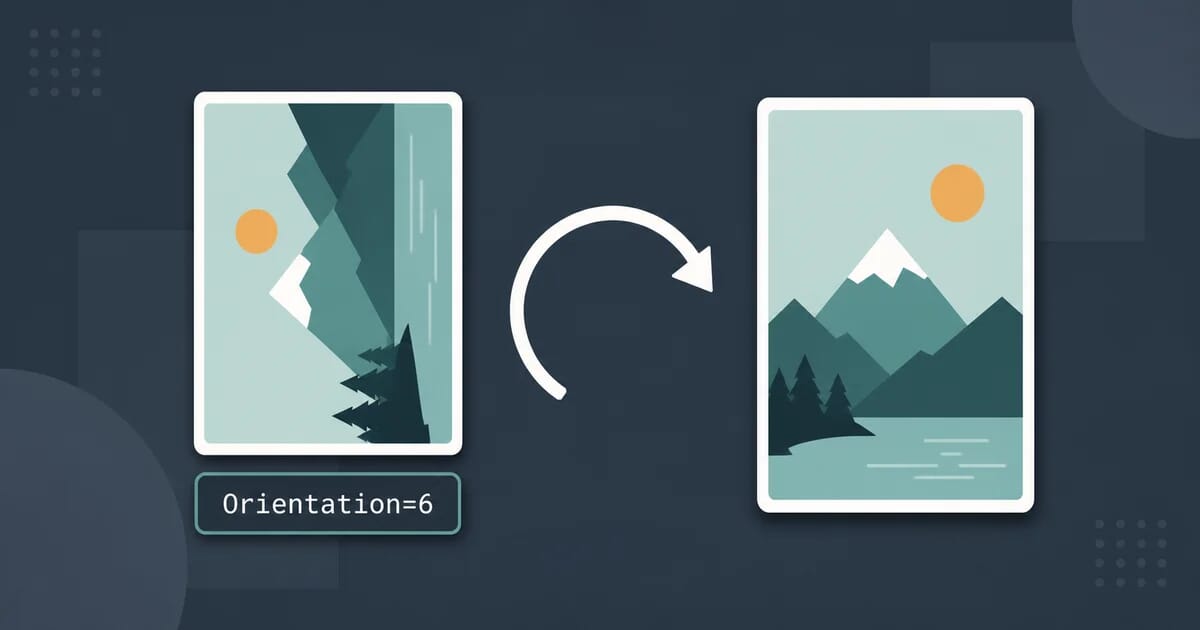
EXIF orientation is a metadata flag stored inside a JPEG, HEIC, or TIFF file. It tells software how to rotate or flip the pixels before display. The flag changes nothing about the pixel data itself.
Here is the key idea: the pixels stay exactly as the sensor captured them. Only the flag rotates the image.
When you hold your phone sideways or upside down, the camera sensor still records in its native orientation. Instead of physically rotating millions of pixels, the camera writes a small integer into the EXIF Orientation tag. A viewer reads that integer and rotates the image on screen.
This design saves time and battery at capture. It also creates every sideways-photo bug you have ever seen, because any software that ignores the flag shows the raw, unrotated pixels.
All 8 EXIF Orientation Values
The EXIF spec defines exactly 8 possible values for the Orientation tag (tag ID 0x0112). Values 1 through 4 need no rotation, only optional flips. Values 5 through 8 rotate by 90 degrees, with or without a mirror.
| Value | Rotation | Flip | Result |
|---|---|---|---|
| 1 | None | None | Normal landscape |
| 2 | None | Horizontal | Mirrored left-right |
| 3 | 180° | None | Upside down |
| 4 | 180° | Horizontal | Flipped upside down |
| 5 | 90° CW | Horizontal | Transposed |
| 6 | 90° CW | None | Rotated 90° clockwise |
| 7 | 90° CCW | Horizontal | Transversed |
| 8 | 90° CCW | None | Rotated 90° counter-clockwise |
In practice, cameras produce almost only two values:
- 1 — shot in normal orientation.
- 6 — phone held vertically (portrait); the sensor records landscape and the flag asks for a 90° clockwise turn.
- 8 appears occasionally when a phone is held with the opposite edge down.
Values 2, 3, 4, 5, and 7 mostly come from editing software, scanners, or unusual devices. Still, a robust pipeline handles all 8, because one mirrored batch out of a thousand is enough to annoy users.
Note the geometry trap: values 5–8 swap width and height. An image stored as 4000×3000 displays as 3000×4000. Software that reads dimensions from the header but ignores the flag gets both numbers wrong.
Why Photos Open Sideways in Some Apps and Not Others
The same file shows upright in one program and sideways in another because the two programs disagree about honoring the flag.
Browsers honor it now
Before 2020, browsers ignored EXIF orientation. Developers had to pre-rotate images server-side or apply CSS transforms. Then browser vendors flipped the default:
| Browser | Honors EXIF orientation by default since |
|---|---|
| Chrome 81 | February 2020 |
| Firefox 77 | June 2020 |
| Safari 13.1 | March 2020 |
| Edge 81 | March 2020 |
The CSS spec changed too. The image-orientation property now defaults to from-image, so plain <img> tags respect the flag. Canvas drawing honors it as well.
The catch: old screenshots of advice still tell people to add CSS hacks. Those hacks now cause double rotation on modern browsers. If your image looks correct in the browser but sideways in a desktop tool, the flag is present and the desktop tool ignores it.
Old pipelines ignore it
Many tools never got the memo:
- Legacy image libraries and some CMS plugins read raw pixels.
- Some thumbnailers and email clients skip EXIF parsing for speed.
- Older versions of popular command-line tools required explicit flags.
- Copy-paste through certain apps strips metadata entirely, leaving pixels that were never rotated.
So the failure mode is predictable. The camera wrote orientation 6. The browser rotates and shows it right. The server-side resizer ignored the flag, cropped a 4000×3000 frame instead of 3000×4000, and produced a thumbnail that looks like an image rotated sideways. Same source file, two different results.
How to Check EXIF Orientation
Three quick ways cover most workflows.
ExifTool
ExifTool prints the tag plus a human-readable label:
exiftool -Orientation photo.jpg
# Orientation                     : Rotate 90 CW

exiftool -Orientation -n photo.jpg
# Orientation                     : 6
The -n flag prints the raw number, which is what scripts should compare against. To see whether the flag exists at all, run exiftool -Orientation -s3 file.jpg; empty output means no tag.
ImageMagick
ImageMagick exposes orientation through the identify format string:
identify -format '%[orientation]\n' photo.jpg
# RightTop
ImageMagick uses names instead of numbers: TopLeft is 1, RightTop is 6, BottomRight is 3, and so on. For dimension checks that account for rotation, use %[fx:w] and %[fx:h] after applying -auto-orient.
macOS Preview
Open the file, press Cmd+I for the Inspector, and switch to the EXIF tab. Look for the Orientation row. Windows users get the same data from the Details tab in File Properties, though Windows often reports less detail than ExifTool.
For bulk audits, a one-liner counts orientations across a folder:
exiftool -Orientation -n -ext jpg . | sort | uniq -c | sort -rnIf anything other than 1 or blank shows up in volume, your pipeline needs the fixes below.
Fixing Rotation Permanently
Checking is diagnosis. The cure is baking the rotation into the pixels and removing the flag. Do this once at ingest, and every downstream consumer sees the same upright image.
ImageMagick: mogrify -auto-orient
mogrify -auto-orient path/*.jpg-auto-orient rotates the pixels according to the flag and resets the tag to 1. Run it on copies, because mogrify overwrites files in place. For new JPEGs, add quality settings in the same pass:
mogrify -auto-orient -quality 85 path/*.jpgsharp (Node.js)
sharp has auto-rotation built into its default pipeline:
const sharp = require('sharp');

await sharp(input)
  .rotate() // no angle: uses EXIF orientation
  .resize(1600)
  .jpeg({ quality: 85 })
  .toFile(output);
Calling .rotate() with no argument reads the EXIF orientation values and rotates accordingly. Since sharp 0.30, .rotate() also clears the flag after rotating, so output files carry orientation 1 automatically. If you pass an explicit angle instead, sharp still clears the flag. Strip the tag yourself only when a downstream tool re-adds it.
ExifTool: exiftool -rotate
ExifTool can rotate losslessly for angles that are multiples of 90:
exiftool -rotate=90 photo.jpgThis rewrites the JPEG structure without recompressing pixels, which keeps quality identical. To set the flag without touching pixels, use -orientation#=6. That direction is useful for repairing files where someone stripped the tag from an already-upright image.
Pillow (Python)
from PIL import Image, ImageOps

img = Image.open("photo.jpg")
img = ImageOps.exif_transpose(img)  # bakes rotation, clears the flag
img.save("fixed.jpg", quality=85)
ImageOps.exif_transpose is the Pillow equivalent of -auto-orient and has handled all 8 values since Pillow 9.
Strip the Flag After Rotating — or It Double-Rotates
Here is the bug that fills support inboxes: an image gets rotated manually, but the original EXIF orientation stays in the file. Now the pixels say one thing and the flag says another.
The viewer applies the flag on top of the already-correct pixels. Result: an image rotated sideways again, or upside down, depending on the values involved. This double rotation hits:
- Editors that rotate pixels but copy metadata blindly.
- Re-compression services that preserve unknown tags.
- Manual fixes done in one tool, then passed through another.
The rule is simple: every operation that changes pixel orientation must reset the EXIF orientation tag to 1. Tools above do it for you. If yours does not, remove the tag explicitly:
exiftool -orientation= photo.jpg        # delete the tag
mogrify -strip path/*.jpg               # remove all metadata (blunt)
Prefer deleting just the orientation tag over -strip, because stripping removes color profiles and copyright data too. See our guide on image metadata privacy for what else lives in those bytes.
Preventing Double Rotation Bugs in Pipelines
Rotation bugs multiply when several systems touch the same file. These rules keep pipelines sane.
1. Normalize once, at ingest. Run auto-orient as the first step of any upload pipeline. Everything downstream then works with orientation-1 files and stops caring about the flag.
# ingest step: normalize + resize in one pass
mogrify -auto-orient -resize '1920x1920>' -quality 82 "$INBOX"/*.jpg
2. Never rotate pixels twice. If a human fixed an image in an editor, do not run auto-orient on it again. Check first:
o=$(exiftool -Orientation# -s3 -n "$f")
[ "${o:-1}" != "1" ] && mogrify -auto-orient "$f"
3. Compare dimensions with rotation in mind. Validation that asserts width > height fails on portrait shots unless it accounts for orientation 5–8. Read effective dimensions after normalization, not raw header values.
4. Test with all 8 values. Keep a fixture folder with one file per orientation value. A pipeline test that feeds all 8 through catches mirror and transpose bugs that a single portrait sample misses.
5. Watch canvas and CSS in frontends. Modern browsers handle the flag, but code that draws to canvas via drawImage on older embedded WebViews may not. If you must support such environments, normalize server-side rather than patching client transforms.
Camera and Phone Settings That Avoid the Problem
You can reduce sideways photos at the source.
- Keep firmware current. Phone makers fixed orientation-tag bugs repeatedly across releases.
- Shoot JPEG+HEIC consistently. Some apps write correct flags to one format and drop them in the other. Pick one capture format per workflow.
- Turn off “mirror front camera” only deliberately. The mirrored-selfie setting produces flipped values (2 and 4 territory). Fine for social, wrong for product catalogs.
- Scanners and DSLRs rarely emit non-1 values, so if a batch arrives rotated, suspect the transfer app or an editor between camera and server, not the camera.
For delivery, converting to WebP or AVIF during ingest drops most EXIF anyway, which makes upfront normalization even more important. The flag will not survive to help anyone later.
EXIF Orientation and CDNs
Image CDNs sit between your storage and the browser, so their behavior decides what users see.
Most major CDNs auto-orient by default today: they read the flag, rotate the delivered pixels, and serve orientation-1 output. That matches modern browser behavior and hides sloppy sources. But defaults vary by product, plan, and transformation chain:
- Auto-orient usually applies only when resizing or format conversion runs. A pure passthrough may deliver original bytes untouched, flag included.
- Some CDNs let you disable auto-orient explicitly. Leave it enabled unless you have already normalized upstream.
- If your origin files are already normalized (orientation 1), CDN behavior stops mattering. This is the strongest argument for fixing at ingest: normalized sources make every intermediary correct by construction.
One more CDN note: because values 5–8 swap reported dimensions, dimension-based cache keys or layout hints computed from raw headers can be wrong for un-normalized portrait images. Another reason to bake rotation in early.
Quick Reference
| Task | Command |
|---|---|
| Read flag (label) | exiftool -Orientation f.jpg |
| Read flag (number) | exiftool -Orientation -n f.jpg |
| Read via ImageMagick | identify -format '%[orientation]' f.jpg |
| Bake rotation, clear flag | mogrify -auto-orient f.jpg |
| Lossless 90° rotate | exiftool -rotate=90 f.jpg |
| Delete the flag | exiftool -orientation= f.jpg |
| Node pipeline | sharp(in).rotate().toFile(out) |
| Python pipeline | ImageOps.exif_transpose(img) |
EXIF Orientation in HTML, CSS, and JavaScript
Frontend code deserves its own look, because this is where silent breakage happens after a backend change.
Modern browsers need nothing from you. A plain tag shows the image upright:
<img src="/photos/portrait.jpg" alt="Product on white background">The problems start when JavaScript measures the image before layout settles. Code that reads img.naturalWidth gets the stored dimensions, not the displayed ones, for orientation 5–8 files. If you compute aspect-ratio boxes from those numbers, portrait images get landscape boxes until the browser corrects them.
Three habits prevent this:
- Normalize at ingest so every delivered file has orientation 1. Then
naturalWidthandnaturalHeightalways match what users see. - If you must handle flagged files client-side, create the image with
new Image()and read dimensions inside theloadevent, never before. - Avoid legacy CSS such as
image-orientation: none. It opts out of the default behavior and re-creates the sideways bug on modern browsers.
Server-side rendering libraries follow the same rule as pipelines: generate width and height attributes from normalized files. An <img> with wrong intrinsic hints causes layout shift, which hurts Core Web Vitals for reasons that trace straight back to an unhandled orientation flag.
HEIC, RAW, and Other Formats
JPEG owns most of the orientation story, but not all of it.
HEIC (iPhone default since iOS 11) carries the same Orientation tag semantics. Apple’s ecosystem honors it everywhere, which is why iPhone photos rarely look sideways on a Mac but often arrive rotated after export to other platforms. When converting HEIC to JPEG for the web, run the conversion through a tool that applies orientation first; naive pixel copies inherit the flag and the confusion together.
Camera RAW formats (CR3, NEF, ARW) store orientation differently, usually in maker-specific tags plus a standard field. RAW converters apply it during development, so exported JPEGs should arrive clean. If your RAW-to-JPEG exports still carry non-1 flags, check the converter’s metadata handling rather than the camera.
PNG and WebP have no EXIF orientation in common practice. PNG historically ignored EXIF entirely, and WebP containers rarely carry it. Converting a flagged JPEG to PNG without pre-rotation freezes the sideways pixels permanently, because the destination format gives the flag nowhere to live. This is the single most common way orientation bugs become unrecoverable without going back to the source.
Screenshots and downloaded web images almost never have the flag, because they capture already-displayed pixels. If a screenshot opens sideways, someone screenshotted a flagged image in a tool that ignored the flag — rotate it once manually and move on.
Summary
EXIF orientation is a display instruction, not rotated pixels. Cameras write one of 8 values; viewers choose to honor it or not, which is why one file opens differently in different apps. Browsers have honored the flag since 2020, but plenty of older tools still ignore it.
The durable fix costs one step: auto-orient at ingest, which rotates pixels and resets the flag together. Do that, verify with exiftool -Orientation, and sideways photos stop being your problem — in browsers, resizers, and CDNs alike.
If you manage galleries at scale, Sirv’s media viewer handles orientation, zoom, and spins automatically, and Sirv Studio covers AI cleanup like background removal on top of a normalized library. You can create a free account to try it against your own batch.