TIFF to PDF: 8 Ways to Convert TIFF Files (Multi-Page, Batch and CLI)
Convert TIFF to PDF with Preview, Print to PDF, img2pdf, ImageMagick or tiff2pdf: multi-page files, compression choice, and the way back.
ImageGuide is published by Sirv. See our editorial method and Markdown reading copy.
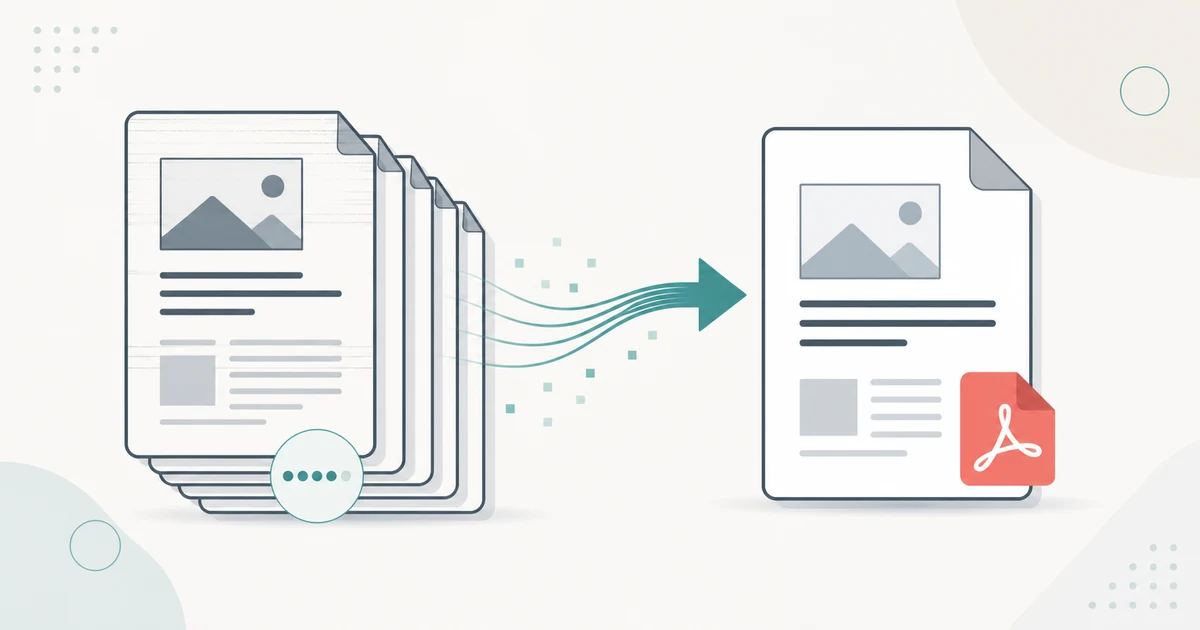
Convert TIFF to PDF with a tool that supports the TIFF’s compression and page structure. For multi-page TIFFs, confirm that every frame becomes the intended PDF page. Check order, orientation, and readable detail, and keep the original TIFF; support varies between browser and desktop tools.
Combine images, including TIFFs, into a single PDF in your browser.
Going the other way? Extract PDF pages as JPG images.
The full walkthrough for this conversion is below — the methods work with any image editor or command line, no upload required.
Before you convert
A TIFF can contain more than one image and can use different compression methods. Verify that the chosen method reads the actual file before processing a batch.
Inspect page count and order after export. Use OCR separately if the PDF needs searchable text.
TIFF and PDF keep meeting in the same workflows. Scanners save to TIFF. Fax servers save to TIFF. Legal discovery, medical imaging archives and print houses all treat TIFF as the archival master. And then somebody asks for a PDF, because a PDF opens on every phone, attaches to every email and prints without a driver debate.
So “tiff to pdf” is really two questions. How do you wrap a TIFF in a PDF without damaging it? And how do you turn a multi-page TIFF into a multi-page PDF, where each frame becomes one page? This guide answers both, plus the reverse direction: pulling a TIFF back out of a PDF.
Why TIFF and PDF Travel Together
The pairing shows up in the same places again and again:
- Scanning. Many scanner drivers default to TIFF for archival scans. The archive keeps the TIFF; the person who needs a copy gets a PDF.
- Fax. Fax is a TIFF format under the hood (TIFF-F). Received faxes convert to PDF so people can read them anywhere.
- Legal and compliance. Courts and agencies accept PDF, not TIFF. Production of documents usually means “TIFF masters, PDF deliverables.”
- Medical and lab records. Equipment exports TIFF. Patient portals accept PDF.
- Print and prepress. TIFF carries the high-bit-depth master. The proof or the client proof goes out as PDF.
The pattern: TIFF is the master, PDF is the delivery format. That shapes the whole guide, because a delivery copy should not degrade the master. The one technical detail that separates a good conversion from a bad one is whether the tool re-encodes your image data or embeds it untouched.
A PDF is a container, not a compressor. A converter can copy the compressed image stream from your TIFF straight into the PDF. Or it can decode the pixels and compress them again. The second path loses a little quality every time, and it can even produce a larger file. The best methods below never re-encode.
Pick Your Method First
| # | Method | Cost | Multi-page TIFF? | Batch? | Re-encodes? |
|---|---|---|---|---|---|
| 1 | Browser converter | Free | Yes | Yes | Optional |
| 2 | macOS Preview | Included | Yes | Limited | Yes |
| 3 | Windows Print to PDF | Included | Yes | No | Yes |
| 4 | Adobe Acrobat and alternatives | Varies | Yes | Yes | Configurable |
| 5 | img2pdf (Python) | Free | Yes | Yes | No |
| 6 | ImageMagick | Free | Yes | Yes | Optional |
| 7 | tiffcp + tiff2pdf (libtiff) | Free | Yes | Yes | No |
| 8 | sharp + pdf-lib (Node) | Free | Yes | Yes | Configurable |
If you convert once a month, methods 1–4 are fine. If you convert archives, scans in bulk, or files that must stay bit-exact, use method 5 or 7.
1. A Browser Converter
The fastest path when you do not want to install anything. ImageGuide’s converter runs entirely in your browser with WebAssembly, so the files never leave your machine:
- Image to PDF — accepts mixed formats, including TIFF, in one drop
- PDF to JPG — the reverse direction, page by page
Drop in one or more TIFFs, reorder them, and download one PDF. A multi-page TIFF arrives as one multi-page PDF. Because everything runs locally, a 500 MB stack of archival scans is limited by your own machine, not an upload cap.
When This Is the Right Answer
- You need it done in under a minute, on any computer
- The scans are sensitive and should not touch a server
- You are on a locked-down work machine with no install rights
2. macOS Preview
Preview converts a single TIFF in four steps:
- Open the TIFF in Preview.
- Choose File → Export as PDF.
- Name the file and pick a folder.
- Click Save.
For several TIFFs in one PDF, open them all in one Preview window, drag the page thumbnails into order in the sidebar, then export. For a folder of TIFFs, select them in Finder, right-click, and choose Quick Actions → Create PDF. Finder combines them in filename order, so name your files with zero-padded numbers (scan-01.tif, scan-02.tif) to control the page order.
Preview always re-encodes. For a readable scan this is fine. For an archival master, keep the TIFF and use method 5 or 7 for the PDF copy.
3. Windows Print to PDF
Every Windows 10 and 11 machine ships with the Microsoft Print to PDF printer.
- Right-click the TIFF and choose Print.
- Pick Microsoft Print to PDF as the printer.
- Select paper size, fit and copies-per-sheet.
- Click Print, then choose a filename.
The Photos app prints one image per page. To combine several TIFFs, select them all in File Explorer first, then print; each image lands on its own page in selection order.
The catch: printing rasterizes at the paper resolution, typically 150–300 DPI. A 4000 DPI drum scan printed to PDF at 300 DPI throws away detail. Print to PDF is for readable documents, not for archives.
4. Adobe Acrobat and Free Alternatives
Acrobat’s Create PDF tool converts TIFFs directly, and its optimization settings let you choose the compression inside the PDF (more on JPEG versus Flate below). It is excellent, and it is a subscription.
Free desktop alternatives that handle TIFF to PDF well:
- PDF24 Creator (Windows) — drag TIFFs into the composer, reorder, save
- GIMP — open the TIFF, File → Export As → PDF; handles one file at a time
- LibreOffice Draw — insert the TIFF into a document and export as PDF; useful when you also want captions or page numbers
These sit in the same tier as Preview: convenient, re-encoding, fine for everyday documents.
5. img2pdf: The Lossless Reference (Python)
img2pdf embeds your image data in the PDF without decoding it. A JPEG-compressed TIFF goes in as a JPEG stream; a Flate (ZIP) compressed TIFF goes in as a Flate stream. The pixels are byte-identical to the source.
pip install img2pdf

# One multi-page TIFF becomes one multi-page PDF
img2pdf scans.tif -o scans.pdf

# A folder of TIFFs, in sorted order, becomes one PDF
img2pdf *.tif -o combined.pdf
In Python, with control over page size and multi-page TIFFs:
import img2pdf

# Each frame of a multi-page TIFF becomes one page
with open("scans.pdf", "wb") as f:
    f.write(img2pdf.convert("scans.tif"))

# Mixed input, A4 pages, images fit inside the page
layout = img2pdf.get_layout_fun(img2pdf.A4)
with open("combined.pdf", "wb") as f:
    f.write(img2pdf.convert(
        ["scan-01.tif", "scan-02.tif", "scan-03.tif"],
        layout_fun=layout,
    ))
img2pdf refuses JPEG-unfriendly inputs rather than silently re-encoding them, which is exactly the behavior you want from an archival tool. If a TIFF carries a color profile or bit depth the PDF image model cannot express, it tells you instead of guessing.
6. ImageMagick
ImageMagick converts anything to anything, and TIFF is no exception:
# Single file
magick scan.tif scan.pdf

# Whole folder, one PDF, in sorted order
magick *.tif combined.pdf

# Multi-page TIFF: every frame becomes a page
magick scans.tif scans.pdf
ImageMagick decodes and re-encodes by default. You control the encoding inside the PDF with the -compress option:
# JPEG compression inside the PDF, quality 90
magick scans.tif -compress JPEG -quality 90 scans.pdf

# Flate (lossless) compression inside the PDF
magick scans.tif -compress Zip scans.pdf
ImageMagick is the right tool when you also need transforms on the way in: deskew, trim borders, level the white point of a faded scan. When you only want a container change, img2pdf or tiff2pdf does the same job with zero quality risk.
7. tiffcp + tiff2pdf: The libtiff Route
The libtiff tools ship with most Linux distributions and Homebrew (brew install libtiff). Two commands cover the whole job.
tiffcp copies and merges TIFFs, including stacking a multi-page TIFF’s frames:
# Merge several TIFFs into one multi-page TIFF
tiffcp scan-01.tif scan-02.tif merged.tif

# Split a multi-page TIFF into single-page TIFFs
tiffcp -p separate scans.tif page-%03d.tif
tiff2pdf wraps TIFF data in a PDF without re-encoding the image stream:
# Multi-page TIFF to multi-page PDF, one frame per page
tiff2pdf -o scans.pdf scans.tif

# Set paper size and fit
tiff2pdf -p letter -F -o scans.pdf scans.tif
The full pipeline, split then reassemble as PDF:
tiffcp -p separate scans.tif page-%03d.tif
tiff2pdf -o scans.pdf page-*.tif
rm page-*.tif
This is the most predictable batch path on a server: two small binaries, no Python environment, no re-encoding, and page order you fully control.
8. sharp + pdf-lib (Node)
For a Node service or a build step, sharp reads TIFF (including multi-page, via pages) and pdf-lib writes the PDF:
import sharp from "sharp";
import { PDFDocument } from "pdf-lib";

async function tiffToPdf(inputPath, outputPath) {
  const pdf = await PDFDocument.create();

  // metadata returns width/height of the first page
  const meta = await sharp(inputPath).metadata();

  for (let page = 0; page < (meta.pages ?? 1); page++) {
    // PNG keeps this example lossless; use { format: "jpg", quality: 90 }
    // for smaller files with JPEG compression inside the PDF
    const { data, info } = await sharp(inputPath)
      .pages(page)
      .png()
      .toBuffer({ resolveWithObject: true });

    const image = await pdf.embedPng(data);
    const p = pdf.addPage([info.width, info.height]);
    p.drawImage(image, { x: 0, y: 0, width: info.width, height: info.height });
  }

  await pdf.save().then((b) => require("fs").promises.writeFile(outputPath, b));
}

await tiffToPdf("scans.tif", "scans.pdf");
The loop turns each TIFF frame into one PDF page at the frame’s native pixel size. Note that sharp decodes and re-encodes here, so this path trades some fidelity for flexibility. It earns its keep when the conversion is one step in a larger pipeline — resizing, watermarking, or generating thumbnails of each page at the same time.
Multi-Page TIFFs: Each Frame Becomes a Page
A multi-page TIFF is a stack of images in one file. Fax machines, document scanners and medical devices produce them constantly. The conversion rule is simple: each frame becomes one PDF page.
Every method in this guide does this correctly:
img2pdf scans.tif -o scans.pdf— one page per frametiff2pdf -o scans.pdf scans.tif— one page per framemagick scans.tif scans.pdf— one page per frame- The browser converter — one page per frame
The failure mode is not page count; it is page size. A TIFF frame from a fax is 1728 × 1078 pixels. Wrapped at native size, the PDF page is huge and prints scaled down. Wrapped at A4 or Letter, it prints exactly like the fax did. tiff2pdf -p a4 -F and img2pdf’s layout_fun both set the paper size and fit the image. For scans that people will print, set the paper size. For scans people will only view on screen, native size is fine and preserves every pixel.
Compression Inside the PDF: JPEG or Flate
A PDF stores each image either as a JPEG stream (lossy) or a Flate/ZIP stream (lossless). Pick per document, not per habit:
| JPEG in PDF | Flate (ZIP) in PDF | |
|---|---|---|
| Best for | Photos, color scans | Text, line art, screenshots, 1-bit bitonal scans |
| File size | Much smaller | Larger on photographic content |
| Quality | Generational loss on every re-save | Bit-exact |
| Typical use | Client proofs, email attachments | Legal production, archival copies, OCR input |
Rules of thumb, with approximate numbers:
- A color photo scan saved as JPEG inside the PDF is typically 5–10× smaller than the same page with Flate, at a quality level nobody notices at reading size. Use JPEG, quality around 85–90.
- A bitonal (black and white) text scan is the opposite: JPEG smears the letter edges, and the JPEG often is not even smaller than Flate on 1-bit data. Use Flate, or better, keep the TIFF’s native CCITT G4 compression, which
tiff2pdfpasses straight through. - Anything headed for OCR should be Flate. OCR engines misread JPEG-ringed characters more often, and the accuracy loss costs more than the disk space.
If your master TIFF is already JPEG-compressed, img2pdf embeds the existing JPEG stream untouched. That is the rare case where a “JPEG in PDF” choice costs nothing extra: the compression already happened once, and the conversion does not repeat it.
Batch Conversion on the Command Line
The one-liners above scale to thousands of files with a loop:
# Each TIFF becomes its own PDF
for f in *.tif; do img2pdf "$f" -o "${f%.tif}.pdf"; done

# Same with ImageMagick, JPEG-compressed pages
for f in *.tif; do magick "$f" -compress JPEG -quality 90 "${f%.tif}.pdf"; done

# Every TIFF in a tree, preserving folder structure (GNU parallel)
parallel 'img2pdf {} -o {.}.pdf' ::: $(find scans -name '*.tif')
For very large archives, tiffcp/tiff2pdf are the cheapest per file: no interpreter startup, no decode pass, predictable memory. A conversion job that runs overnight on a scan archive is exactly their use case.
The Reverse: PDF to TIFF
Sometimes the request runs the other way. A print house asks for TIFF pages, a fax gateway only accepts TIFF, or an archival system ingests nothing else.
Ghostscript renders PDF pages to TIFF:
# 300 DPI color TIFF, one multi-page output
gs -sDEVICE=tiff32nc -r300 -o output.tif input.pdf

# Bitonal G4 TIFF, the fax/legal standard
gs -sDEVICE=tiffg4 -r300 -o output.tif input.pdf

# One single-page TIFF per PDF page
gs -sDEVICE=tiff32nc -r300 -sOutputFile=page-%03d.tif input.pdf
pdftoppm (from poppler) is often faster and simpler:
# 300 DPI, one TIFF per page
pdftoppm -tiff -r 300 input.pdf page
ImageMagick delegates to Ghostscript under the hood, so magick input.pdf output.tif works if Ghostscript is installed.
One honest caveat: PDF-to-TIFF is a render, not an extraction. Ghostscript and pdftoppm draw the page at your chosen DPI and save the drawing. Text stays text in the PDF but becomes pixels in the TIFF, so the output is not searchable and the file is much larger. Choose 300 DPI for print-bound output, 200 DPI for fax gateways, and keep the PDF as the searchable master.
Choosing a Method: The Comparison
| Method | Multi-page TIFF | Batch | Lossless? | Set page size? | Best for |
|---|---|---|---|---|---|
| Browser converter | Yes | Yes | Optional | Automatic | One-off conversions, locked-down machines |
| macOS Preview | Yes | Limited | No | No | Quick single files on a Mac |
| Windows Print to PDF | Yes | No | No | Yes (paper) | Readable copies, not archives |
| Acrobat / PDF24 / GIMP | Yes | Yes | Configurable | Yes | Desktop users with mixed needs |
img2pdf | Yes | Yes | Yes | Yes | Archival masters, scripted pipelines |
| ImageMagick | Yes | Yes | Optional | Via -density | Conversions that also need transforms |
tiffcp + tiff2pdf | Yes | Yes | Yes | Yes | Servers, huge archives, no dependencies |
| sharp + pdf-lib | Yes | Yes | No | Native pixel size | Node services and build steps |
Common Problems and Fixes
“My PDF is bigger than my TIFF.” The tool decoded the image and re-compressed it with a less efficient encoder. Use img2pdf or tiff2pdf, which copy the stream instead.
“My scan looks soft in the PDF.” A lossy re-encode stacked on the TIFF’s existing compression, or Print to PDF rasterizing at 150 DPI. Reconvert with a lossless method.
“The PDF has 40 pages instead of 1.” That is correct behavior for a 40-frame multi-page TIFF. If you wanted one page, split the frames with tiffcp -p separate first and convert only the frame you need.
“The text scan is blurry and OCR fails.” JPEG compression inside the PDF. Reconvert with Flate or G4 compression.
“Colors look wrong.” The TIFF carries an ICC profile the converter dropped. ImageMagick preserves profiles with --profile; check the PDF with a color-managed viewer before blaming the conversion.
Before You Convert: Clean Up the Scans
Conversion is the last step. If the scans themselves need work — a product shot on a cluttered background, an old photo with color casts — fix the image first, then wrap it. Sirv Studio handles AI background removal and AI editing directly in the browser, which is often faster than a local editor for a batch of product images. And when the finished documents and images need to load fast on a real website, a Sirv account serves them from a CDN, with the Sirv Media Viewer adding zoom and galleries for high-resolution scans and artwork.
The Short Version
- A PDF is a container. The best tools copy your TIFF’s image data into it untouched; the convenient tools re-encode it.
- Multi-page TIFFs convert cleanly everywhere: each frame becomes one PDF page. Set an explicit paper size if the pages will print.
- For archives and anything bit-exact, use
img2pdfortiffcp+tiff2pdf. For one file right now, Preview, Print to PDF or the browser converter is fine. - Choose JPEG inside the PDF for photos, Flate or G4 for text and anything bound for OCR.
- Going the other way,
gsandpdftoppmrender PDF pages to TIFF — remember that the result is pixels, not searchable text.
If you regularly ship scans, artwork and product images to the web, create a Sirv account and let the CDN handle delivery while you keep the masters.