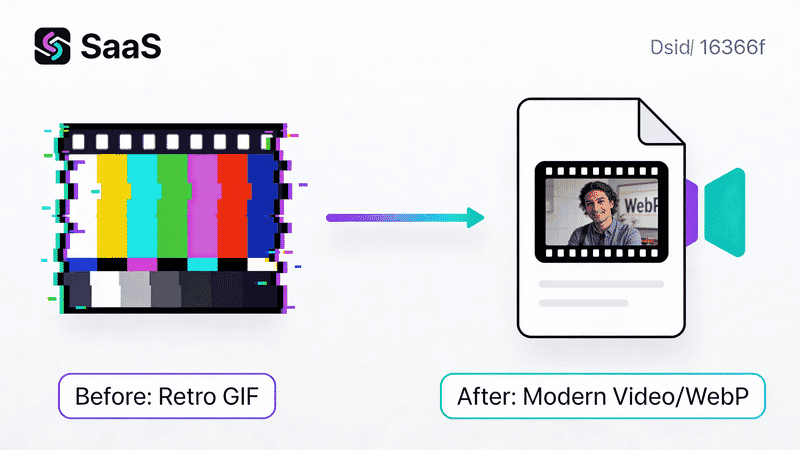
Migrating from GIF to Modern Animated Formats
Complete guide to replacing GIFs with modern alternatives. Learn WebP animations, video formats, Lottie, and CSS animations for better performance and quality.
GIF has dominated web animation for decades, but its 1987-era technology shows its age. Modern alternatives offer better compression, higher quality, and more features. This guide shows you how to migrate from GIF to formats that serve users better.
Why Move Away from GIF
GIF’s limitations create real problems for modern websites:
The Numbers Don’t Lie
| Metric | GIF | Modern Alternative |
|---|---|---|
| Colors | 256 max | 16.7 million |
| Transparency | 1-bit only | Full alpha |
| File size | Baseline | 50-90% smaller |
| Quality | Banding, dithering | Smooth gradients |
A typical 10-second animation:
- GIF: 8-15 MB
- WebP: 2-4 MB
- MP4: 0.5-1 MB
Real-World Impact
E-commerce product demos:
- GIF: 12 MB, 8 seconds to load on 3G
- WebP: 3 MB, 2 seconds on 3G
- MP4: 800 KB, 0.5 seconds on 3G
Marketing landing page:
- Before: 45 MB of GIFs, 15s load time
- After: 6 MB of video, 2s load time
- Result: 40% lower bounce rate
Choosing the Right Alternative
Decision Matrix
| Content Type | Best Alternative | Fallback |
|---|---|---|
| Short loops (< 5 sec) | Animated WebP | GIF |
| Longer animations | MP4/WebM video | GIF |
| UI animations | CSS/Lottie | Animated WebP |
| Product 360° | WebP or video | GIF |
| Memes/reactions | WebP or video | GIF |
| Technical demos | Video with controls | GIF |
Format Comparison
Animated WebP
- Pros: Great compression, full alpha, works in img tag
- Cons: Slightly less support than GIF (97% vs 100%)
- Best for: Short, looping animations
MP4 (H.264)
- Pros: Excellent compression, universal support, audio support
- Cons: No alpha transparency, requires video tag
- Best for: Longer animations, screen recordings
WebM (VP9)
- Pros: Better compression than MP4, alpha support
- Cons: No Safari support until recently
- Best for: High-quality with transparency needs
AVIF Animation
- Pros: Best compression
- Cons: Limited browser support, slow encoding
- Best for: Future-proofing, modern browsers only
Lottie (JSON)
- Pros: Tiny files, infinite scaling, programmable
- Cons: Only for vector animations
- Best for: UI animations, icons, illustrations
CSS Animations
- Pros: No file download, GPU accelerated
- Cons: Limited to what CSS can express
- Best for: Simple motion, hover effects
Converting GIF to WebP
Using gif2webp
Google’s official tool for GIF to WebP conversion:
# Install libwebp tools (includes gif2webp)
# macOS: brew install webp
# Ubuntu: apt install webp

# Basic conversion
gif2webp input.gif -o output.webp

# With quality setting (0-100)
gif2webp -q 80 input.gif -o output.webp

# Lossy compression for smaller files
gif2webp -lossy -q 75 input.gif -o output.webp

# Mixed mode (lossless for some frames)
gif2webp -mixed -q 80 input.gif -o output.webp

# Minimize output size
gif2webp -min_size input.gif -o output.webp
Using FFmpeg
More control over the conversion process:
# GIF to WebP
ffmpeg -i input.gif -c:v libwebp -lossless 0 -q:v 75 output.webp

# With loop control
ffmpeg -i input.gif -c:v libwebp -loop 0 -q:v 80 output.webp

# Resize during conversion
ffmpeg -i input.gif -vf "scale=400:-1" -c:v libwebp -q:v 80 output.webp
Using Sharp (Node.js)
const sharp = require('sharp');

// GIF to animated WebP
await sharp('input.gif', { animated: true })
  .webp({ quality: 80 })
  .toFile('output.webp');

// With resize
await sharp('input.gif', { animated: true })
  .resize(400)
  .webp({ quality: 80 })
  .toFile('output.webp');
Quality Comparison
For a typical 320x240 animation (3 seconds, 30 fps):
| Format | File Size | Quality |
|---|---|---|
| Original GIF | 2.1 MB | Baseline |
| WebP lossless | 1.4 MB | Perfect |
| WebP q=80 | 620 KB | Excellent |
| WebP q=60 | 380 KB | Very Good |
Converting GIF to Video
Video formats offer the best compression for longer animations.
Creating MP4 from GIF
# Basic conversion with good quality
ffmpeg -i input.gif -movflags faststart -pix_fmt yuv420p -vf "scale=trunc(iw/2)*2:trunc(ih/2)*2" output.mp4

# With quality control (CRF 18-28, lower = better)
ffmpeg -i input.gif -movflags faststart -pix_fmt yuv420p -crf 23 output.mp4

# Optimized for web
ffmpeg -i input.gif -c:v libx264 -preset slow -crf 22 -movflags +faststart -pix_fmt yuv420p output.mp4
Important flags explained:
-movflags faststart: Moves metadata to start for web streaming-pix_fmt yuv420p: Ensures compatibility with all players-crf: Quality setting (18 = high quality, 28 = smaller file)
Creating WebM from GIF
# VP9 WebM (best quality)
ffmpeg -i input.gif -c:v libvpx-vp9 -crf 30 -b:v 0 output.webm

# With alpha channel preserved (if GIF has transparency)
ffmpeg -i input.gif -c:v libvpx-vp9 -crf 30 -b:v 0 -pix_fmt yuva420p output.webm
Implementing Video as GIF Replacement
<!-- Autoplay, looping video (GIF-like behavior) -->
<video autoplay loop muted playsinline>
  <source src="animation.webm" type="video/webm">
  <source src="animation.mp4" type="video/mp4">
  <!-- GIF fallback for ancient browsers -->
  <img src="animation.gif" alt="Animation">
</video>
CSS for seamless integration:
video {
  /* Remove default controls appearance */
  width: 100%;
  height: auto;
  display: block;

  /* Prevent black flash on load */
  background: #f0f0f0;
}

/* Hide controls completely */
video::-webkit-media-controls {
  display: none !important;
}
Video with Transparent Background
WebM supports alpha channels:
# Convert GIF with transparency to WebM
ffmpeg -i transparent.gif -c:v libvpx-vp9 -pix_fmt yuva420p -crf 30 -b:v 0 transparent.webm<video autoplay loop muted playsinline>
<source src="transparent.webm" type="video/webm">
<!-- PNG sequence or WebP fallback -->
<img src="fallback.webp" alt="Animation">
</video>Implementing with picture Element
Use the picture element for animated images with fallbacks:
<picture>
  <!-- AVIF for cutting-edge browsers -->
  <source srcset="animation.avif" type="image/avif">
  <!-- WebP for modern browsers -->
  <source srcset="animation.webp" type="image/webp">
  <!-- GIF fallback -->
  <img src="animation.gif" alt="Loading animation" width="200" height="200">
</picture>
CSS Animations as Replacement
For simple animations, CSS might be all you need:
Loading Spinners
Before (GIF): 15 KB animated spinner
After (CSS):
<div class="spinner"></div>.spinner {
width: 40px;
height: 40px;
border: 4px solid #f3f3f3;
border-top: 4px solid #3b82f6;
border-radius: 50%;
animation: spin 1s linear infinite;
}
@keyframes spin {
to { transform: rotate(360deg); }
}Result: 0 KB download, GPU-accelerated
Pulsing Effects
Before: Animated GIF showing pulsing circle
After:
.pulse {
  width: 20px;
  height: 20px;
  background: #3b82f6;
  border-radius: 50%;
  animation: pulse 2s ease-in-out infinite;
}

@keyframes pulse {
  0%, 100% {
    transform: scale(1);
    opacity: 1;
  }
  50% {
    transform: scale(1.2);
    opacity: 0.7;
  }
}
Skeleton Loading
Replace animated loading GIFs with CSS:
.skeleton {
  background: linear-gradient(
    90deg,
    #f0f0f0 25%,
    #e0e0e0 50%,
    #f0f0f0 75%
  );
  background-size: 200% 100%;
  animation: shimmer 1.5s infinite;
}

@keyframes shimmer {
  0% { background-position: -200% 0; }
  100% { background-position: 200% 0; }
}
Lottie Animations
Lottie renders After Effects animations as lightweight JSON.
Why Lottie?
| Aspect | GIF | Lottie |
|---|---|---|
| File size | 500 KB typical | 20 KB typical |
| Scalability | Fixed pixels | Infinite |
| Programmable | No | Yes |
| Quality | 256 colors | Vector-perfect |
Implementation
Include Lottie library:
<script src="https://cdnjs.cloudflare.com/ajax/libs/lottie-web/5.12.2/lottie.min.js"></script>Create animation container:
<div id="animation" style="width: 200px; height: 200px;"></div>Initialize animation:
const animation = lottie.loadAnimation({
  container: document.getElementById('animation'),
  renderer: 'svg', // or 'canvas', 'html'
  loop: true,
  autoplay: true,
  path: 'animation.json'
});

// Control playback
animation.play();
animation.pause();
animation.setSpeed(2);
animation.goToAndStop(30, true); // frame 30
React Integration
import Lottie from 'lottie-react';
import animationData from './animation.json';

function AnimatedComponent() {
  return (
    <Lottie
      animationData={animationData}
      loop={true}
      style={{ width: 200, height: 200 }}
    />
  );
}
Creating Lottie Files
- Design in After Effects
- Export with Bodymovin plugin
- Or use LottieFiles.com for pre-made animations
Server-Side Auto-Conversion
Using Image CDN
Most image CDNs can convert GIFs automatically:
Sirv:
<!-- Automatic format conversion -->
<img src="https://example.sirv.com/animation.gif?format=optimal" alt="Animation">

<!-- Force WebP -->
<img src="https://example.sirv.com/animation.gif?format=webp" alt="Animation">
Cloudinary:
<img src="https://res.cloudinary.com/demo/image/upload/f_auto/animation.gif" alt="Animation">Cloudflare:
<img src="/cdn-cgi/image/format=auto/animation.gif" alt="Animation">Nginx Auto-Conversion
location ~* \.gif$ {
  # Check if WebP version exists
  set $webp_suffix "";
  if ($http_accept ~* "image/webp") {
    set $webp_suffix ".webp";
  }

  # Try WebP first, fall back to GIF
  try_files $uri$webp_suffix $uri =404;
  add_header Vary Accept;
}
Lazy Loading Animations
Don’t waste bandwidth on off-screen animations:
Native Lazy Loading
<img src="animation.webp" loading="lazy" alt="Animation">Intersection Observer for Video
const videos = document.querySelectorAll('video[data-src]');

const observer = new IntersectionObserver((entries) => {
  entries.forEach(entry => {
    if (entry.isIntersecting) {
      const video = entry.target;
      video.src = video.dataset.src;
      video.load();
      observer.unobserve(video);
    }
  });
}, { rootMargin: '200px' });

videos.forEach(video => observer.observe(video));<video autoplay loop muted playsinline data-src="animation.mp4">
<source type="video/mp4">
</video>Pause Off-Screen Animations
Save CPU and battery:
const animatedElements = document.querySelectorAll('video, .lottie-container');

const observer = new IntersectionObserver((entries) => {
  entries.forEach(entry => {
    if (entry.target.tagName === 'VIDEO') {
      entry.isIntersecting ? entry.target.play() : entry.target.pause();
    }
    // For Lottie, call animation.play() / animation.pause()
  });
});

animatedElements.forEach(el => observer.observe(el));
Accessibility Considerations
Reduced Motion Preference
Respect user preferences:
@media (prefers-reduced-motion: reduce) {
  /* Stop CSS animations */
  *, *::before, *::after {
    animation-duration: 0.01ms !important;
    animation-iteration-count: 1 !important;
  }

  /* Pause videos */
  video {
    animation: none;
  }
}
// Check preference in JavaScript
const prefersReducedMotion = window.matchMedia('(prefers-reduced-motion: reduce)').matches;
if (prefersReducedMotion) {
// Show static image instead
document.querySelectorAll('video').forEach(video => {
video.pause();
video.currentTime = 0;
});
}Providing Controls
For longer animations, give users control:
<div class="animation-container">
  <video id="demo-video" autoplay loop muted playsinline>
    <source src="demo.mp4" type="video/mp4">
  </video>
  <button class="play-pause" aria-label="Pause animation">
    ⏸️
  </button>
</div>
const video = document.getElementById('demo-video');
const button = document.querySelector('.play-pause');
button.addEventListener('click', () => {
if (video.paused) {
video.play();
button.textContent = '⏸️';
button.setAttribute('aria-label', 'Pause animation');
} else {
video.pause();
button.textContent = '▶️';
button.setAttribute('aria-label', 'Play animation');
}
});Alt Text for Animations
<!-- Decorative animation -->
<video autoplay loop muted playsinline aria-hidden="true">
  <source src="decorative.mp4" type="video/mp4">
</video>

<!-- Informative animation -->
<figure>
  <video autoplay loop muted playsinline aria-describedby="animation-desc">
    <source src="tutorial.mp4" type="video/mp4">
  </video>
  <figcaption id="animation-desc">
    Step-by-step demonstration of the checkout process
  </figcaption>
</figure>
Migration Strategy
Phase 1: Audit
# Find all GIFs in project
find . -name "*.gif" -type f

# Calculate total size
find . -name "*.gif" -type f -exec du -ch {} + | grep total$

# List largest GIFs
find . -name "*.gif" -type f -exec du -h {} + | sort -rh | head -20
Phase 2: Prioritize
- Largest files first: Most impact on performance
- Above-the-fold content: Affects LCP
- High-traffic pages: Maximize user benefit
- Marketing assets: Often oversized
Phase 3: Convert
Batch conversion script:
#!/bin/bash

# Convert all GIFs to WebP
for gif in *.gif; do
  if [ -f "$gif" ]; then
    name="${gif%.gif}"
    gif2webp -q 80 "$gif" -o "${name}.webp"
    echo "Converted: $gif -> ${name}.webp"
  fi
done
Phase 4: Update Code
<!-- Before -->
<img src="animation.gif" alt="Animation">

<!-- After -->
<picture>
  <source srcset="animation.webp" type="image/webp">
  <img src="animation.gif" alt="Animation" loading="lazy">
</picture>
Phase 5: Monitor
Track improvements:
- Page weight reduction
- Load time improvement
- Core Web Vitals impact
- Bandwidth savings
Common Mistakes
Mistake 1: Keeping GIF as Primary Format
Problem: Serving GIF when WebP is supported wastes bandwidth.
Solution: Use picture element or CDN auto-format.
Mistake 2: Autoplay Without muted
Problem: Browsers block autoplay videos with sound.
Solution: Always include muted for GIF-like behavior.
<!-- Won't autoplay -->
<video autoplay loop playsinline src="video.mp4"></video>

<!-- Will autoplay -->
<video autoplay loop muted playsinline src="video.mp4"></video>
Mistake 3: Forgetting playsinline
Problem: iOS shows fullscreen video instead of inline.
Solution: Always include playsinline attribute.
Mistake 4: No Loading State
Problem: Large video shows blank while loading.
Solution: Use poster attribute or CSS background.
<video autoplay loop muted playsinline poster="first-frame.jpg">
  <source src="animation.mp4" type="video/mp4">
</video>
Mistake 5: Ignoring File Size
Problem: Converting to video but keeping 4K resolution.
Solution: Right-size for display dimensions.
# Resize during conversion
ffmpeg -i input.gif -vf "scale=400:-1" -crf 23 output.mp4
Summary
Quick Reference
| Scenario | Recommended Format | Implementation |
|---|---|---|
| Short loops | Animated WebP | <picture> with GIF fallback |
| Long animations | MP4 | <video autoplay loop muted playsinline> |
| UI animations | CSS or Lottie | Native CSS or lottie-web |
| Transparency | WebM | <video> with WebM source |
| Universal support | WebP + GIF | <picture> element |
Migration Checklist
- ✅ Audit existing GIF usage
- ✅ Prioritize by file size and visibility
- ✅ Convert to appropriate modern format
- ✅ Implement with fallbacks
- ✅ Add lazy loading for below-fold
- ✅ Respect reduced motion preferences
- ✅ Monitor performance improvements
- ✅ Update content creation workflows
Moving away from GIF is one of the highest-impact optimizations you can make. The combination of smaller files, better quality, and more features makes modern alternatives the clear choice for new projects and worth migrating for existing content.