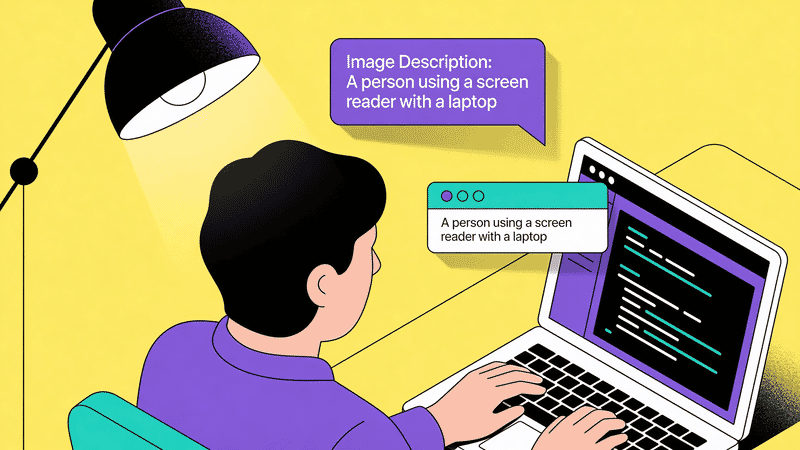
Accessible Images for Screen Readers: A Developer's Guide
Build truly accessible websites with this comprehensive guide to screen reader compatibility. Learn ARIA labels, role attributes, and testing techniques for image accessibility.
Making images accessible to screen reader users is more than just adding alt text. This guide covers the technical implementation details that ensure your images work for everyone, including users of JAWS, NVDA, VoiceOver, and other assistive technologies.
Understanding Screen Readers
Screen readers convert digital content to speech or braille output. When encountering images, they rely entirely on the information you provide through HTML attributes.
How Screen Readers Announce Images
<img src="dog.jpg" alt="Golden retriever puppy playing in autumn leaves">VoiceOver announces: “Golden retriever puppy playing in autumn leaves, image”
NVDA announces: “Graphic, Golden retriever puppy playing in autumn leaves”
JAWS announces: “Golden retriever puppy playing in autumn leaves, graphic”
Each screen reader has its own announcement pattern, but all rely on the alt attribute.
The alt Attribute Deep Dive
Required vs. Empty Alt
The alt attribute should always be present, but its value depends on the image’s purpose:
| Image Purpose | Alt Text | Example |
|---|---|---|
| Informative | Descriptive text | alt="Sales increased 25% in Q4" |
| Decorative | Empty | alt="" |
| Functional (link/button) | Action description | alt="Submit form" |
| Complex (chart/diagram) | Brief summary + long description | alt="Q4 sales chart" aria-describedby="chart-desc" |
The Danger of Missing Alt
<!-- Missing alt - screen reader reads filename -->
<img src="IMG_4523_final_v2.jpg">

<!-- VoiceOver: "IMG underscore 4523 underscore final underscore v2 dot jpg, image" -->
This creates a terrible experience. Always include alt, even if empty.
Empty Alt for Decorative Images
<!-- Decorative border image -->
<img src="decorative-line.svg" alt="">

<!-- Background flourish -->
<img src="corner-decoration.png" alt="" role="presentation">
The role="presentation" provides additional reinforcement that the image should be skipped.
ARIA for Complex Images
aria-label vs. alt
Both provide accessible names, but use them differently:
<!-- For img elements, use alt -->
<img src="chart.png" alt="Quarterly revenue chart">

<!-- For other elements with background images, use aria-label -->
<div
  role="img"
  aria-label="Company logo"
  style="background-image: url(logo.png)"
></div>
aria-describedby for Long Descriptions
Complex images like charts, diagrams, and infographics need extended descriptions:
<figure>
  <img
    src="sales-funnel.png"
    alt="E-commerce conversion funnel showing 4 stages"
    aria-describedby="funnel-description"
  >
  <figcaption id="funnel-description">
    <p>Conversion funnel breakdown:</p>
    <ul>
      <li>Visitors: 100,000 (100%)</li>
      <li>Product views: 35,000 (35%)</li>
      <li>Add to cart: 8,000 (8%)</li>
      <li>Purchases: 2,400 (2.4%)</li>
    </ul>
  </figcaption>
</figure>
aria-hidden for Redundant Images
When an image is purely supplementary to adjacent text:
<a href="/settings">
  <img src="gear-icon.svg" alt="" aria-hidden="true">
  Settings
</a>
The text “Settings” already describes the link, so the icon should be hidden from screen readers.
Image Patterns and Solutions
Pattern 1: Informative Images
Images that convey information not available in surrounding text.
<!-- Photo with unique information -->
<img
  src="team-photo.jpg"
  alt="The ImageGuide team at our 2025 annual retreat: 12 team members standing in front of mountain backdrop in Colorado"
>
Pattern 2: Functional Images
Images used as buttons or links.
<!-- Image as button -->
<button type="submit">
  <img src="search-icon.svg" alt="Search">
</button>

<!-- Image as link -->
<a href="/">
  <img src="logo.svg" alt="ImageGuide - Return to homepage">
</a>

<!-- Icon with visible text -->
<button>
  <img src="download-icon.svg" alt="" aria-hidden="true">
  Download PDF
</button>
Pattern 3: Images of Text
Avoid images of text when possible. When necessary:
<!-- Logo containing company name -->
<img src="company-logo.png" alt="Acme Corporation">

<!-- Stylized heading (should be avoided) -->
<img src="welcome-text.png" alt="Welcome to our store">

<!-- Better: Use CSS for styled text -->
<h1 class="stylized-heading">Welcome to our store</h1>
Pattern 4: Complex Images
Charts, graphs, diagrams, and infographics.
<figure role="figure" aria-labelledby="chart-title">
  <img
    src="market-share-pie-chart.png"
    alt="Pie chart showing browser market share in 2026"
    aria-describedby="chart-data"
  >
  <figcaption>
    <h3 id="chart-title">Browser Market Share 2026</h3>
    <table id="chart-data">
      <caption class="sr-only">Data table for browser market share chart</caption>
      <tr><th>Browser</th><th>Share</th></tr>
      <tr><td>Chrome</td><td>65%</td></tr>
      <tr><td>Safari</td><td>19%</td></tr>
      <tr><td>Firefox</td><td>8%</td></tr>
      <tr><td>Edge</td><td>5%</td></tr>
      <tr><td>Other</td><td>3%</td></tr>
    </table>
  </figcaption>
</figure>
Pattern 5: Image Maps
Clickable regions within images.
<img
  src="floor-plan.png"
  alt="Office floor plan with clickable rooms"
  usemap="#floor-map"
>
<map name="floor-map">
  <area
    shape="rect"
    coords="0,0,100,100"
    href="/rooms/conference-a"
    alt="Conference Room A - Click to book"
  >
  <area
    shape="rect"
    coords="100,0,200,100"
    href="/rooms/kitchen"
    alt="Kitchen area"
  >
</map>
Pattern 6: CSS Background Images
Background images are invisible to screen readers by default.
<!-- Decorative background - no action needed -->
<div class="hero" style="background-image: url(pattern.svg)">
  <h1>Welcome</h1>
</div>

<!-- Meaningful background image - needs ARIA -->
<div
  role="img"
  aria-label="Sunset over San Francisco Bay with Golden Gate Bridge"
  class="hero-background"
>
  <h1>Visit San Francisco</h1>
</div>
SVG Accessibility
SVGs require special handling for accessibility.
Inline SVG
<svg role="img" aria-labelledby="svg-title svg-desc">
  <title id="svg-title">Shopping Cart</title>
  <desc id="svg-desc">Cart icon showing 3 items</desc>
  <path d="M0 0h24v24H0z" fill="none"/>
  <path d="M7 18c-1.1 0-1.99.9-1.99 2S5.9 22 7 22s2-.9 2-2-.9-2-2-2z"/>
  <!-- ... -->
</svg>
SVG as img
<img src="icon.svg" alt="Settings" role="img">Decorative SVG
<!-- Inline decorative SVG -->
<svg aria-hidden="true" focusable="false">
  <!-- decorative content -->
</svg>

<!-- img decorative SVG -->
<img src="decoration.svg" alt="" role="presentation">
Figure and Figcaption
Use <figure> for images with captions:
<figure>
  <img
    src="product-comparison.jpg"
    alt="Side-by-side comparison of Model A and Model B laptops"
  >
  <figcaption>
    Figure 1: The Model B (right) features a 15% thinner profile
    and 20% larger trackpad compared to Model A (left).
  </figcaption>
</figure>
Screen readers announce the relationship between image and caption.
Testing with Screen Readers
Testing Checklist
| Test | How to Check |
|---|---|
| Alt text is read | Navigate to image with screen reader |
| Decorative images are skipped | Verify no announcement |
| Complex images have full description | Check aria-describedby content |
| Linked images describe destination | Tab through links |
| SVGs are properly labeled | Navigate through SVG elements |
Quick Testing with Browser Tools
// Find images without alt
document.querySelectorAll('img:not([alt])').forEach(img => {
  console.error('Missing alt:', img.src);
});

// Find empty alt on potentially important images
document.querySelectorAll('img[alt=""]').forEach(img => {
  const isSmall = img.width < 50 && img.height < 50;
  if (!isSmall) {
    console.warn('Empty alt on large image:', img.src);
  }
});
Screen Reader Testing Tools
| Screen Reader | Platform | Cost |
|---|---|---|
| VoiceOver | macOS, iOS | Free (built-in) |
| NVDA | Windows | Free |
| JAWS | Windows | $90/year |
| TalkBack | Android | Free (built-in) |
| Narrator | Windows | Free (built-in) |
Automated Testing
// Using axe-core
import { axe } from 'axe-core';

axe.run(document, {
  rules: {
    'image-alt': { enabled: true },
    'role-img-alt': { enabled: true },
    'input-image-alt': { enabled: true }
  }
}).then(results => {
  console.log('Accessibility violations:', results.violations);
});
Common Mistakes and Fixes
Mistake 1: Alt Text That Says “Image”
<!-- Bad -->
<img src="sunset.jpg" alt="Image of sunset">

<!-- Good -->
<img src="sunset.jpg" alt="Orange and purple sunset over Pacific Ocean">
Mistake 2: Missing Alt on Linked Images
<!-- Bad - link has no accessible name -->
<a href="/products">
  <img src="products-banner.jpg">
</a>

<!-- Good -->
<a href="/products">
  <img src="products-banner.jpg" alt="Browse all products">
</a>
Mistake 3: Duplicate Information
<!-- Bad - caption repeats alt -->
<figure>
  <img src="ceo.jpg" alt="John Smith, CEO of Acme Corp">
  <figcaption>John Smith, CEO of Acme Corp</figcaption>
</figure>

<!-- Good - alt and caption complement each other -->
<figure>
  <img src="ceo.jpg" alt="John Smith speaking at podium during annual conference">
  <figcaption>John Smith, CEO of Acme Corp</figcaption>
</figure>
Mistake 4: Icon Fonts Without Labels
<!-- Bad - screen reader may announce random characters -->
<button><i class="fa fa-search"></i></button>

<!-- Good -->
<button aria-label="Search">
  <i class="fa fa-search" aria-hidden="true"></i>
</button>
Implementing Accessible Image Galleries
For galleries and carousels, consider:
<div
  role="region"
  aria-label="Product image gallery"
  aria-roledescription="carousel"
>
  <div role="group" aria-label="Image 1 of 5">
    <img src="product-1.jpg" alt="Front view of blue sneaker">
  </div>
  <div role="group" aria-label="Image 2 of 5" hidden>
    <img src="product-2.jpg" alt="Side view showing air cushion">
  </div>
  <!-- ... -->
  <button aria-label="Previous image">←</button>
  <button aria-label="Next image">→</button>
</div>
For advanced gallery implementations with zoom and 360° views, Sirv Media Viewer provides built-in accessibility support:
<div class="Sirv" data-src="product.spin" aria-label="360-degree product view"></div>WCAG Compliance Summary
| WCAG Criterion | Requirement | Level |
|---|---|---|
| 1.1.1 Non-text Content | All images need text alternatives | A |
| 1.4.5 Images of Text | Avoid images of text | AA |
| 1.4.9 Images of Text (No Exception) | No images of text | AAA |
Conclusion
Accessible images require:
- Appropriate alt text for all informative images
- Empty alt for decorative images
- ARIA attributes for complex scenarios
- Proper SVG handling with title and desc
- Regular testing with actual screen readers
By following these guidelines, you ensure that all users can access your visual content, regardless of their abilities.