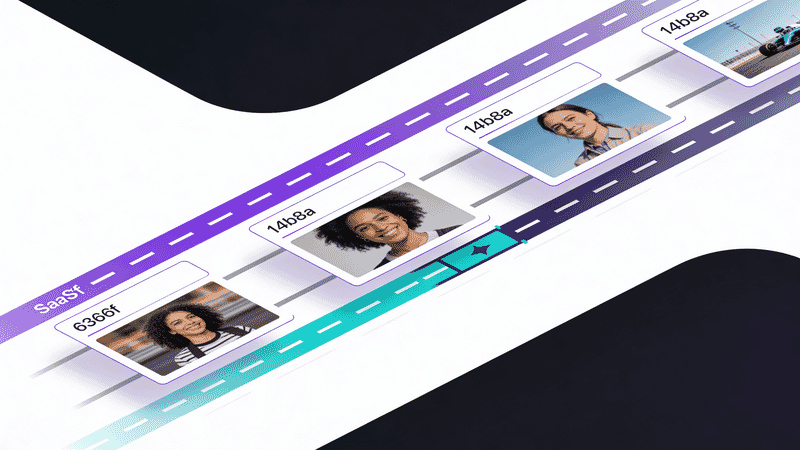
Image Preloading and Priority Hints
Master image preloading and fetchpriority for optimal performance. Learn when to preload, priority hints, responsive preloading, and avoiding common mistakes.
Preloading tells the browser to fetch critical images early. Priority hints control the order of resource loading. Together, they’re essential tools for optimizing Largest Contentful Paint (LCP).
Understanding Resource Priority
Browsers prioritize resources differently based on type and context:
| Resource Type | Default Priority |
|---|---|
| Main HTML | Highest |
| CSS (blocking) | Highest |
| Fonts | High |
| Scripts (blocking) | High |
| Images (in viewport) | Medium |
| Images (out of viewport) | Low |
| Async scripts | Low |
Images discovered late in the HTML or loaded via CSS start fetching late. Preloading solves this.
Basic Preloading
The <link rel="preload"> element tells the browser to fetch a resource immediately.
Simple Image Preload
<head>
  <link rel="preload" as="image" href="hero.jpg">
</head>
<body>
  <img src="hero.jpg" alt="Hero image">
</body>
Required Attributes
| Attribute | Purpose | Required |
|---|---|---|
rel="preload" | Declares preload | Yes |
as="image" | Resource type | Yes |
href | Resource URL | Yes |
type | MIME type | For modern formats |
imagesrcset | Responsive sources | For srcset |
imagesizes | Display sizes | With imagesrcset |
Preloading Modern Formats
Specify the type to help browsers that don’t support the format skip it:
<!-- Browser will skip if it doesn't support AVIF -->
<link rel="preload" as="image" href="hero.avif" type="image/avif">

<!-- Fallback preload for wider support -->
<link rel="preload" as="image" href="hero.webp" type="image/webp">Note: You generally only need to preload one format. The browser uses the first supported format from your <picture> element.
Responsive Image Preloading
For responsive images with srcset, use imagesrcset and imagesizes:
<head>
  <link
    rel="preload"
    as="image"
    href="hero-1200.jpg"
    imagesrcset="
      hero-600.jpg 600w,
      hero-900.jpg 900w,
      hero-1200.jpg 1200w,
      hero-1800.jpg 1800w
    "
    imagesizes="100vw"
  >
</head>

<body>
  <img
    src="hero-1200.jpg"
    srcset="
      hero-600.jpg 600w,
      hero-900.jpg 900w,
      hero-1200.jpg 1200w,
      hero-1800.jpg 1800w
    "
    sizes="100vw"
    alt="Hero"
  >
</body>
The browser selects the appropriate source based on viewport and DPR, just like with regular srcset.
Responsive Preload with Modern Formats
<head>
  <link
    rel="preload"
    as="image"
    href="hero-1200.avif"
    imagesrcset="
      hero-600.avif 600w,
      hero-900.avif 900w,
      hero-1200.avif 1200w
    "
    imagesizes="100vw"
    type="image/avif"
  >
</head>
Priority Hints: fetchpriority
The fetchpriority attribute gives more granular control over resource priority.
Using fetchpriority
<!-- High priority: LCP images -->
<img src="hero.jpg" fetchpriority="high" alt="Hero">

<!-- Low priority: below-fold, decorative -->
<img src="decoration.jpg" fetchpriority="low" loading="lazy" alt="">

<!-- Auto: browser decides (default) -->
<img src="content.jpg" alt="Content">
Values
| Value | Effect |
|---|---|
high | Increase priority above default |
low | Decrease priority below default |
auto | Browser decides (default) |
Combining with Preload
<head>
  <link
    rel="preload"
    as="image"
    href="hero.jpg"
    fetchpriority="high"
  >
</head>

<body>
  <img src="hero.jpg" fetchpriority="high" alt="Hero">
</body>
When to Use Each Priority
fetchpriority=“high”
- LCP/hero images
- Above-the-fold critical images
- Product images on e-commerce landing pages
fetchpriority=“low”
- Decorative images
- Below-fold images (combine with lazy loading)
- Carousels beyond the first slide
- Images in collapsed accordions
<!-- Hero: highest priority -->
<img src="hero.jpg" fetchpriority="high" alt="Hero">

<!-- Product grid: first visible row -->
<img src="product-1.jpg" fetchpriority="high" alt="Product 1">
<img src="product-2.jpg" fetchpriority="high" alt="Product 2">

<!-- Below fold: low priority + lazy -->
<img src="product-5.jpg" fetchpriority="low" loading="lazy" alt="Product 5">
Media-Based Preloading
Preload different images for different viewport sizes:
<head>
  <!-- Desktop hero -->
  <link
    rel="preload"
    as="image"
    href="hero-desktop.jpg"
    media="(min-width: 768px)"
  >

  <!-- Mobile hero (different image) -->
  <link
    rel="preload"
    as="image"
    href="hero-mobile.jpg"
    media="(max-width: 767px)"
  >
</head>
This is essential for art direction where different images are served at different breakpoints.
Preloading Background Images
CSS background images are discovered late. Preload them:
<head>
  <link rel="preload" as="image" href="hero-bg.jpg">
  <style>
    .hero {
      background-image: url('hero-bg.jpg');
    }
  </style>
</head>
With Media Queries
<head>
  <link
    rel="preload"
    as="image"
    href="hero-mobile.jpg"
    media="(max-width: 767px)"
  >
  <link
    rel="preload"
    as="image"
    href="hero-desktop.jpg"
    media="(min-width: 768px)"
  >
</head>
Preconnect and DNS-Prefetch
If images come from external domains, reduce connection time:
<head>
  <!-- Full connection (TCP + TLS) -->
  <link rel="preconnect" href="https://cdn.example.com">

  <!-- DNS only (lighter, wider support) -->
  <link rel="dns-prefetch" href="https://cdn.example.com">

  <!-- Then preload the image -->
  <link rel="preload" as="image" href="https://cdn.example.com/hero.jpg">
</head>
Best practice: Use preconnect for critical image CDNs, dns-prefetch for others.
When to Preload
Good Candidates for Preloading
- LCP images: Hero images that determine LCP score
- Above-fold images: Visible on initial load
- CSS background images: Not discovered until CSS parses
- Images loaded by JavaScript: Not in initial HTML
- Images after redirects: The browser discovers them late
Don’t Preload These
- Below-fold images: Use lazy loading instead
- All images: Preloading everything defeats the purpose
- Low-priority decorative images: Wastes bandwidth
- Already high-priority resources: Already prioritized by browser
The Preload Limit
Browsers limit concurrent connections and preload priority. Too many preloads dilute the benefit:
<!-- BAD: Too many preloads -->
<link rel="preload" as="image" href="image-1.jpg">
<link rel="preload" as="image" href="image-2.jpg">
<link rel="preload" as="image" href="image-3.jpg">
<link rel="preload" as="image" href="image-4.jpg">
<link rel="preload" as="image" href="image-5.jpg">
<link rel="preload" as="image" href="image-6.jpg">

<!-- GOOD: Only critical images -->
<link rel="preload" as="image" href="hero.jpg">
<link rel="preload" as="image" href="logo.svg">
Rule of thumb: Preload 1-3 images maximum per page.
LCP Optimization Pattern
The complete pattern for optimal LCP image loading:
<!DOCTYPE html>
<html>
<head>
  <!-- Preconnect to image CDN -->
  <link rel="preconnect" href="https://cdn.example.com">

  <!-- Preload LCP image with responsive sizes -->
  <link
    rel="preload"
    as="image"
    href="https://cdn.example.com/hero-1200.avif"
    imagesrcset="
      https://cdn.example.com/hero-600.avif 600w,
      https://cdn.example.com/hero-900.avif 900w,
      https://cdn.example.com/hero-1200.avif 1200w
    "
    imagesizes="100vw"
    type="image/avif"
    fetchpriority="high"
  >
</head>
<body>
  <picture>
    <source
      srcset="
        https://cdn.example.com/hero-600.avif 600w,
        https://cdn.example.com/hero-900.avif 900w,
        https://cdn.example.com/hero-1200.avif 1200w
      "
      sizes="100vw"
      type="image/avif"
    >
    <img
      src="https://cdn.example.com/hero-1200.jpg"
      srcset="
        https://cdn.example.com/hero-600.jpg 600w,
        https://cdn.example.com/hero-900.jpg 900w,
        https://cdn.example.com/hero-1200.jpg 1200w
      "
      sizes="100vw"
      alt="Hero"
      width="1200"
      height="600"
      fetchpriority="high"
    >
  </picture>
</body>
</html>
Measuring Impact
Chrome DevTools
- Network tab: Check when preloaded resources start loading
- Performance tab: Look at LCP timing
- Lighthouse: Check “Preload Largest Contentful Paint image”
Performance Observer
new PerformanceObserver((entryList) => {
  for (const entry of entryList.getEntries()) {
    console.log('LCP candidate:', entry.element);
    console.log('LCP time:', entry.startTime);
  }
}).observe({ type: 'largest-contentful-paint', buffered: true });
Resource Timing
// Check if preload helped
performance.getEntriesByType('resource').forEach(entry => {
  if (entry.name.includes('hero')) {
    console.log('Hero image timing:', {
      fetchStart: entry.fetchStart,
      responseEnd: entry.responseEnd,
      duration: entry.duration
    });
  }
});
Server-Side Considerations
HTTP/2 Server Push (Deprecated)
HTTP/2 Server Push is deprecated and being removed from browsers. Use preload instead.
103 Early Hints
Servers can send preload hints before the full response:
HTTP/1.1 103 Early Hints
Link: </hero.jpg>; rel=preload; as=image

HTTP/1.1 200 OK
Content-Type: text/html
...
This starts the image download while the server generates the HTML.
Link Header
Add preloads via HTTP header:
Link: </hero.jpg>; rel=preload; as=imageUseful for:
- Dynamic pages where you can’t easily modify HTML
- CDN-level optimization
- A/B testing preload strategies
Framework Integration
Next.js
import Head from 'next/head';
import Image from 'next/image';

export default function Page() {
  return (
    <>
      <Head>
        <link
          rel="preload"
          as="image"
          href="/_next/image?url=%2Fhero.jpg&w=1200&q=75"
        />
      </Head>
      <Image
        src="/hero.jpg"
        width={1200}
        height={600}
        alt="Hero"
        priority // Adds fetchpriority="high"
      />
    </>
  );
}Note: Next.js priority prop handles preloading automatically in many cases.
Nuxt.js
<script setup>
useHead({
  link: [
    {
      rel: 'preload',
      as: 'image',
      href: '/hero.jpg'
    }
  ]
});
</script>

<template>
  <NuxtImg src="/hero.jpg" fetchpriority="high" alt="Hero" />
</template>
Astro
---
// Generate preload link for responsive images
const heroSrcset = [
  { width: 600, src: '/hero-600.jpg' },
  { width: 900, src: '/hero-900.jpg' },
  { width: 1200, src: '/hero-1200.jpg' }
];
---

<html>
  <head>
    <link
      rel="preload"
      as="image"
      href="/hero-1200.jpg"
      imagesrcset={heroSrcset.map(s => `${s.src} ${s.width}w`).join(', ')}
      imagesizes="100vw"
    />
  </head>
  <body>
    <img
      src="/hero-1200.jpg"
      srcset={heroSrcset.map(s => `${s.src} ${s.width}w`).join(', ')}
      sizes="100vw"
      alt="Hero"
      fetchpriority="high"
    />
  </body>
</html>
Common Mistakes
Mistake 1: Preloading Without as=“image”
<!-- WRONG: Missing as attribute -->
<link rel="preload" href="hero.jpg">

<!-- CORRECT -->
<link rel="preload" as="image" href="hero.jpg">
Mistake 2: Preload URL Mismatch
<!-- Preload URL -->
<link rel="preload" as="image" href="hero.jpg">

<!-- Different URL used - preload wasted! -->
<img src="./hero.jpg" alt="Hero">
URLs must match exactly, including protocol, domain, and path.
Mistake 3: Preloading Lazy-Loaded Images
<!-- WRONG: Conflicts with lazy loading -->
<link rel="preload" as="image" href="below-fold.jpg">
<img src="below-fold.jpg" loading="lazy" alt="Content">

<!-- CORRECT: Don't preload lazy images -->
<img src="below-fold.jpg" loading="lazy" alt="Content">
Mistake 4: Missing type for Modern Formats
<!-- WRONG: Browser may preload unsupported format -->
<link rel="preload" as="image" href="hero.avif">

<!-- CORRECT: Browser can skip if unsupported -->
<link rel="preload" as="image" href="hero.avif" type="image/avif">
Mistake 5: Too Many Preloads
<!-- WRONG: Diminishes benefit -->
<link rel="preload" as="image" href="image-1.jpg">
<link rel="preload" as="image" href="image-2.jpg">
<link rel="preload" as="image" href="image-3.jpg">
<link rel="preload" as="image" href="image-4.jpg">
<link rel="preload" as="image" href="image-5.jpg">
Preload only 1-3 critical images.
Mistake 6: Unused Preloads
Chrome warns about preloads not used within 3 seconds:
The resource was preloaded using link preload but not used within a few seconds from the window's load event.Ensure preloaded resources are actually used.
Summary
Quick Reference
| Scenario | Approach |
|---|---|
| Hero/LCP image | Preload + fetchpriority=“high” |
| Responsive LCP | Preload with imagesrcset/imagesizes |
| Modern format LCP | Preload with type attribute |
| CSS background (critical) | Preload |
| External CDN images | Preconnect + Preload |
| Below-fold images | No preload, use lazy loading |
Checklist
- ✅ Preload your LCP image
- ✅ Use
fetchpriority="high"on LCP images - ✅ Include
typeattribute for AVIF/WebP preloads - ✅ Match preload URLs exactly with image URLs
- ✅ Use
imagesrcset/imagesizesfor responsive preloads - ✅ Preconnect to external image CDNs
- ✅ Limit preloads to 1-3 critical images
- ✅ Don’t preload lazy-loaded images
- ✅ Verify preloads are used (no browser warnings)
- ✅ Measure LCP improvement
Preloading and priority hints are precision tools. Used correctly on your most critical images, they can significantly improve LCP. Overused, they waste bandwidth and hurt performance.